6 Use the + or − button to select the input source.
REC MODE SOURCE (options) Explanation
MONO
INT MIC MONO
(default)
L/R signals of built-in mics
are mixed and recorded in
mono
EXT IN 1
L external input is
recorded in mono
STEREO
INT MIC ST (default)
Built-in mics are recorded
in stereo
EXT IN 1/2
External inputs are
recorded in stereo
7 Press the . button to select the other item.
8 If
REC MODE
is set to
STEREO
, you can also set MS mic
decoding.
When using MS mics, use the + and – buttons to select
the
MS DECODE
item, and press the ENTER/MARK or /
button.
Use the + and – buttons to set
MS DECODE
to
ON
.
9 Press the (HOME) [8] button to return to the
Home Screen.
Set where to save the file
Set the folder where recorded les are saved. The created
sound le will be saved in the currently selected folder. For
details, see
SELECT
popup menu under “Folder operations” on
page 72.
If no setting is made, new recording les are placed in the
MUSIC folder.
Starting the recording
1 Press the RECORD [0] button to begin recording
standby.
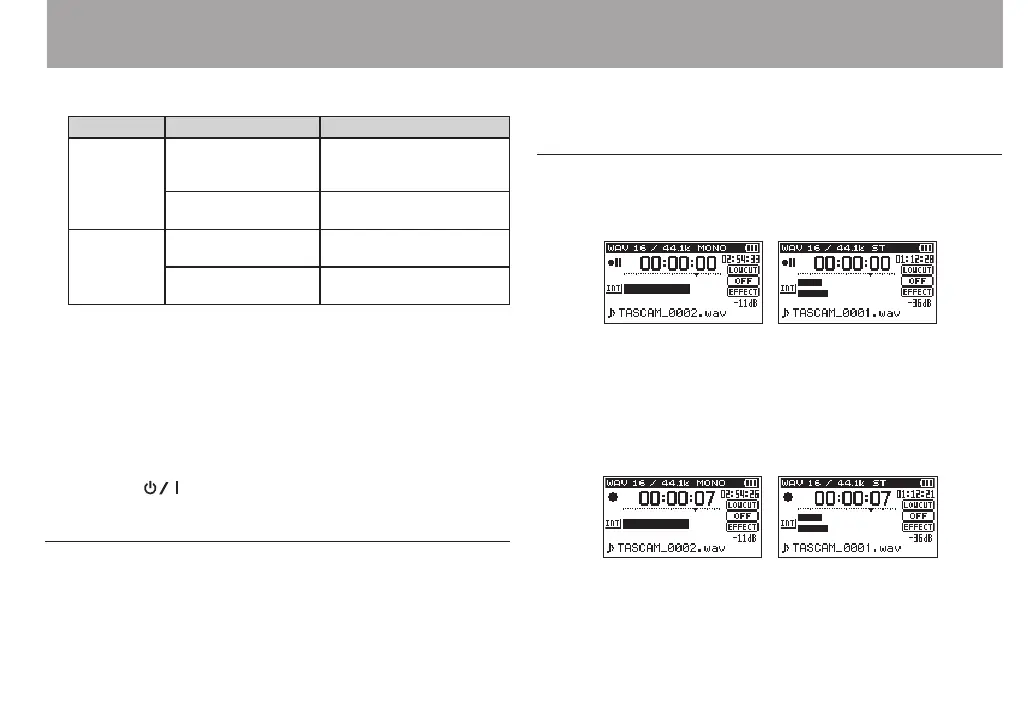
Mono Recording Stereo Recording
The screen shows the recording file name, the input source,
the recording audio file type and sampling frequency.
Please confirm that these are as desired before starting
recording.
2 To start recording, press the RECORD [0] button again.
Mono Recording Stereo Recording
When recording starts, the indicator lights continuously,
and the display shows the elapsed recording time and the
remaining recording time.
4 – Recording


 To Next Page