Mark function
Adding marks manually to a recording
You can manually add marks to a recording where you want
them.
Press the ENTER/MARK button while recording to add a
mark.
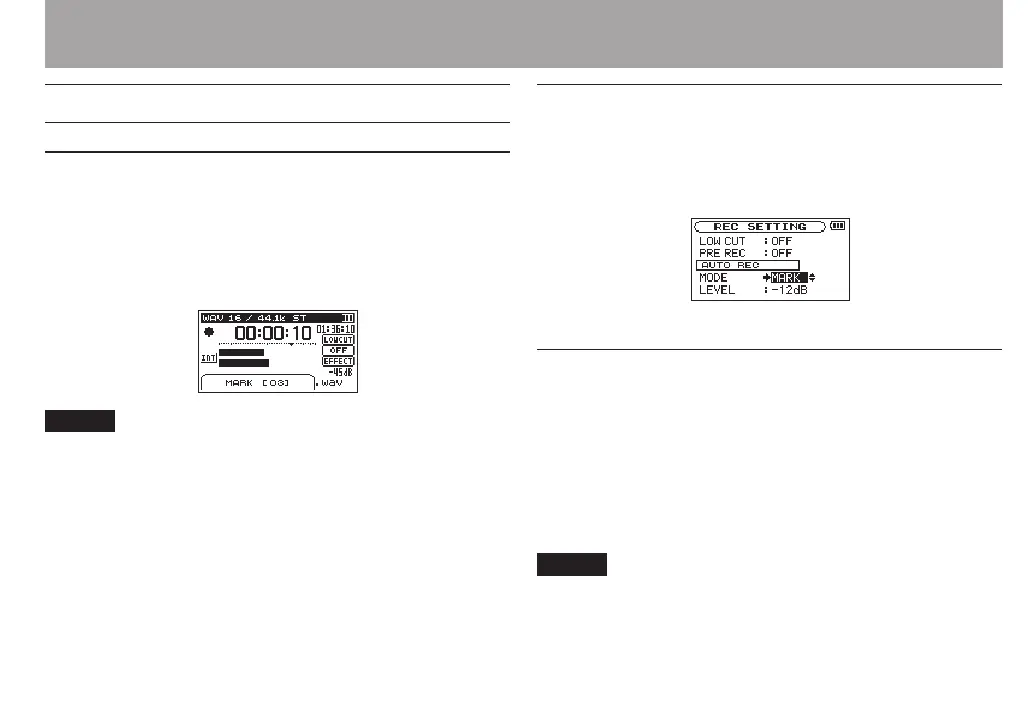
Mark number pull-up appears.
NOTE
Mark information is stored in the le with numbers between
•
01–99. The maximum number of marks in a le is 99.
As the unit is compatible with the BWF format for WAV les,
•
marks added to a WAV le during recording are stored in the
le. Marks stored in the le are available when playing back
the le using a BWF compliant software, etc.
When using the built-in mics, the sound of pressing the
•
button when adding a mark could be recorded. To avoid
this, use a remote control to add marks.
Adding marks automatically to a recording
This function allows the unit to add marks automatically using
AUTO REC
.
On the
REC SETTING
screen, set the
AUTO REC
section
MODE
item to
MARK
.
See “Recording automatically (AUTO REC)” on page 62.
Moving to a mark position
You can move to marks in the currently selected le when
stopped and during playback.
You can use this function to identify points to create shortcuts
to the beginning of songs, for example.
Press the . or / button while pressing and
holding the ENTER/MARK button during playback or
when stopped.
NOTE
You cannot move to a mark in a dierent le.
4 – Recording


 To Next Page