Playlist
You can make a list of les for playback (playlist). On the
PLAY
SETTING
Screen if you select
PLAYLIST
for the
AREA
item, you
can set playback to just the les in your playlist.
Adding files to the playlist
1 Press the MENU button to open the
MENU
screen.
2 Use the + or − button to select
BROWSE
, and press the
ENTER/MARK or / button.
BROWSE
screen appears.
NOTE
For an explanation of how to use the
BROWSE
Screen, see
“Screen navigation” on page 69.
3 Use the + or − button to select the file you want to add
to the playlist, and press the QUICK button.
NOTE
For details about how to select the le, see “Screen navigation”
on page 69.
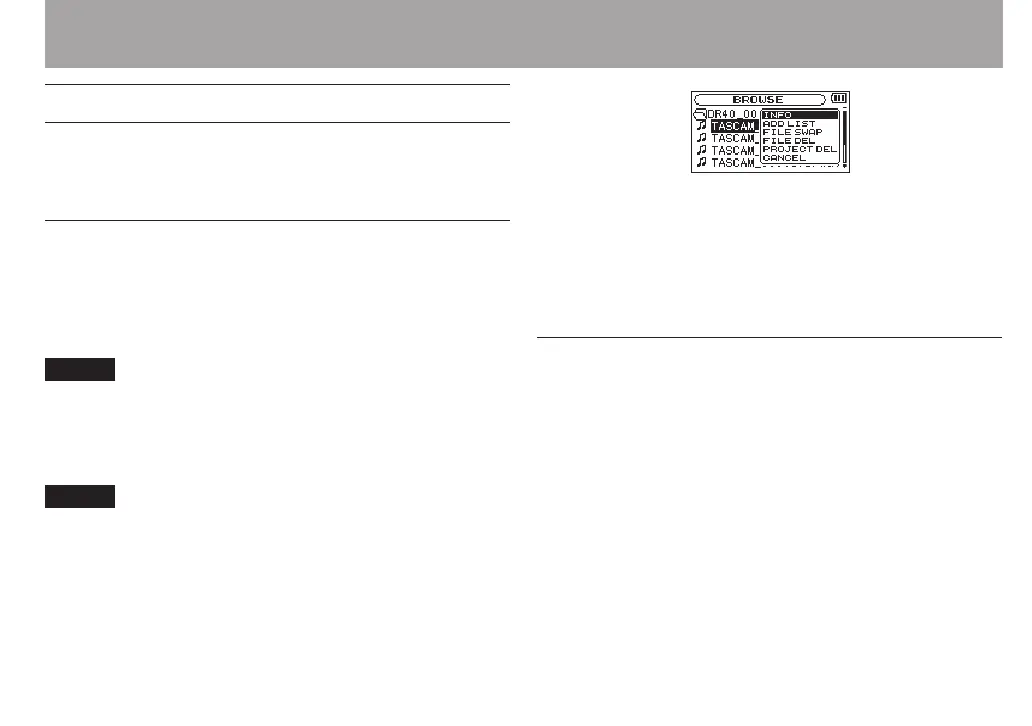
A pop-up window appears.
4 Use the + or – button to select
ADD
LIST
.
5 Press the ENTER/MARK button.
The file is added to the playlist and the popup window
closes.
6 Repeat steps 3, 4, and 5 as necessary to add more files
to the playlist. The files are numbered in the order that
they are added.
Editing the playlist
You can view and edit the playlist you have made on the
PLAYLIST
screen.
You can also use this screen to play les and to edit the
playlist.
1 Press the MENU button to open the
MENU
screen.
2 Use the + or − button to select
BROWSE
, and press the
ENTER/MARK or / button.
BROWSE
screen appears.
3 Use the . button to move to the top folder level.
6 – Playback


 To Next Page