setting, the playback area is set to
FOLDER
, and this folder
becomes the new playback area.
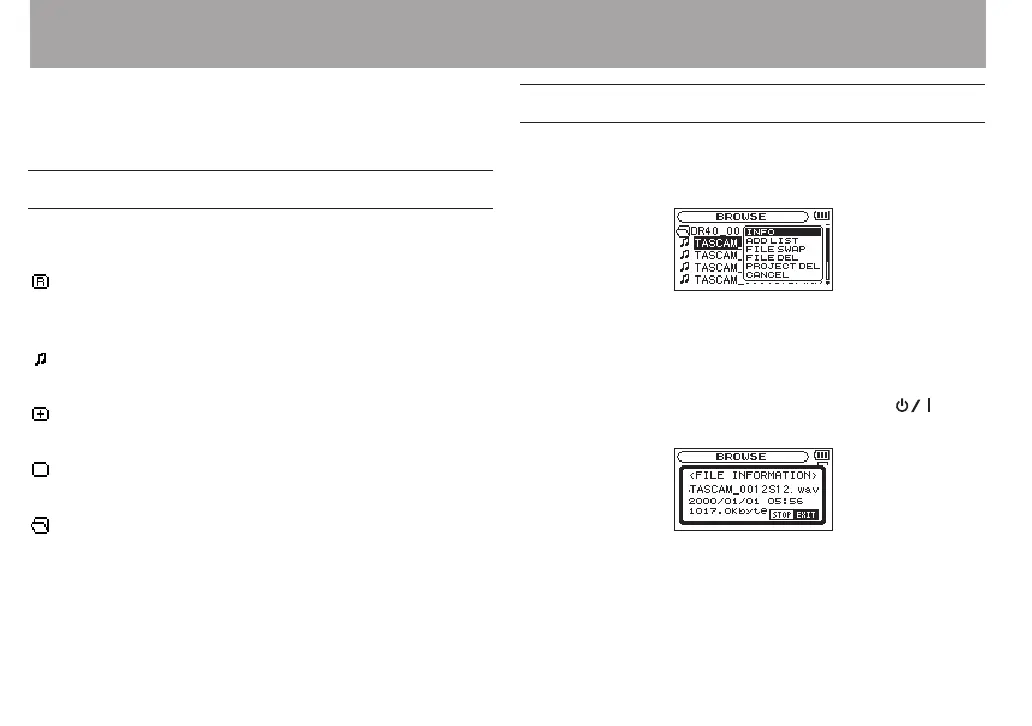
Icons on the BROWSE screen
The meanings of icons that appear on the
BROWSE
Screen are
as follows.
Root Music Folder (
MUSIC
)
The
MUSIC
Folder is the highest (root) level folder in the
hierarchy shown on the
BROWSE
Screen.
Audio le
This icon appears before the names of music les.
Plus folder
This icon shows folders that contain subfolders.
Plain folder
This icon shows folders that do not contain subfolders.
Open folder
The contents of the folder marked with this icon currently
appear on this screen.
File operations
Select the desired audio le on the
BROWSE
Screen and press
the QUICK button to open the pop-up window that is shown
below.
Use the + or − button to select the item you want from the
following list and press ENTER/MARK button to execute it.
INFO
Information (date/time, size) about the selected le appears.
Press the ENTER/MARK button again or press the
(HOME) [8] button to return to the
BROWSE
screen.
ADD LIST
Adds the selected le to the playlist. (See “Playlist” on page
77.)
5 – Working with Files and Folders (BROWSE screen)


 To Next Page