Starting 4-channel recording
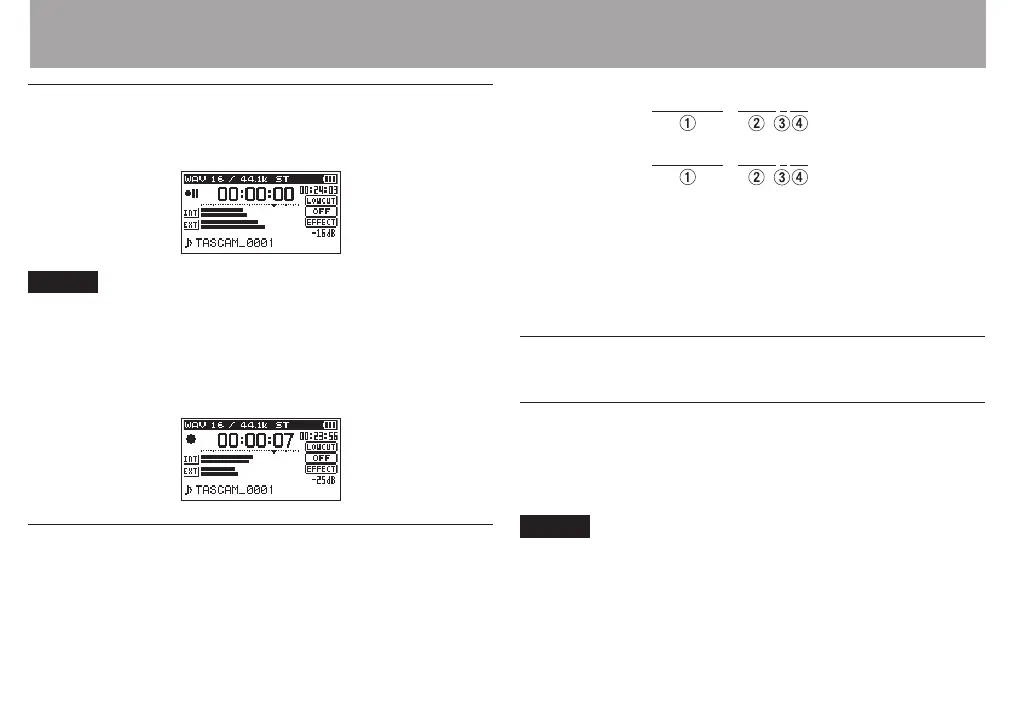
1 Press the RECORD [0] button to begin recording
standby.
NOTE
Before you start recording you can conrm the recording
audio le format and sampling frequency at the top of the
recording screen, as well as the input sources on the left and
the recording project name beneath the meter bars.
2 Press the RECORD [0] button again to start recording.
File names when recording in 4-channel
4-channel recording creates two les simultaneously.
Two les – one for the built-in mics (channels 1/2) and one for
the external mics or equipment (channels 3/4) – are created as
a set.
TASCAM_0002S12.WAV
TASCAM_0002S34.WAV
1: Set with the
WORD
item on the
FILE NAME
screen
2: Recording le base number
3: “S” is the source le
4: Assigned channels (“12” is channels 1/2 and “34” is
channels 3/4)
Recording playback and input sounds
together (overdubbing)
Overdubbing has two modes.
Using the overdubbing function, you can mix input signals
with an audio le that is played back and record either the
combined signals or just the input signal as a new le.
NOTE
In OVERDUB mode, the pre-recording and auto-recording
•
functions are disabled.
In OVERDUB mode, you cannot start new les manually.
•
You cannot pause in OVERDUB mode. (You cannot use the
•
RECORD [0] button.)
4 – Recording


 To Next Page