Operating Instructions
112
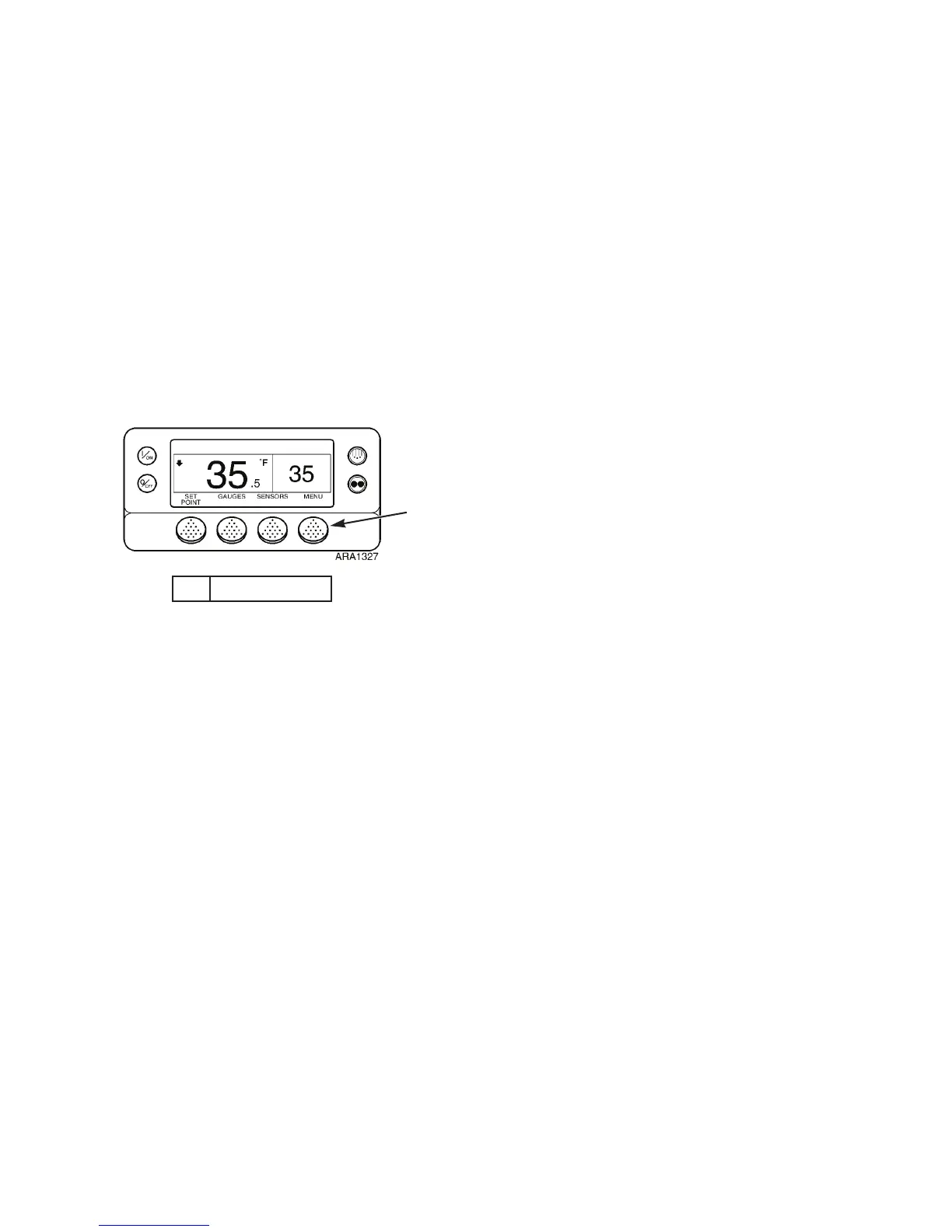
2. Press the MENU soft key on the Standard Display.
3. Press the N
EXT soft key until the Adjust Brightness Menu
appears. See Figure 82.
4. Press the S
ELECT soft key to enter the Adjust Brightness
Menu. See Figure 82.
5. Press the + or - soft keys to select the desired brightness.
See Figure 82. This example shows changing screen
brightness from low to medium.
6. Press the Y
ES soft key to enter the new brightness level.
7. The “ADJUSTING BRIGHTNESS - PLEASE WAIT”
Screen briefly appears.
8. The selected level appears on the screen.
9. The Adjust Brightness Main Menu Screen reappears.
10. Press the Exit soft key to return to the Standard Display. If
no keys are pressed within 30 seconds, the screen will
return to the Standard Display.
1. Menu Soft Key
Figure 81: Standard Display
1
Operating Instructions
112
2. Press the MENU soft key on the Standard Display.
3. Press the N
EXT soft key until the Adjust Brightness Menu
appears. See Figure 82.
4. Press the S
ELECT soft key to enter the Adjust Brightness
Menu. See Figure 82.
5. Press the + or - soft keys to select the desired brightness.
See Figure 82. This example shows changing screen
brightness from low to medium.
6. Press the Y
ES soft key to enter the new brightness level.
7. The “ADJUSTING BRIGHTNESS - PLEASE WAIT”
Screen briefly appears.
8. The selected level appears on the screen.
9. The Adjust Brightness Main Menu Screen reappears.
10. Press the Exit soft key to return to the Standard Display. If
no keys are pressed within 30 seconds, the screen will
return to the Standard Display.
1. Menu Soft Key
Figure 81: Standard Display
1



 To Next Page