5. A policy named Default Prevention is active upon the addition of the Sensor. To view this policy, select Policy → <Admin
Domain> → Intrusion Prevention → Policy Types → IPS Policies.The Default Prevention policy contains attacks already
congured with a "blocking" Sensor response action. If any attack in the policy is triggered, the Sensor automatically
blocks the attack. To tune this or any other Trellix IPS-provided policies, you can clone the policy and then customize it as
described in Trellix Intrusion Prevention System Product Guide.
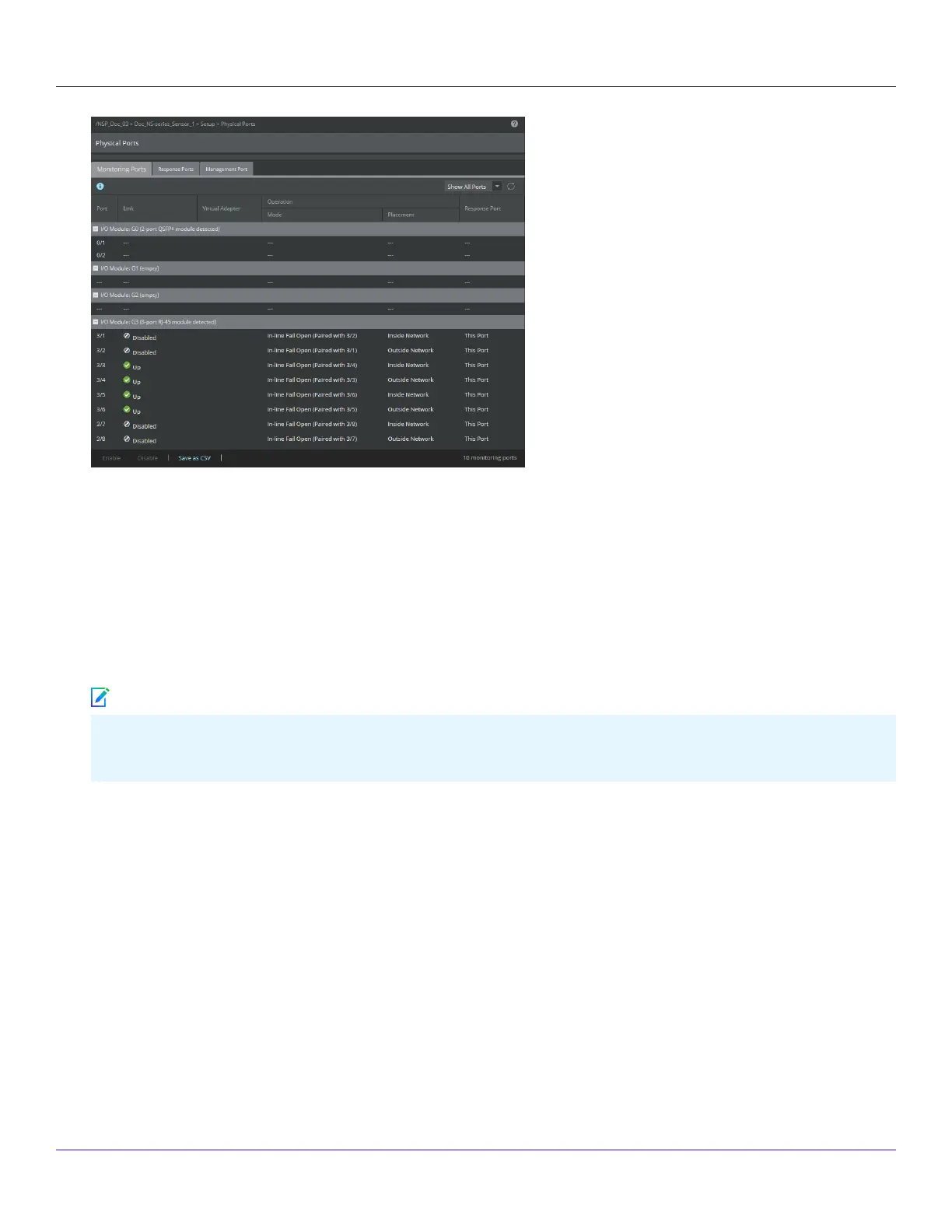
6. Click Device List → <Device_Name> → Port Settings.
7. To view port settings, select the port on the Sensor that you cabled. Ensure that your port settings match the cabling. For
example, if port 1 is cabled for inline mode, the mode of operation in the port setting should be inline mode.
For more information on port settings, see the chapter Conguring the monitoring and response ports of a Sensor in Trellix
Intrusion Prevention System Product Guide.
:
You're up and running!
Your Sensor is actively monitoring connected segments and communicating with the Manager for administration and
management operations.
Steps:
1. For detailed usage instructions, see Trellix Intrusion Prevention System Product Guide, or click the? buttons in the upper-right
corner of each window in the Manager.
2. Start the Analysis → <Admin Domain> → Attack Log to view alert statistics as attacks are detected. A summary of alerts is
displayed in the Unacknowledged Alert Summary monitor of the Manager Dashboard page.
3. Having problems? Check Trellix Intrusion Prevention System Product Guide for troubleshooting information.
Trellix Intrusion Prevention System NS-series Sensor Product Guide
| NS7x00 Sensors5
228
Note



 To Next Page