5. Click Save.
The added Sensor is displayed on the Sensors tab of Device Manager page.
:
Congure Sensor information
Congure the Sensor with the network information, a name, and the shared secret key that the Sensor uses to establish secure
communication with the Manager. Use the name and key values you set in Add the Sensor to the Manager section.
You must have physical access to the Sensor when you congure a Sensor for the rst time.
At any time during conguration, you can type a question mark (?) to get help on the Sensor CLI commands. Type commands for a
list of all commands.
Steps:
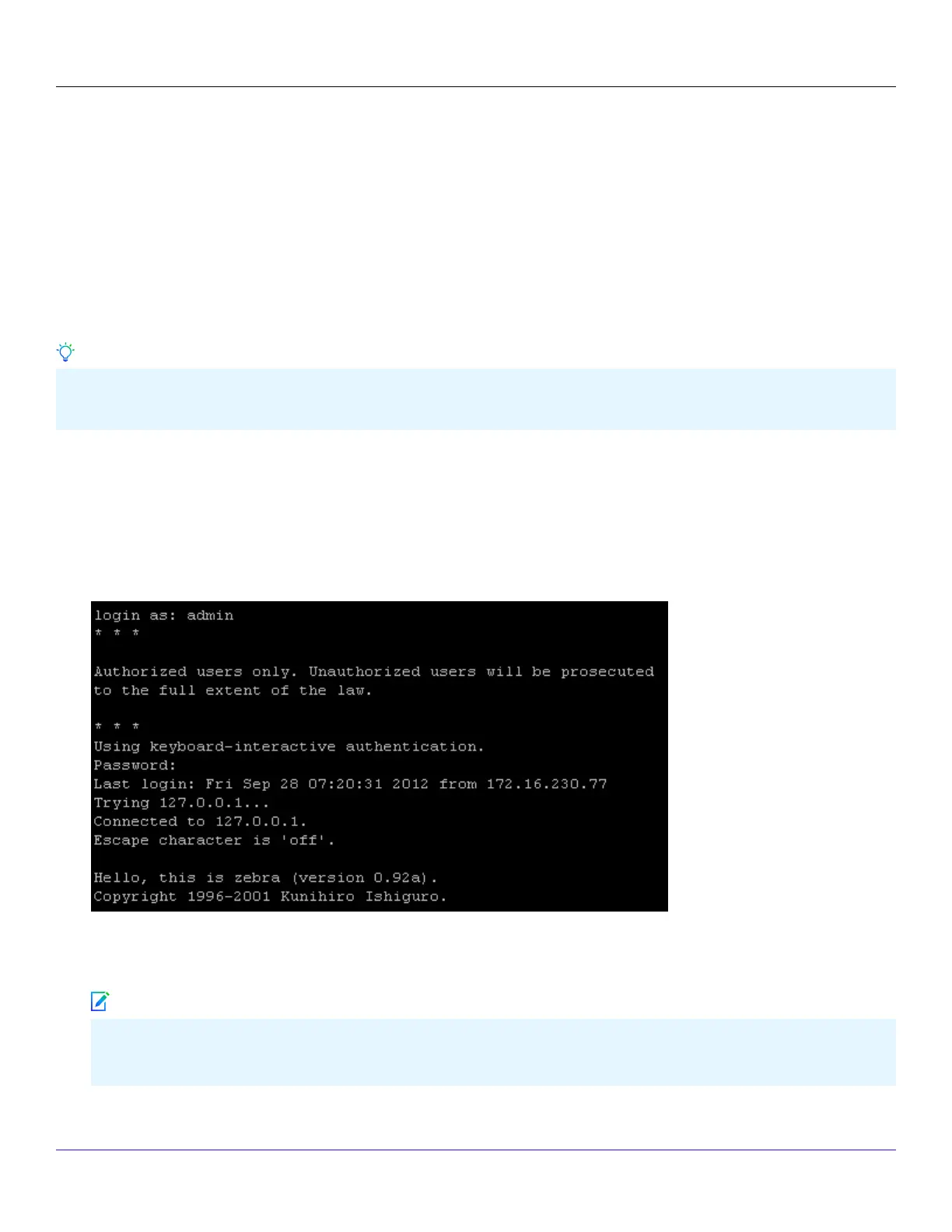
1. Log on to the Sensor using the terminal connected to the Console port.
2. At the prompt, log on using the default Sensor username (admin) and password (admin123).
3. (Optional, but recommended) Change the Sensor password. At the prompt, type passwd. The Sensor prompts you to enter
the new password and asks you for the old password.
A password must contain between 8 to 25 characters, is case-sensitive, and can consist of any alphanumeric character
or symbol.
Trellix Intrusion Prevention System NS-series Sensor Product Guide
| NS9500 Sensors1
76
Tip
Note



 To Next Page