10 Vectorworks 2010 Products
Vectorworks Spotlight 2010 Getting Started Guide
There are specic lists and forums for theatre and Spotlight, but I would not neglect the general forums and lists. Many issues that arise
in Spotlight are familiar to the larger groups of users. Questions posed to the online community are often answered almost immediately.
Since Vectorworks is used widely internationally, it almost doesn’t matter when you are working; there are other people working around
the world.
You will nd links to the online community as well as RSS feeds in the favorites tab of the Help application. As you explore Vectorworks
online, you can add other links.
Reading online posts is a great way to learn the full capabilities of
Vectorworks. The new user may not immediately grasp all of the
topics, but eventually it will all make sense.
PDF manuals can be accessed from the Help table of contents.
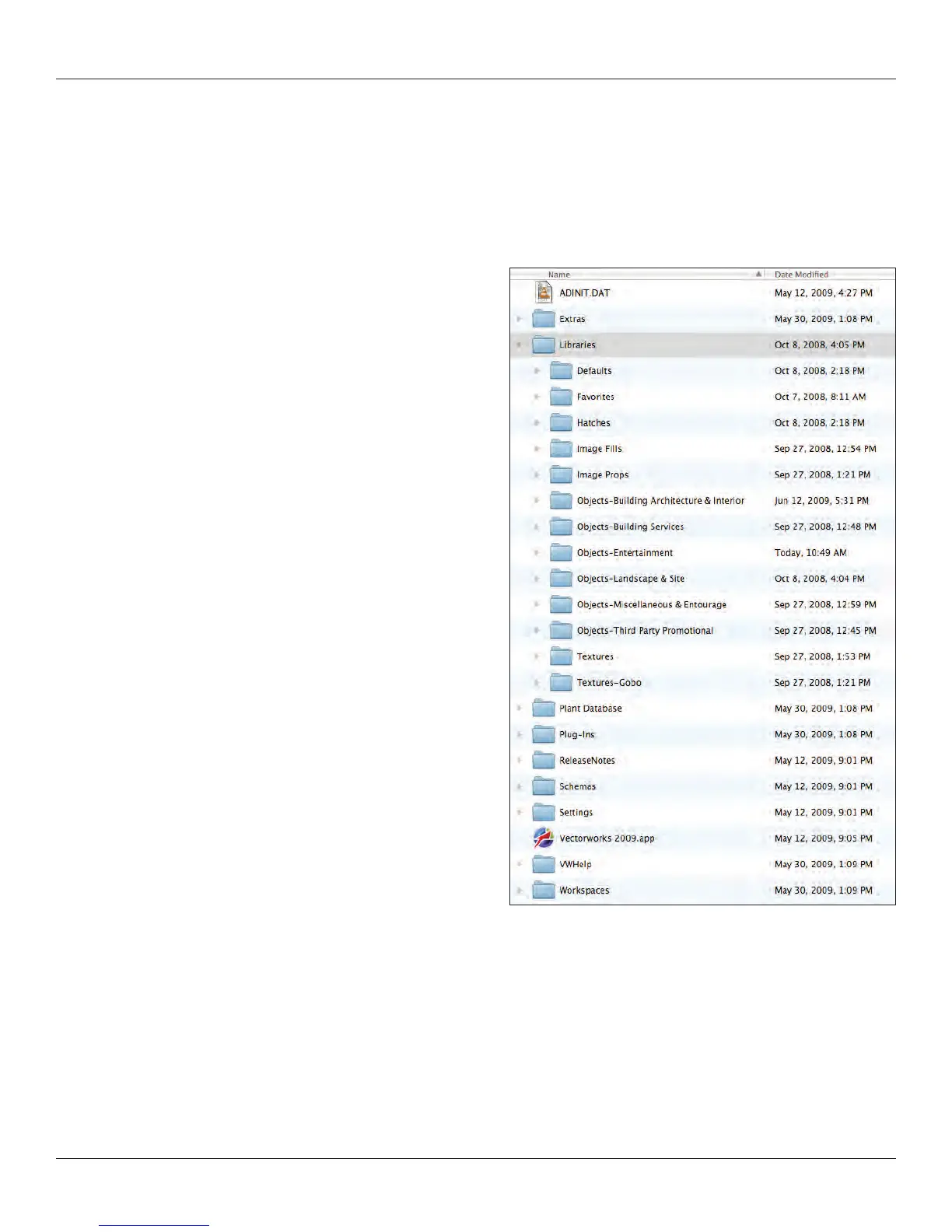
Let’s take a look at what else comes with the application.
Some of the terms used here have not been dened as yet; we’ll get
to them, but it is important to have an early idea about what comes
with the application.
On a Mac, the Vectorworks directory should be in the Applications
folder on your hard drive. On a PC, this directory should be in the
Program Files folder.
The libraries are another important feature that will take time to
explore. The libraries are lled with symbols (pre drawn objects) that
can be used. Critically, the Objects-Entertainment directory contains
symbols for nearly all of the lighting instruments available. There are
also accessories, lighting positions, speaker symbols, and truss
symbols.
There are also libraries for textures (used for ‘painting’ scenic
elements and Gobo Textures).
Symbols are 2D and 3D combined, or ‘Hybrid’ objects, that can be
used repetitively and can have critical information attached to them
via a data record. We’ll discuss symbols throughout this guide.



 To Next Page