Vectorworks 2010 Products 11
Vectorworks Spotlight 2010 Getting Started Guide
The Spotlight Workspace
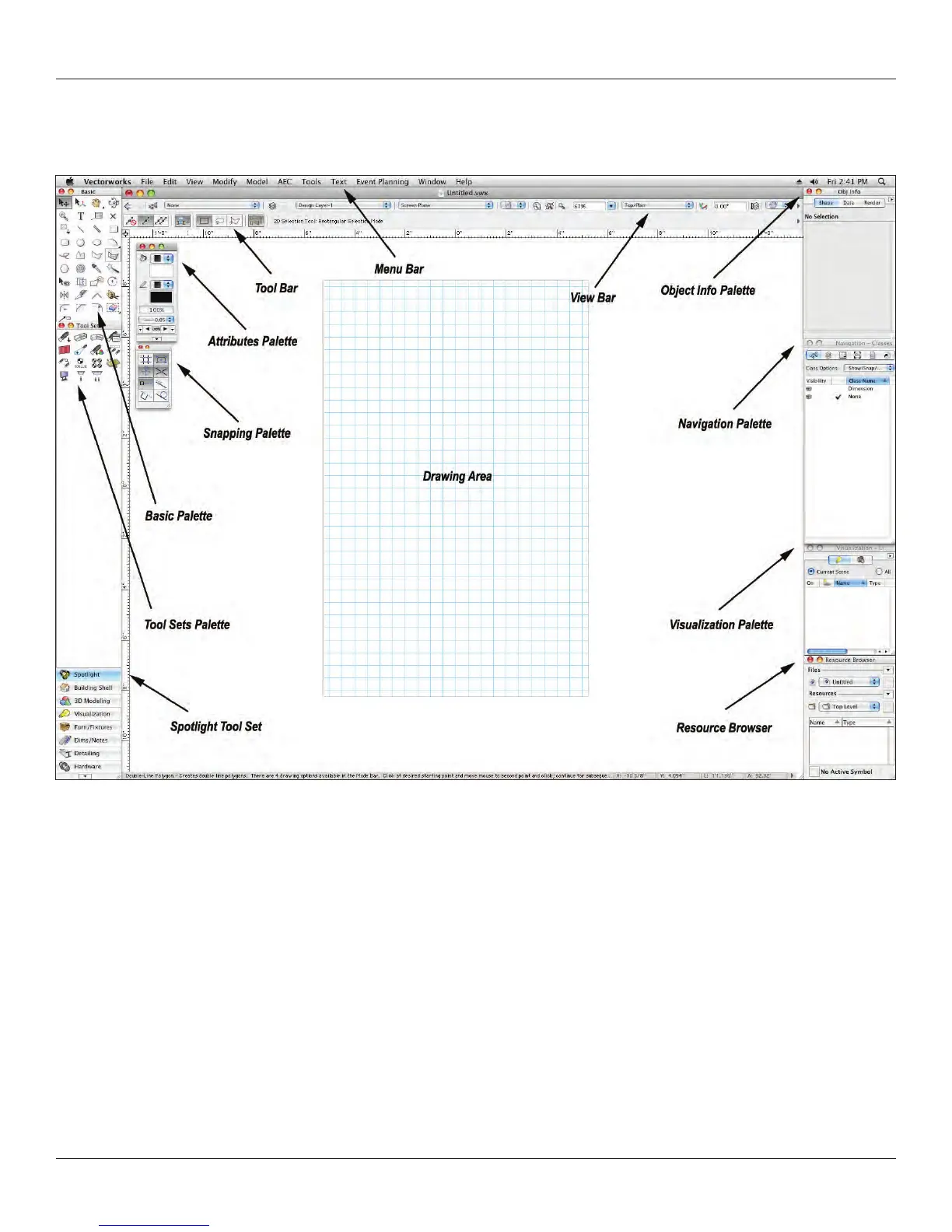
When rst opening the Vectorworks Spotlight application, if your screen doesn’t look like this, you either don’t have Spotlight or you’re
in the wrong workspace. Go to the Menu and select Tools>Workspaces> Spotlight.
On the left side of your screen you should see the Basic Tool Palette and the Tool Sets Palette which allow you to access additional
tools for particular jobs. The Attributes Palette and the Snapping Palette are also to the left. On the right you should see the Object
Information Palette (OIP), Navigation Palette, Visualization Palette and Resource Browser.
At the top of the active window, you will see the View bar and the Tool Bar. The Tool Bar displays different options available for each
tool selected from the Basic Tool Set or one of the task specic Tool Sets. The View bar allows ready access to a number of important
functions. View bar functions can be hidden and displayed from the drop-down list on the right of the View bar.We will cover most of the
View bar elsewhere, but from the left you will see forward and backward arrows; clicking on these will take you back and forth between
recent document views. Skip to the center right and you will see two magnifying glass icons that take you a view of either a selected
item or to a view of all items in the visible drawing (if nothing is selected). Command-6 on a Mac and Control-6 on a PC have the
same functionality.



 To Next Page