66 Vectorworks 2010 Products
Vectorworks Spotlight 2010 Getting Started Guide
Scripting
Don’t let scripting scare you. While Vectorworks does come with its own powerful
scripting language that’s certainly not something we’re going to learn ‘Getting
Started.’ What we can do is create a simple macro. You might want to create
more. Let’s say that you want to change all of the R37 in this plot to another
color. That sounds pretty tedious, even if we don’t have a ton of instruments.
Worse if this were a 500 unit production.
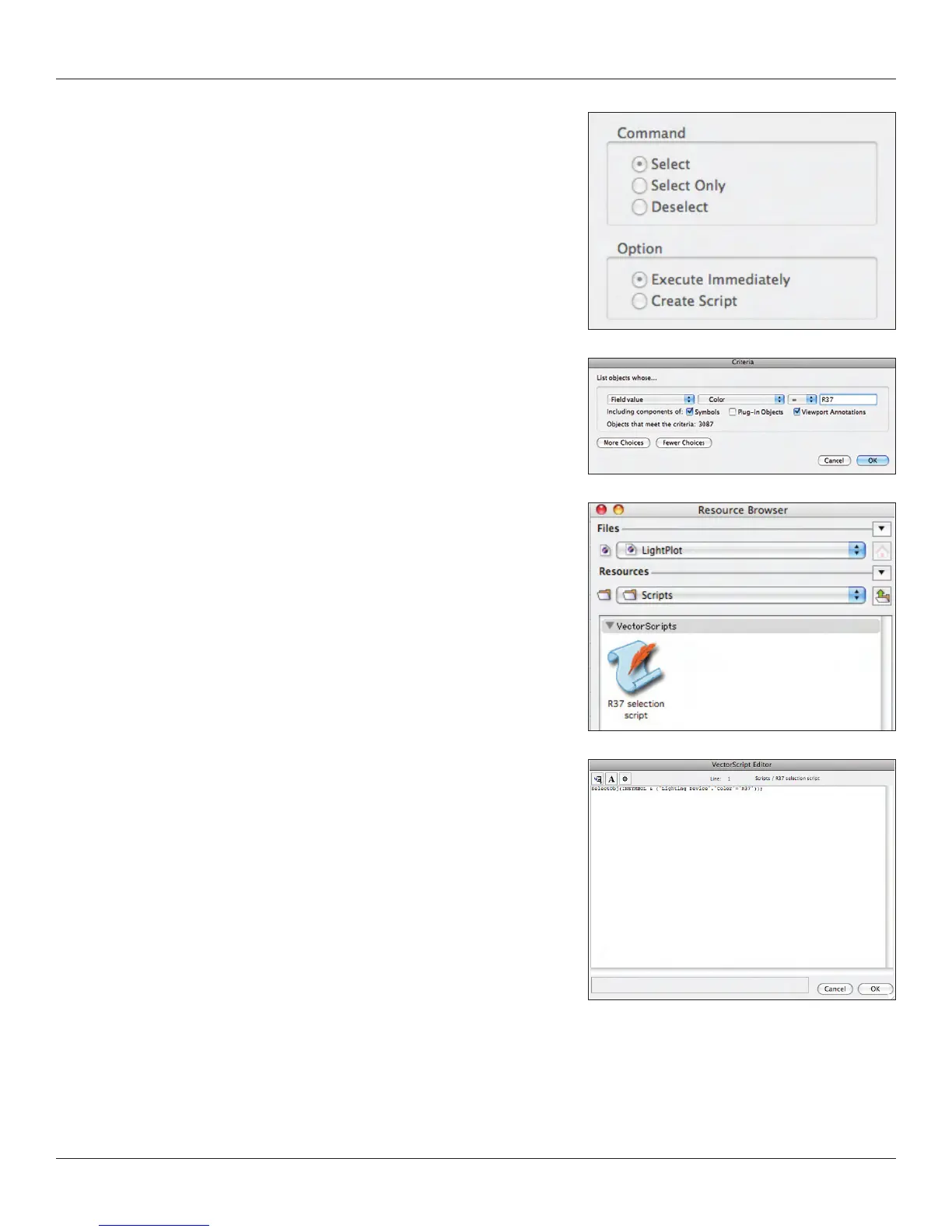
Go to Tools>Custom Selection. Select Create Script and then Criteria. Set the
criteria as illustrated. Note all of the options, this is a technique that can be used
for many things. Once you have all these units selected, you can change the
color in every one with one keystroke in the OIP.
Once you save the script, you will have a new ‘Scripts’ window. To execute the
script, double click on the name.
Want to change different color and that R37 script isn’t doing you any good
because all the R37 is gone. No worries, the script is stored in the Resource
Browser. Open the Scripts folder, right click on the script in question and select
edit from the contextual menu.
Just change the color number and save. The script is ready to run in the
Script window.
If you close your script window, you can always get it back at Window>Script
Palettes>Scripts.



 To Next Page