64 Vectorworks 2010 Products
Vectorworks Spotlight 2010 Getting Started Guide
Vertical Lighting Positions
This show probably wants a bit of sidelight. This is going to sound a bit counter-
intuitive, but it will all make sense when we put the pieces together using the
Create Plot and Model View command later in this section.
You will likely want to create a new label Legend for your booms. I made two;
one with the info on the right and the other with the info on the right. Remember
once you have label Legends, add them to your Default.Sta document.
Also remember, I am not drawing this plot for production, I am drawing this to
illustrate how all these tools work and work together. In production other and/or
different elds would be required. The principles remain the same.
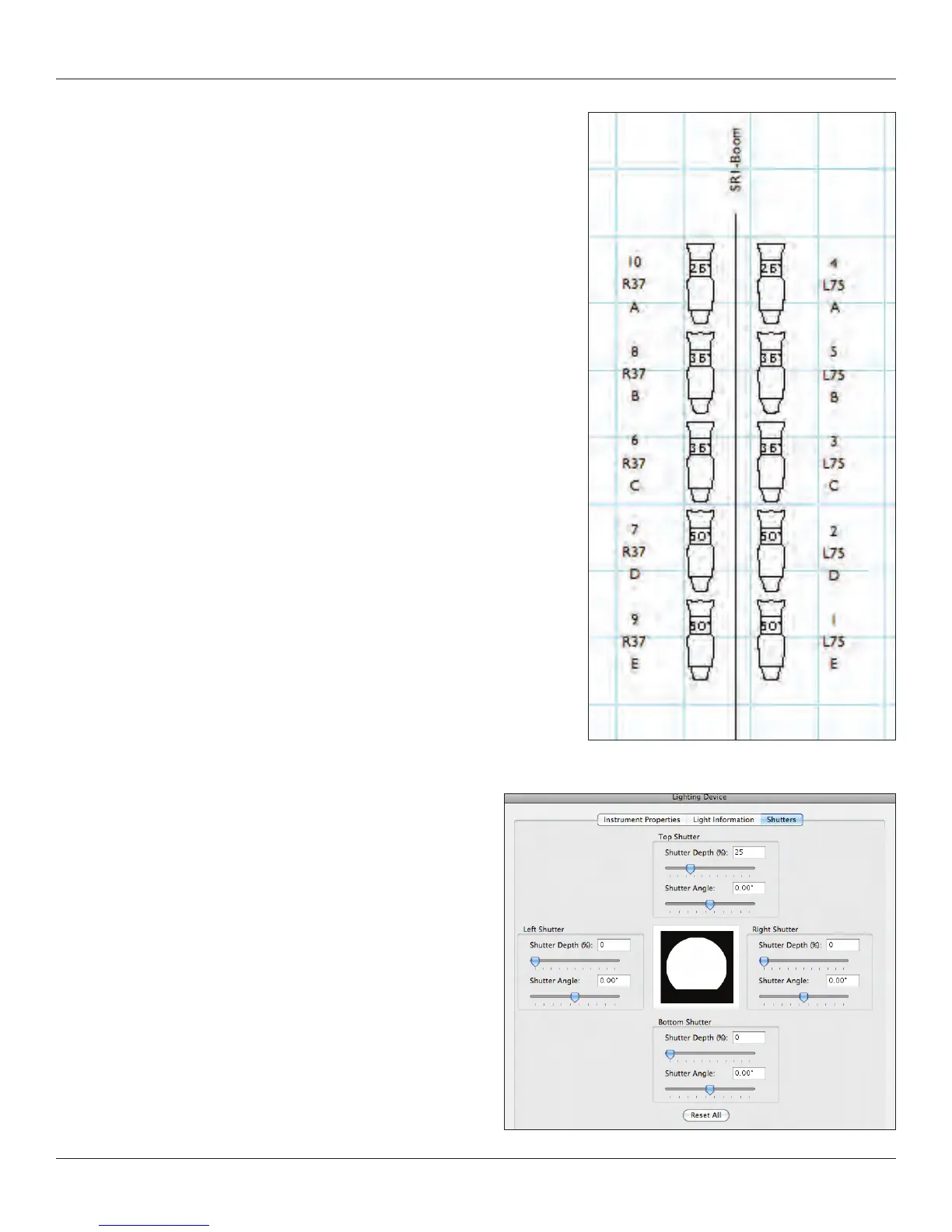
Place a 20’ [6.096m] pipe outside of the theatre architecture SL. Populate
the position with a few lights. I started with one unit to the right of the position.
I assigned the unit to the position and gave it a color and Label Legend. I
duplicated the light down the pipe and Mirrored the units. Now Mirror the entire
position. Reassign the label legends. Name the position and assign the lights to
the position.
Shutter Cuts for Visualization
Double click on an instrument in your plot and open the Lighting
Device dialogue. The right hand tab will be for shutters. I nd this
dialogue simple and easy to understand. It is very interactive. Y
ou
will need to check your work as you go by rendering with the one
light on (the one you are shuttering), but this should be pretty
straight forward.
The key thing here is knowing how to nd the option.



 To Next Page