Vectorworks 2010 Products 95
Vectorworks Spotlight 2010 Getting Started Guide
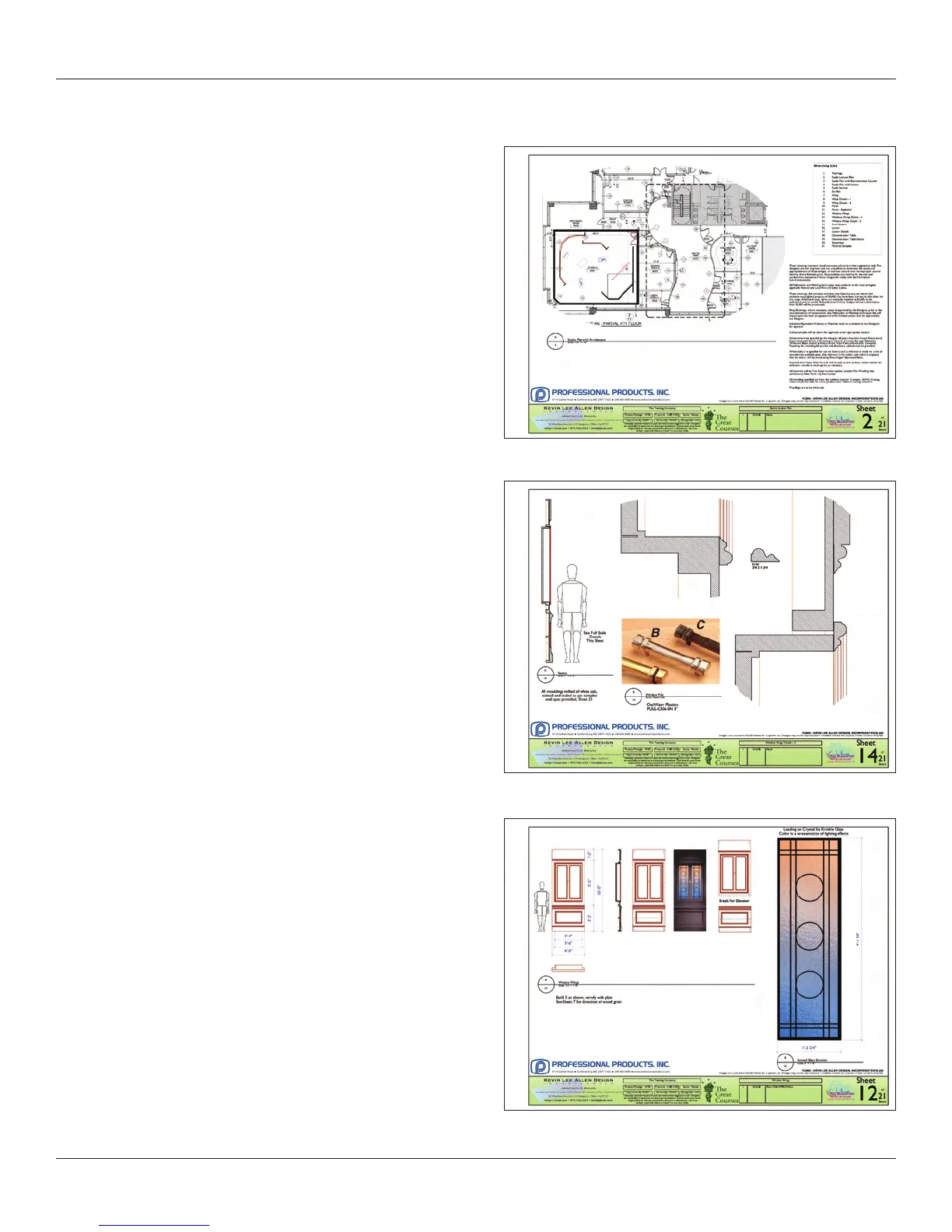
Viewport Cropping
When you right click on a Viewport, one option is Viewport
Cropping. Entering the Crop Space of the Viewport allows you
to eliminate extraneous information or focus the viewer as
needed. You might have several views of your light plot, one
where you have cropped out the booms to place them on the
sheet differently than you placed them in the design layer, or if
you have several booms, they might appear on another sheet.
Scenic details often require full scale sections. You’re probably
not going to have a sheet of paper 16’ long to show the
mouldings, but you can have several copies of the same
viewport with just the different mouldings visible.
I could go on.
Any 2D shape can be a crop. One per Viewport. I create a crop
class and turn it off so I don’t see the shape. If I want to edit
the crop later, I just turn the class on, make the edit and turn
the class off.
Section Viewports
Go to View>Create Section Viewport. Locate the
centerline, align with that point, and draw the section line
through the plan view. Click once to stop the line and on
one side of the line to select the view. The Create Section
Viewport dialog box opens. Place the section viewport on
the empty sheet layer you created earlier.
You should end up with two sheets that look like these:



 To Next Page