Vectorworks 2010 Products 43
Vectorworks Spotlight 2010 Getting Started Guide
Multiple Extrude
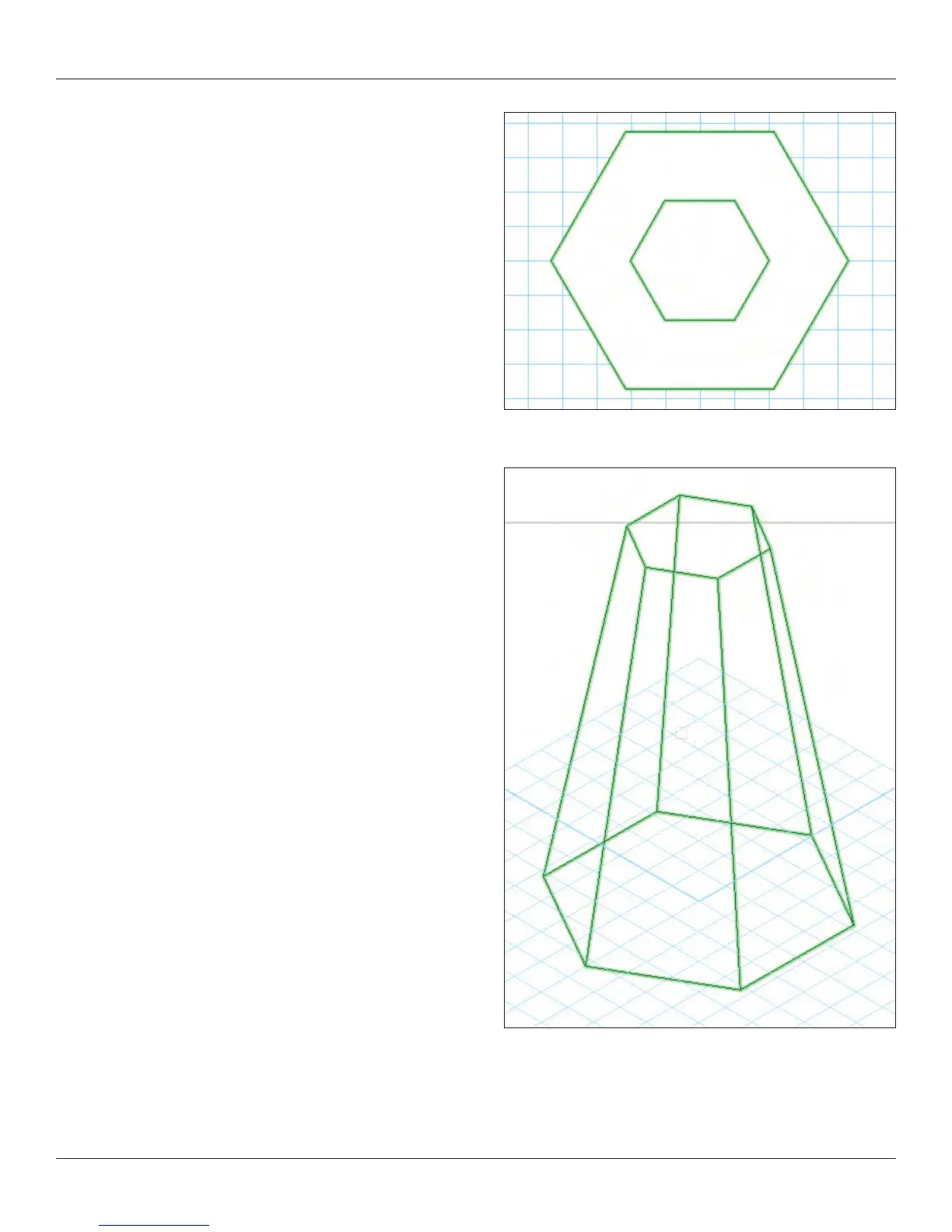
Multiple extrude allows for the creation of truncated and tapered
objects. Draw a simple 2D primitive, a rectangle or a circle. Offset
inside of that object. Select both proles and go to Model>Multiple
Extrude. Set a height and use the yover tool to examine what you
have made. Double click on the object to edit, or edit in the OIP.
Note and experiment with the fact that these objects do not have to
be centered over one another.
Similarly, see the type of results that you can achieve with a single
primitive and using the Model>Tapered Extrude command.
Editing 3D Shapes
All of the 3D shapes we have created can be edited or modied by
double clicking on the shape. At that point you can change the 2D
primitives used as the foundation of your form.
Exercise
Like in the 2D Primitive section, create a le with at least 11 design
layers. You will need more, but one layer should contain your basic
title information and 10 layers should contain object that you have
drawn and modeled into 3D using the methods described above.
The additional layers will be tracing layers. Assume that you will
draw some objects essentially freehand or draw objects that you
have sketched out with some basic dimensions and worked off of
guidelines you have drawn for yourself. Search the internet and nd
a few JPEG’s and PDF les to trace. Be sure to nd a raster PDF
and a vector PDF to see the difference in tracing.



 To Next Page