36 Vectorworks 2010 Products
Vectorworks Spotlight 2010 Getting Started Guide
Fillet and Chamfer
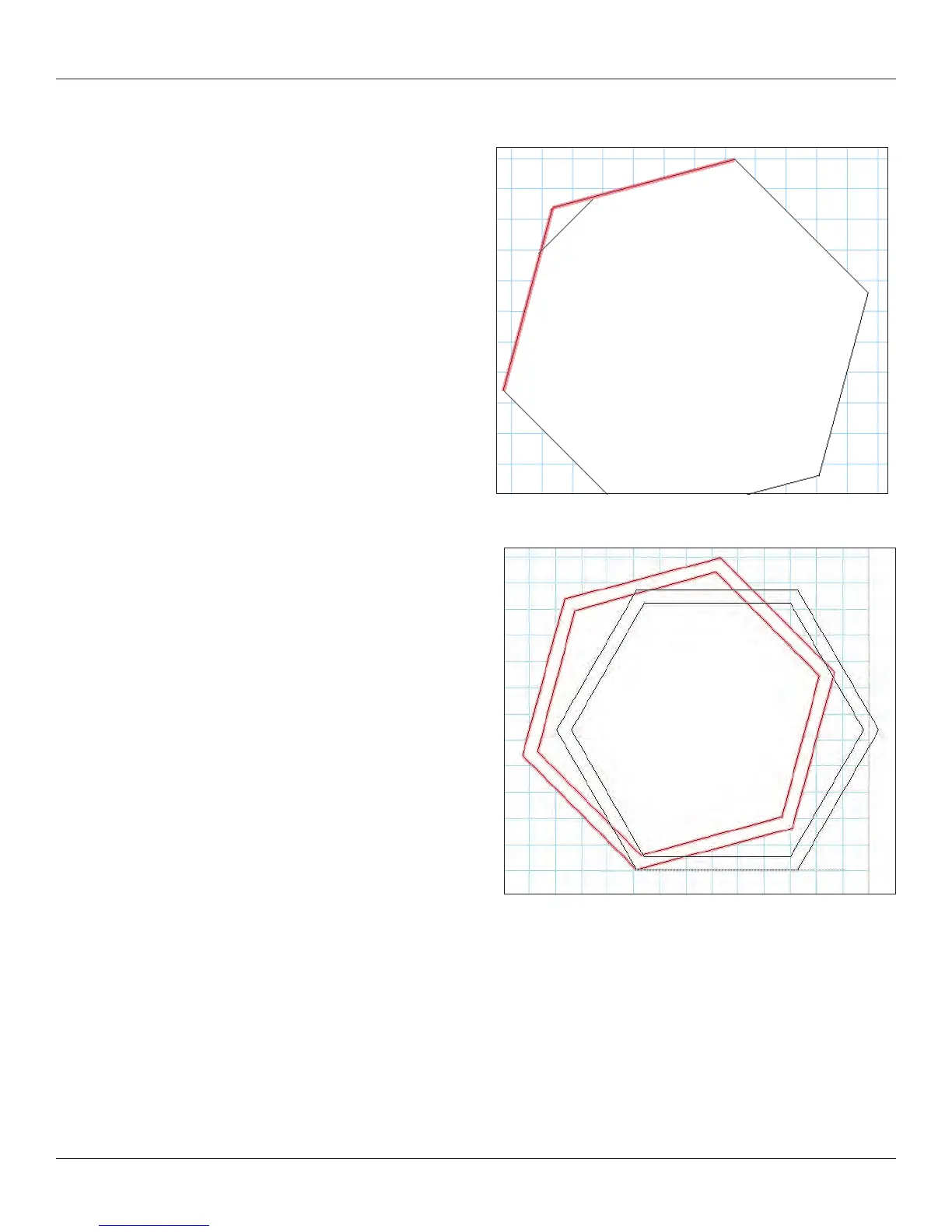
The Fillet and Chamfer tools are very similar. These terms are
generally used in cabinetry and millwork, not necessarily theatre. In
each case, these tools trim the corner of a polygon. A Chamfer is a
straight line cut and a Fillet makes a rounded corner. In each case,
select the tool and trim the edge of a rectangle. First select a mode.
They each have the same 3 modes. The rst Chamfer or Fillet adds
the detail, the second split’ also trims the lines of the polygon to the
detail, while the third ‘trims’ the original shape to the new detail.
Select the tools, set your preferences and mode then hover
over the edge of a poly, if eligible for Chamfer/Fillet, the edge will
be highlighted,click and drag to an adjacent edge and it too will be
highlighted. Click to execute.
Rotate
So, you have all this cool stuff drawn and it is not quite angled the
way you desire? Enter the rotate tool. Double click on the rotate tool
and any/all of your selected objects can be rotated to a specic
angle, up to 1/100 of a degree. You can also freehand rotate by
clicking on an object, dragging to another point on the object and
clicking then dragging. Note that Vectorworks tells you when you are
horizontal or vertical. Note also that you can rotate and duplicate in
the Tool Bar.
Mirror
Designing a symmetrical set? Draw one side and let Vectorworks
draw the other. The Mirror Tool has 2 modes in the Tool Bar, Mirror
and Mirror and Duplicate. Select your objects, select the Mirror Tool
and Mode and click and drag. Hold the shift key down as you drag if
you want to constrain the angle of the mirroring.
Drawing with Lines and Making Objects
Some people are more comfortable drawing with lines rather than shapes. They would not be me. If this is you, then you can easily
draw many of the same shapes using the line tool and the arc tools with either absolute placement or the smart cursor. Once you have
your shape drawn, go to Modify>Combine into Surface and click the paint bucket in the shape or go to Modify>Compose and you
will have a shape rather than a series of lines.



 To Next Page