Vectorworks 2010 Products 85
Vectorworks Spotlight 2010 Getting Started Guide
Lighting in the 3D World
Like Textures, Lighting in the 3D World is not always as it seems. It is with the Spotlight Entertainment Fixtures, but there are other
lighting options available for visualization. We’re going to look at the lighting options in the Visualization Toolset and the View Menu
I think of these as draft tools. I use them as a set designer to indicate my own lighting ideas to colleagues. Lighting designers can use
these tools to rapidly present early visualizations to directors, producers and others on the team, Lighting sketches prepared prior to the
light plot to gain agreement on concepts before drafting an entire plot.
Remember, every light adds calculations and increases rendering time. Consider that rendering time when planning your lighting.
Renderworks inserts an invisible light when you render an object, we have been working with that light. When you add an actual light,
that placeholder is removed.
And while this section is short, it is deceptively complex. Mastering
lighting takes time.
View Menu Options
Let’s take a look at View>Lighting. You will see two options; Set
Sun Position and Set Lighting Options. Set Sun Position is valuable
if you’re are doing outdoor work or looking through a retail
storefront and are interested in the sun’s impact on a specic date
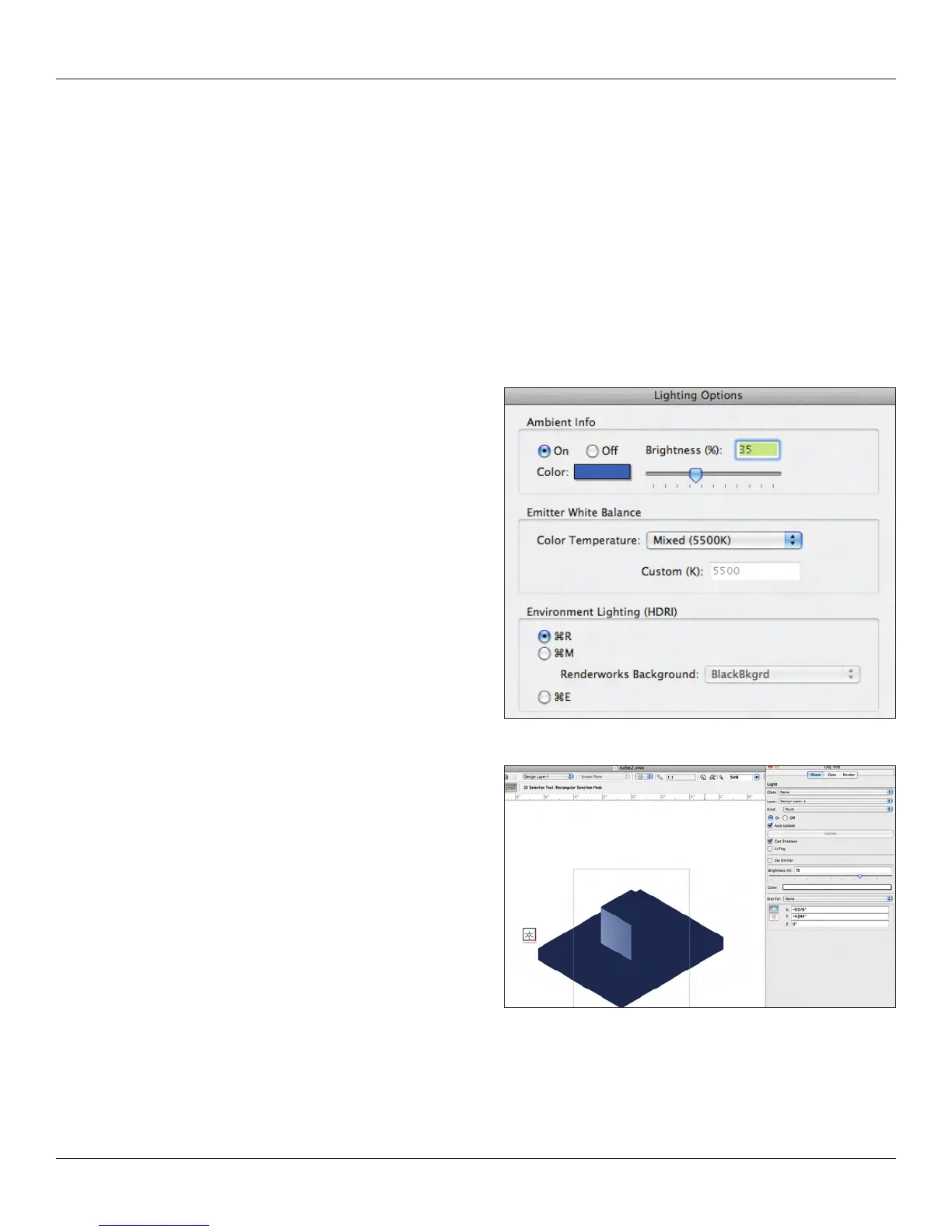
and time. Let’s take a closer look at Set Lighting Options where you
should make some selections.
Ambient Light is the extraneous light in any space. If you are
working on a nal light plot and visualizing you should turn this off.
If you want to illustrate a few spots piercing a blue overall wash you
may just want to change the default color and adjust the brightness
and/or the color temperature.
We just reviewed HDRI Background Images, here is where you can
turn on the light info in the HDRI source.
Let’s go to the Visualization Toolset and select the Light
Tool. Note the Options in the Tool Bar. Lights inserted into your
model can be controlled from the OIP and also the Visualization
Palette. In your Preferences you can make the lights invisible in
your renderings.



 To Next Page