Vectorworks 2010 Products 51
Vectorworks Spotlight 2010 Getting Started Guide
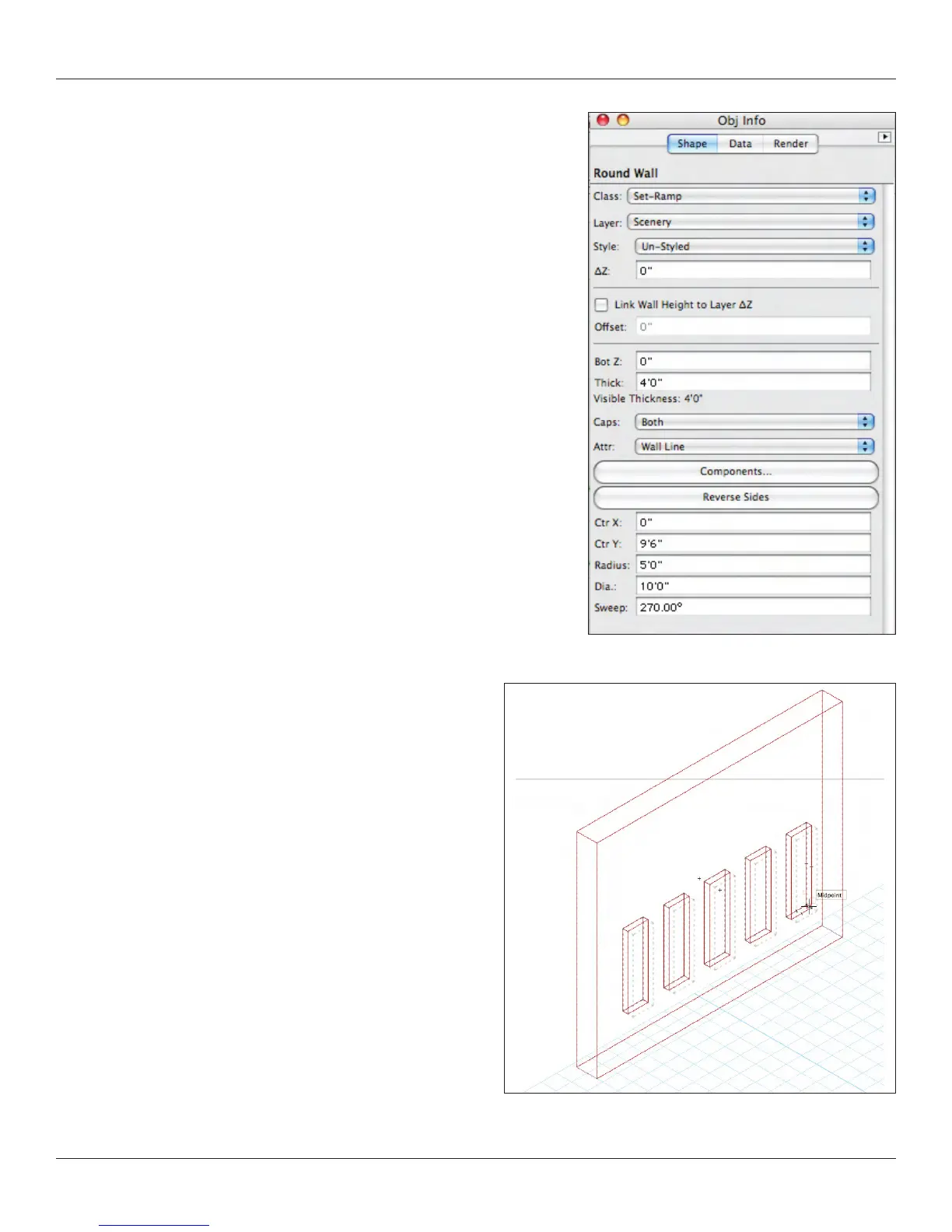
The wall height should be set to 42” [1.067m] but now we are going to edit the
wall with the 3D Reshape tool from the 3D Modeling Tool Set. Switch to the Left
View and grab the DS Edge of the curved wall; drag it to the ground, changing
your wall to a ramp.
This basic editing procedure, which works in much the same manner as using
the 2D Reshape tool on a Planar Object allows the creating of angled and/or
gabled roof lines on any wall object.
Wall Sculpting
From the midpoint of the wall face that is parallel to the plaster line,
draw a 6” [152.40mm] by 48” [1.219m] rectangle. Extrude to 4’
[1.219m] and from the DS midpoint of this object draw a 4’ [1.219m]
by 4’ [1.219m] rectangle. Extrude the last rectangle to 6” [152.40mm]
and change its bottom Z to 4’ [1.219m] in the OIP.
Lastly we need a wall. Draw a 2’ [.610m] deep by 24’ [7.315m]
wide by 20’ [6.096m] tall, 21’ [6.401m] US of the plaster line. This is
a bit boring, so we’ll add a few niches. On the midpoint, center a
rectangle 1’ [.305m]deep by 2’ [.610m] wide. Extrude to 7’ [2.134m]
and set the bottom Z to 4’ [1.219m] in the OIP. Duplicate two of
these elements -4’ -[1.219m] on the Z axis and two also 4’ [1.219m]
on the Z axis. Select all of the elements and the wall. Go to
AEC>Create Wall Recess and accept the defaults.
Note: You can also add Wall Projections if you like. The process is
very much the same.
In most every case here, we have used the default settings. It is
critical that you go back and experiment with other settings to
see how they affect your choices and possibilities experimentation
and observation is the only way that a new user can master
the program.
Before we move on, let’s look at some related tools that we have not
used in this exercise.



 To Next Page