26 Vectorworks 2010 Products
Vectorworks Spotlight 2010 Getting Started Guide
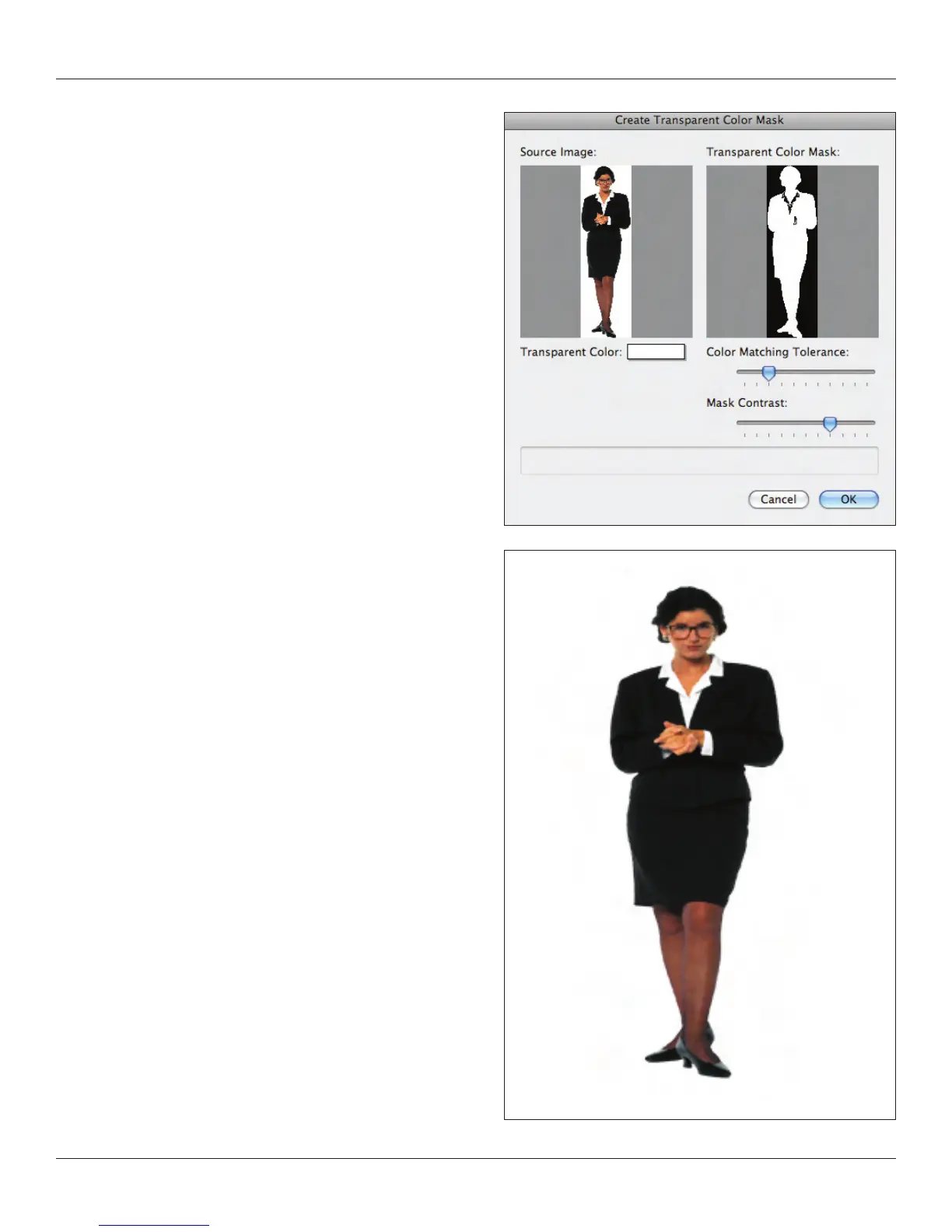
Notice in the illustration at right that I have selected transparent color
and have tried to drop out the white background, not the Alpha
channel I made in the image editor application. Here not only has the
background been masked, but parts of the model’s clothes as well.
So I can take the costume designer’s sketches and put them into my
set to be viewed together. What I do not get from this technique is
how the lighting design impacts the costumes. We can look at those
possibilities later.
At far right, an image prop from the same collection inserted into
a rendering.
Symbol Types
I’ve mentioned Plug-in Objects a bit. Plug-in objects (PIO or PIO’s)
are like standard symbols, but customizable. You will see that doors
and windows are PIO’s and can be varied within a single drawing.
PIO’s are modied in the OIP or other dialogues.
The most common type of symbol is the ‘black’ symbol, changes
made to the symbol affect all instances of the symbol.
A ‘blue’ symbol is made when at symbol creation, Convert to Group is
selected. When placed, this type of symbol is converted to an editable
group. Changes made to the symbol later have no effect on the group.
A ‘red’ symbol is a symbol converted to a PIO. Note that the changes
you can make to your lighting instrument are changes that impact the
data records. With your person, you change their height or width.



 To Next Page