52 Vectorworks 2010 Products
Vectorworks Spotlight 2010 Getting Started Guide
Column Tool
Let’s go back to the Building Shell Tool Set and do a little hovering. You will nd the Column Tool, but not the Pilaster Tool. Edit the
workspace to nd and add the Custom Stair Tool. As you look for this tool, note some of the other available options that you may want
to use in the future.
In a new le, build yourself a simple square room with the Straight Wall
Tool, make it 20’ [6.096m] square, center on the 0-0 point
of your page. Be aware now of the Wall Join Tools (you should have noticed these as you were just hovering over the various
Building Shell Tools) and that you can add interior walls and attach them to your perimeter walls. Experiment with these functions
at your leisure.
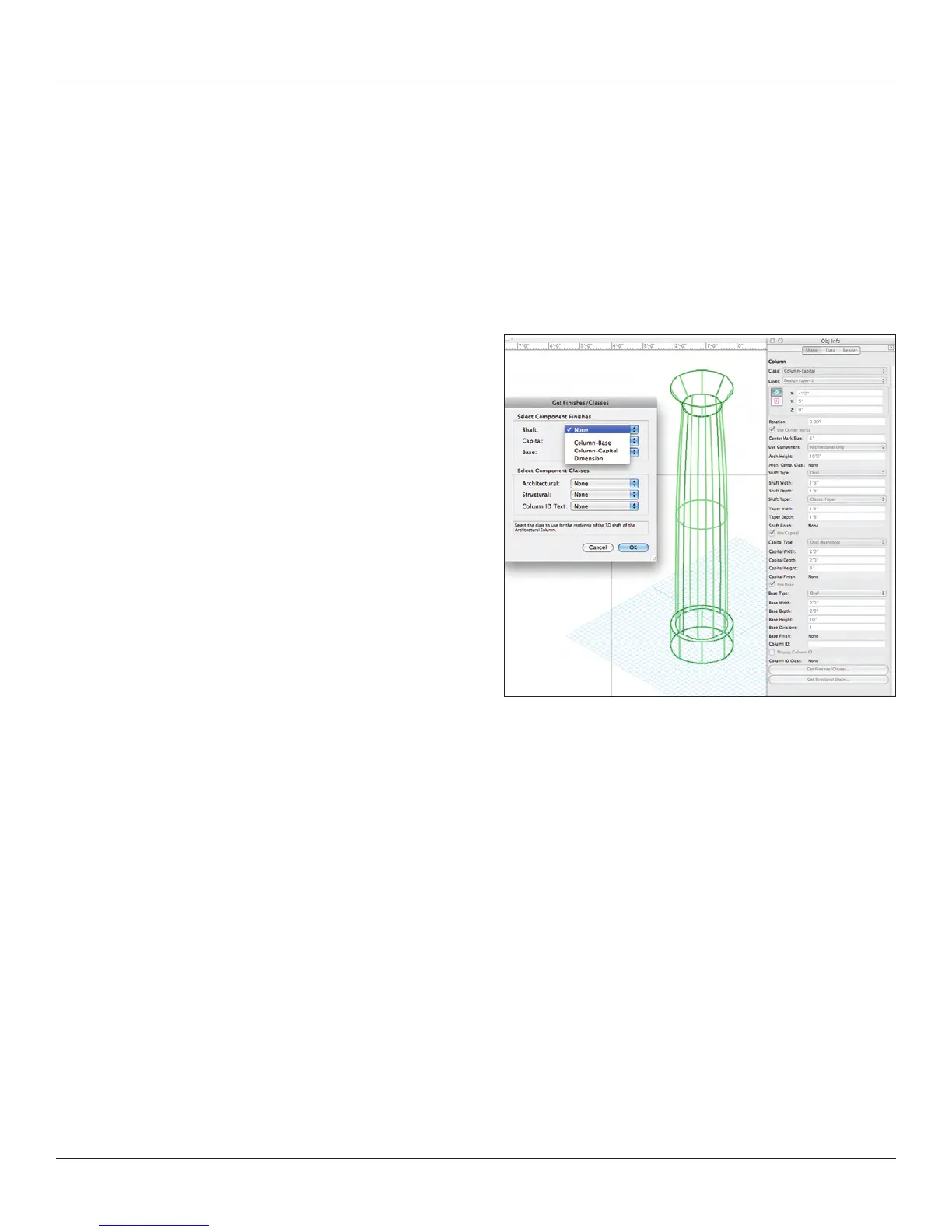
Select the Column Tool and go to the Preferences in the Tool Bar.
While it is not yet possible to create a full Corinthian Capital in
Vectorworks, you do have a lot of options in regard to base, capital
and shaft. Make some choices and Inset a Column into your room.
Note: You can place precisely with the Floating Data Bar.
Remember if you are doing a project with a million or so columns of
the same design, create one column, convert it to a symbol and
then if you need to change the column, you only need to edit the
symbol. Conversely, if you need one column to be different, you
can convert it to a group and edit that one instance traditionally. If
you need a number of columns to be different, you can duplicate
the symbol in the RB, edit the new symbol and use the replace
symbol function in the OIP.



 To Next Page