Vectorworks 2010 Products 19
Vectorworks Spotlight 2010 Getting Started Guide
Working Planes
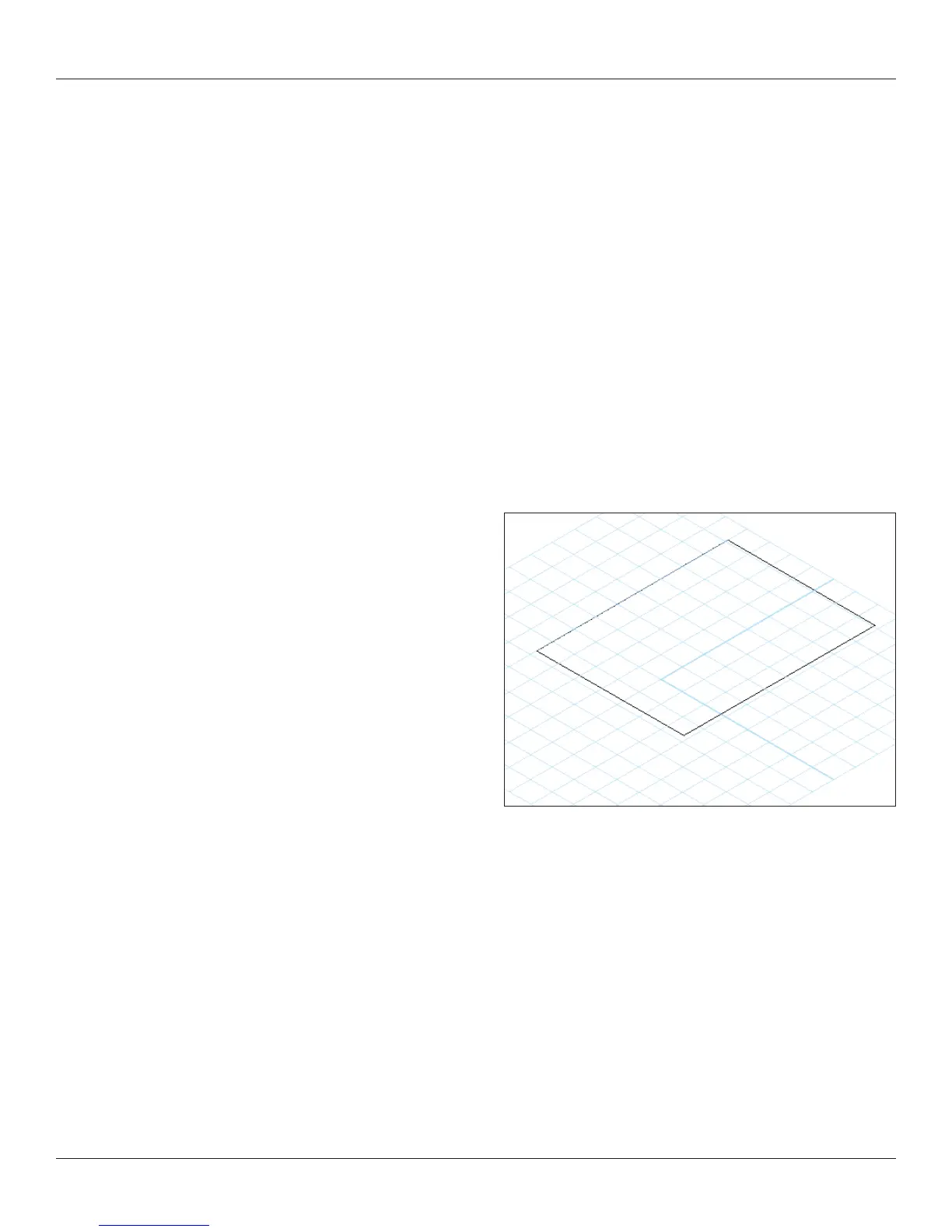
Got to Window>Palettes>Working Planes and you will see another palette. I think of working planes as a bit outside of Getting
Started, so I am not going to go into any depth here. Nonetheless, I want to be sure that you are aware of this function.
Simply explained, working planes allow you to change the base plane on which you are drawing. T
ypically, the base plane is a at
horizontal plane. If you have a raked set and you have objects that are perpendicular to that rake, you will likely want to add a new
working plane that angles your working area to the rake angle.
Multiple raked set pieces at different rakes require multiple working planes.
Locus Points
Vectorworks has two tools for adding locus points, These are also called ‘datum’ if you have ever worked with a British company.
There is a 2D Locus Tool in the Basic Tool Palette and a 3D Locus Tool in the 3D Modeling Tool Set.
We’ll use a 2D Datum in a bit to draw a theatre space.
Rotated Views
Rotated Views are very useful when dealing with scenery which is
very often not set at right angles, or if you have angled electrics.
From the Top/Plan view select View>Rotate Plan, or click Rotate
Plan from the View bar. Adjust as necessary, all other views will
reect the rotation.
Rotated Views can be saved in the Saved Views dialogue.



 To Next Page