16 Vectorworks 2010 Products
Vectorworks Spotlight 2010 Getting Started Guide
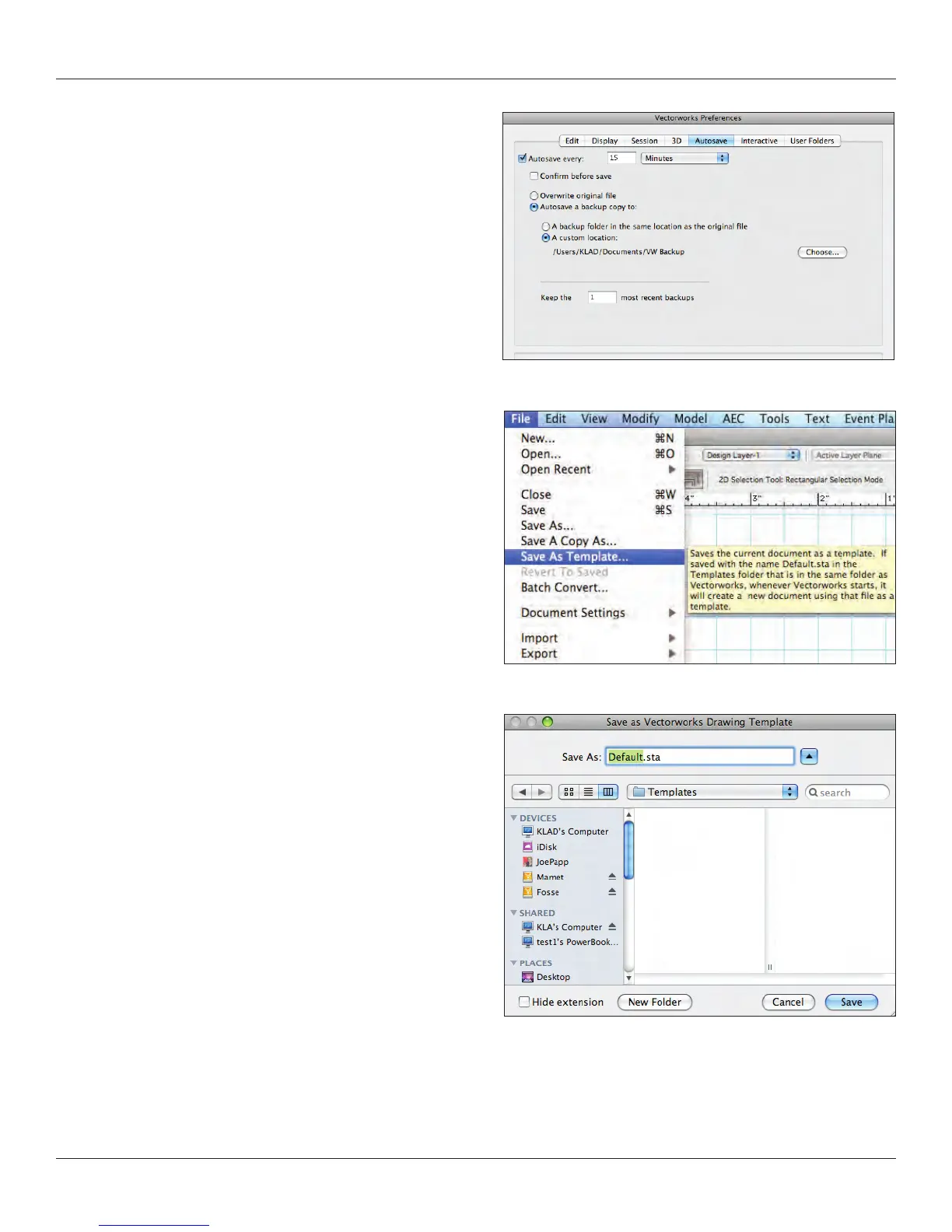
Let’s adjust, or at least begin to become familiar with, the
application preferences. On a Mac go to Vectorworks>
Preferences; on a PC go to Tools>Options>Vectorworks
Preferences. The document preferences you adjusted before
only apply to a specic le, butVectorworks preferences apply
to all les. There are seven tabs:
In general, we will stay with the default settings. Select Autosave
and be sure that Autosave is selected and set to Autosave backups.
You may want to consider putting all of your backups in one folder
so you can easily nd and edit them later. Select Interactive and
note that you can adjust the cursor and highlighting settings to your
liking, and by selecting Interactive Appearance Settings you can
adjust the selection colors. Select User Folders. A user folder
creates a directory hierarchy similar to the Vectorworks application
directory and is a location to store your personal modications to
the program. Click OK.
Now, let’s save the tile settings as a template le. Go to File>Save
as Template and the Save as Vectorworks Drawing Template dialog
box will open and suggest that the le Default.sta be saved in the
Templates folder of your User folder. ClickSave. All new documents,
unless you select another template, will have the attributes you
have specied set by default. You will likely need to save over this
Default.sta le several times as you further adjust to the program.



 To Next Page