62 Vectorworks 2010 Products
Vectorworks Spotlight 2010 Getting Started Guide
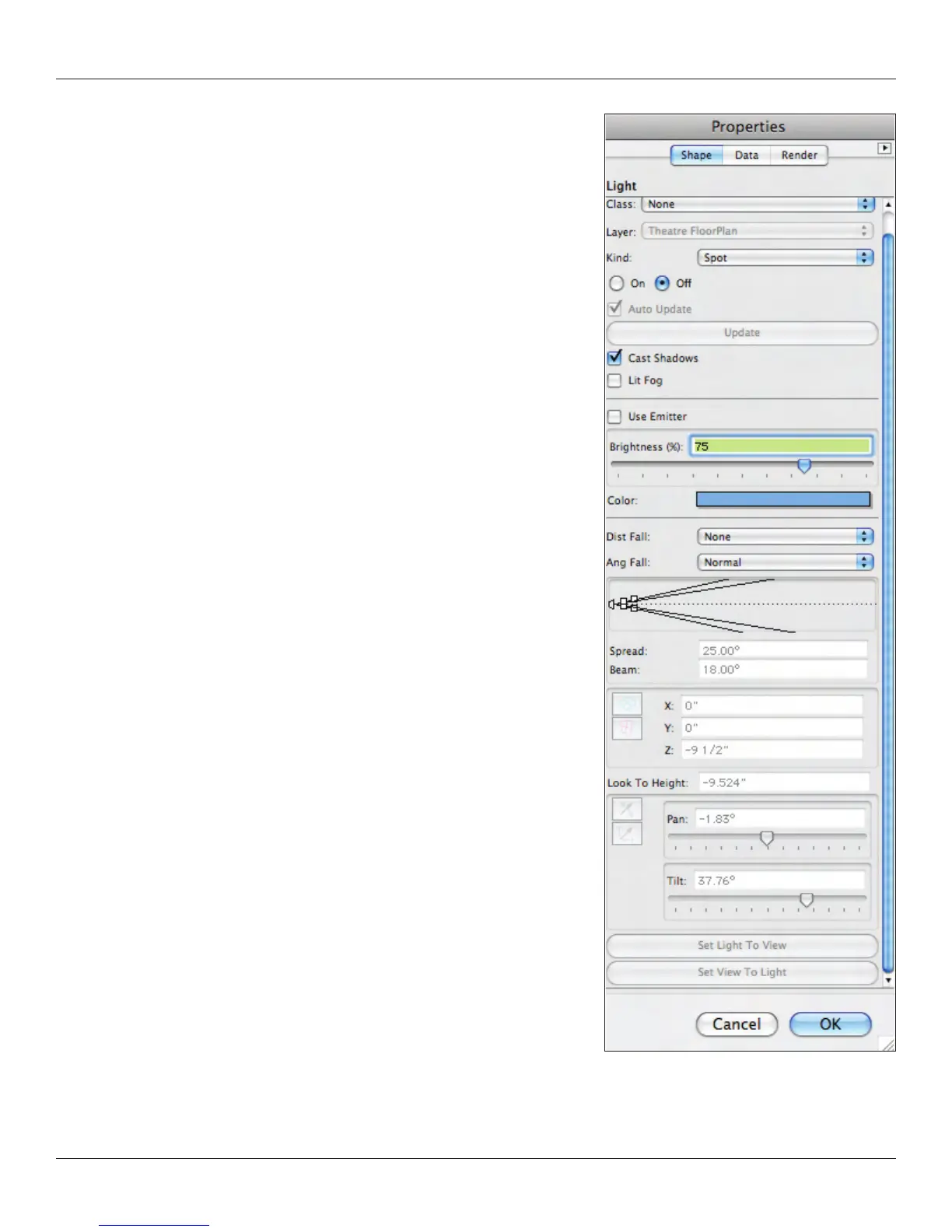
Right clicking on a unit offers several choices: Edit, Edit Light and Properties in the
contextual menu. Edit opens the Lighting Device dialogue. Edit Light accesses the
dialogue at right, reaching into the symbol to access the Vectorworks light source
(more on those ahead a few pages). Properties is another route into the OIP data.
Use the Inst Insertion tool and Duplicate Array command to add additional
instruments. Add information as you need in the OIP. Once you have populated an
electric, select the Position and check ‘Auto Number’ in the OIP; the instruments will
number and that information will be added to the plot. If you move units around,
deselect and reselect Auto Number and the information will be updated on the plot.
You should end up with something like this:
Just a few things to nish before we can present and visualize this light plot. Go to
Tools>Reports>Generate Paperwork. Set the paperwork schedules you need, and
then we’ll set up the light plot for printing. For example, select Instrument Schedule
and click Setup to specify what to include in the schedule. We’ll use this later.



 To Next Page