External Control
TVM Series Installation and Operation Handbook 209
Copyright © 2008, Harris Corporation
Table 6-2. Tab/Tab Details Description
Key Field Description
11 SAVE Button The SAVE button is used to save the changed parameter
values for the selected field. The SAVE button will not be
enabled for any field until the field parameter changes. Once
the SAVE button is enabled, click the SAVE button to save
the changes.
12 VALUE CHANGE
INDICATION
Shown as VALUE SAVED or COULD NOT SAVE VALUE.
This appears after the SAVE button is pressed. It will remain
on the screen until another tab or the refresh button (F5) is
pressed.
Web RCU
The Web RCU is located at the bottom of the screen, as shown in Figure 6-1. Table
6-3 describes the fields shown in the Tab/Tab Details section.
The button colors in the Web RCU section provide the following indications on the
status of the instrument:
• WHITE: The button is in use (similar to the high tally indication on the front
panel).
• BLUE: The button is not in use (similar to low tally indications on the front panel).
Table 6-3. Web Remote Display Description
Key Field Description
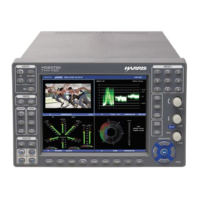
1 WEB RCU (Virtual
Control Panel)
The WEB RCU is the virtual front panel controls for the
TVM/TVM instrument. All the buttons relate to specific buttons
on the front panel. There are some slight differences to the
WEB RCU that differ from the actual front panel of the
instrument. Those differences are listed below.
2 A+B, C+D Buttons Press to select INPUT A and B or INPUT C and D
simultaneously.
3 HOLD Button Some functions of the TVM/TVM instrument require that
certain buttons need to be pressed and held. Because buttons
on the virtual control panel cannot be physically pressed and
held, the HOLD button on the Virtual Control Panel is used to
hold the next selected button.
4 CURVED (Arrow)
BUTTONS
• Pressing the RIGHT ARROW button is similar to turning
the CURVED ARROW knob to the right (up).
• Pressing the LEFT ARROW button is similar to turning the
CURVED ARROW knob to the left (down).
• Pressing the PUSH button is similar to pressing the
CURVED ARROW knob to perform the selected knob
function according to the menu or pane selected.
5 HORIZONTAL
BUTTONS
• Pressing the UP ARROW button is similar to turning the
RIGHT/LEFT KNOB to the right (right).
• Pressing the DOWN ARROW button is similar to turning
the RIGHT/LEFT knob to the left (left).
• Pressing the PUSH button is similar to pressing the
RIGHT/LEFT knob to perform the selected knob function
according to the menu or pane selected.


 To Next Page