SuperRack SoundGrid / User Guide
User Keys
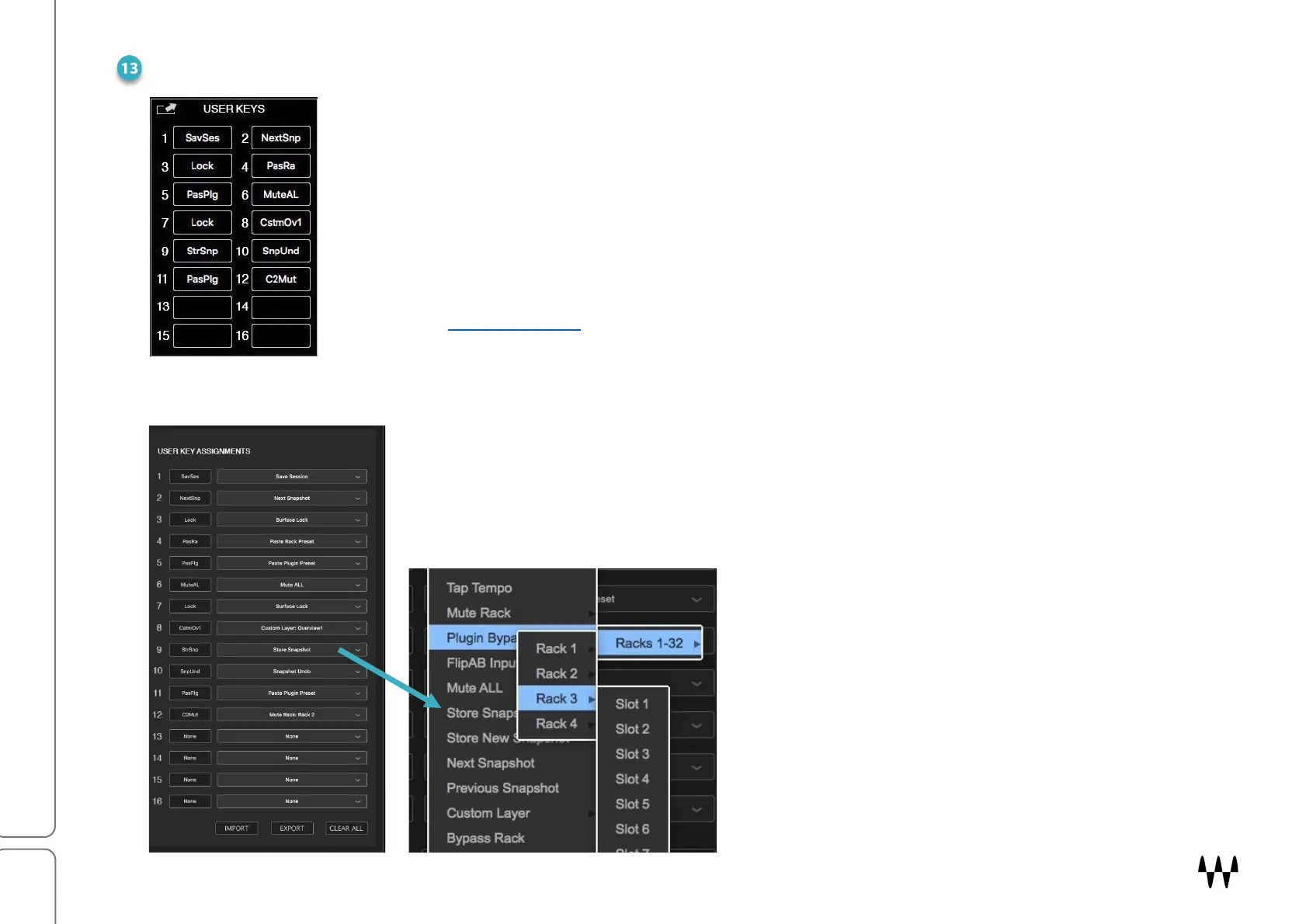
In the Overview windows and the Rack window, there is a panel with 16 programmable
buttons that can be assigned to important or often-used commands. This, among other
things, lets you issue commands that are in a different window, without leaving your current
view. It also lets you immediately access certain menu items that are deep inside multi-
level, drop-down menus.
The User Keys panel can be torn off and floated to any location on the display. Click the
arrow in the top left corner of the panel to tear it off and to reattach it.
Refer to the Floating Panels
section for details.
User Keys are assigned in the panel on the right side of the Settings page.
Select one of the 16 buttons, open the drop-down menu, and choose a function or
command.
Use the buttons at the bottom of the panel to
import and export user-assignable keys.
Clear All removes all User Key assignments.
User Keys are recalled from the panel on the
right side of the Rack and Overview windows.
This panel can be detached and moved to
any location on those windows. User-
assignable keys can also, by default, be
recalled with keyboard Function Keys.


 To Next Page