2. Connect one end of the network crossover cable to the HP LaserJet printer, and the other end to
the Ethernet (RJ-45) port on the system.
3. Power on the HP LaserJet printer
4. Open the paper tray on the printer, and install the desired paper.
5. Power on the system
Report Printing Configuration – on z.one
pro
system
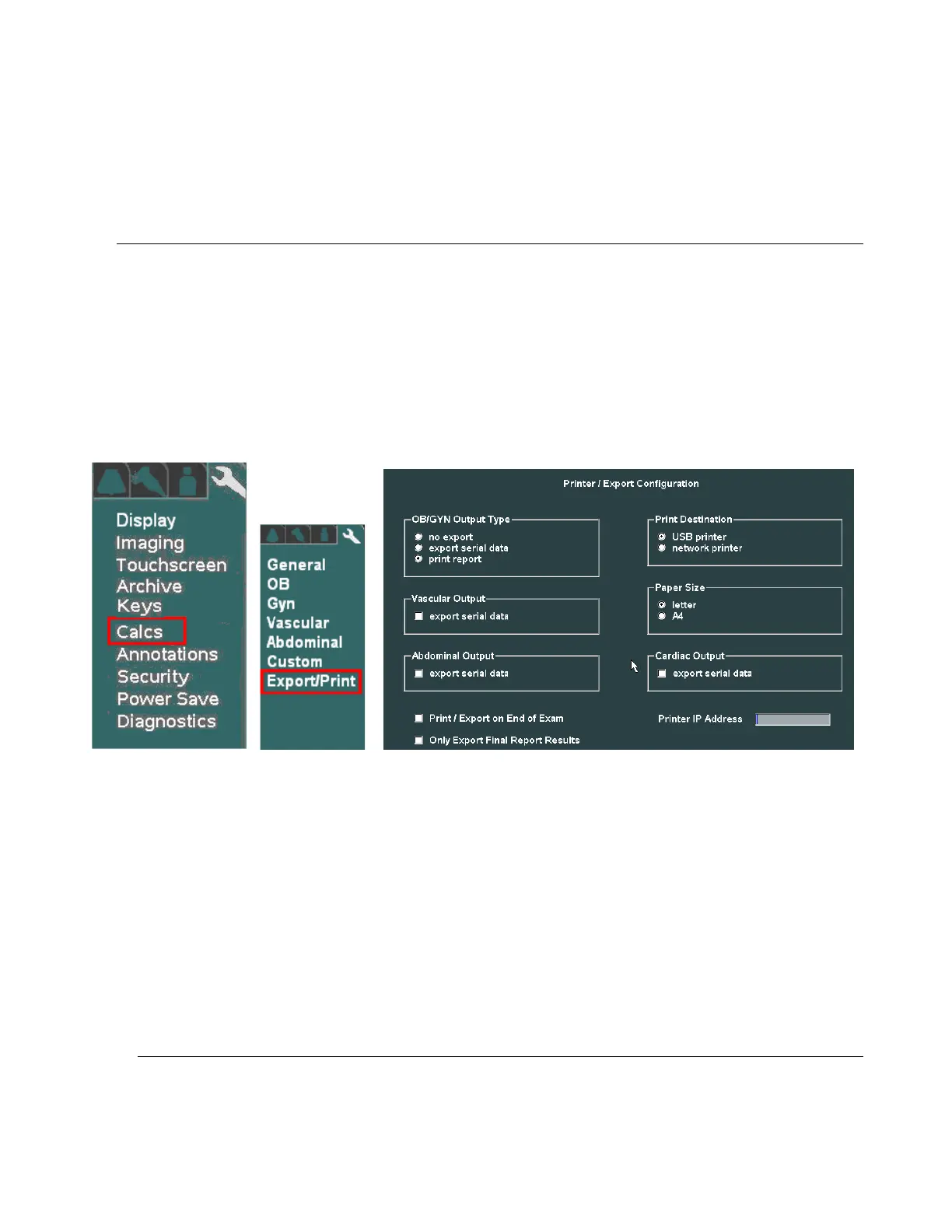
In order to utilize this Report printing capability, it is necessary to pre-configure the Export/Print setup
parameters, within the “CALCS” sub-menu, as part of the System Setup operations. The following
steps and menus are used for the setup of this Report Exporting/Printing function.
1. Go to the Printer/Export configuration screen, by selecting the following sequence:
System Setup -> Calc -> Export/Print
Printer/Export Configuration (Calc Reporting)
2. To configure the system for printing of the desired type (OB, Vascular) reports to the HP
LaserJet, select the following:
OB/GYN Output Type: ...................................................... PRINT REPORT
Printer Destination: ............................................................ NETWORK PRINTER
Paper Size: ........................................................................ LETTER
Printer IP Address: Enter printer’s assigned IP (potentially 192.168.1.1)
Print/Export on End of Exam: (as desired by User)
Only Export Final Report Results: (as desired by User)
Select “APPLY” in the menu, to save the settings


 To Next Page