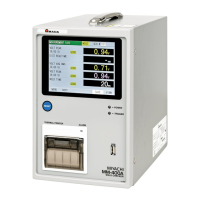
MM-400A
7. Basic Operation
7-2
(2) Changing the Display Language
1) Touch the MENU key on the lower-left portion of the screen.
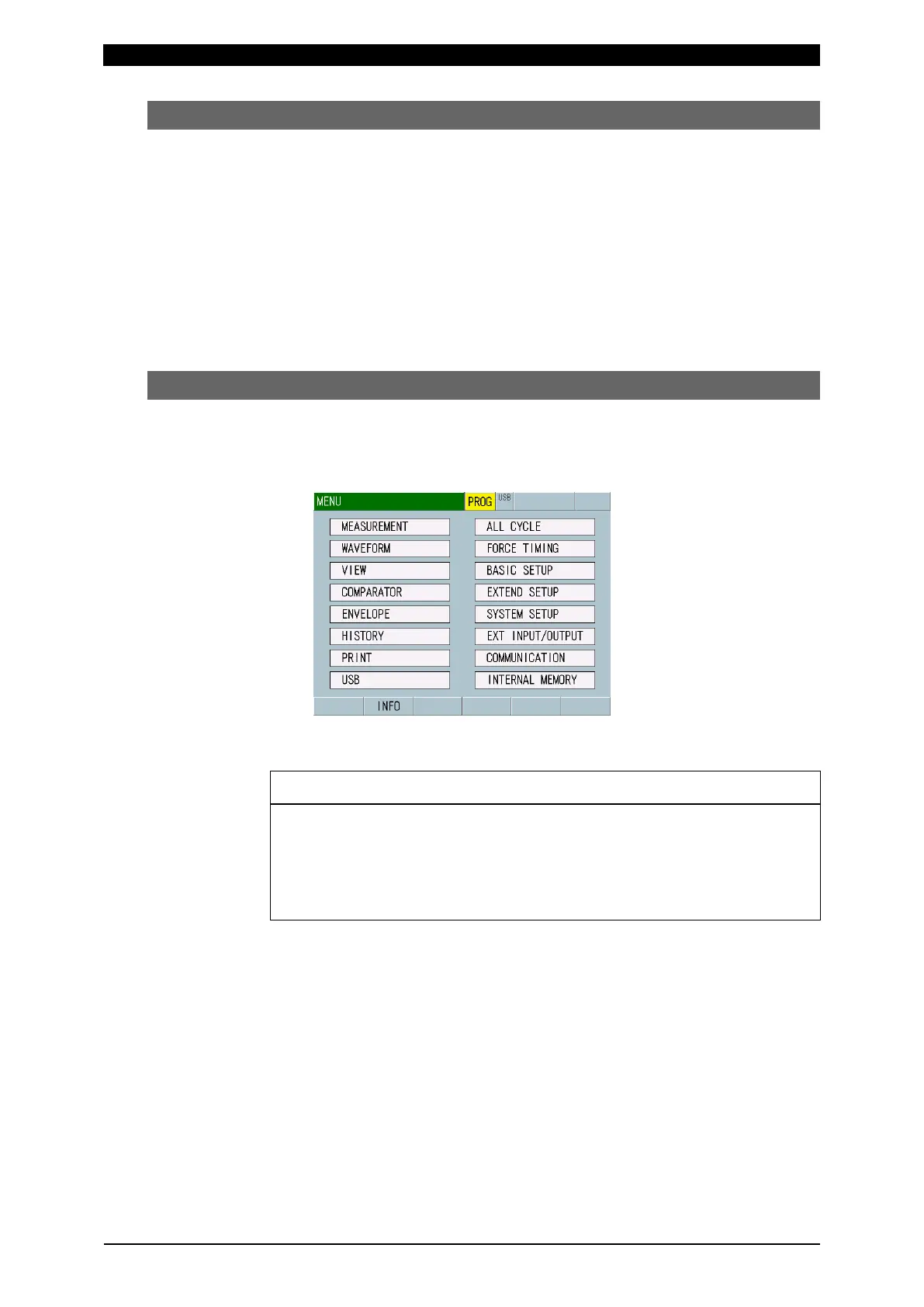
The MENU screen appears.
2) Select SYSTEM SETUP.
The SYSTEM SETUP (1) screen appears.
The display language can be changed by the LANGUAGE setting. Select a
language to display.
For operation, refer to “(3) Basic Usage of the MM-400A” and Chapter 8, “n-1.
SYSTEM SETUP (1) Screen.”
(3) Basic Usage of the MM-400A
This section describes the basic usage of the MM-400A.
1) Touch the MENU key on the lower-left portion of the screen.
The MENU screen appears.
2) Touch the desired menu on the MENU screen.
For operations on each screen, refer to Chapter 8, “Operation Screen.”
• Press switches and touch panel display carefully by hand. Handling
them roughly (using a screwdriver or the tip of pen) may result in a
malfunction or failure.
• Press switches and touch panel display one at a time. Pressing more
than one switch at a time may result in a malfunction or failure.
3) When you touch a desired item on each screen, a ten-key for the item appears.
Items that can be operated are restricted by the setting of password and the
external input “PROGRAM PROTECT” to be selectively used for the
supervisor and the operator.
For the password setting, refer to Chapter 8, “n-3. PASSWORD Screen.” For
the external input “PROGRAM PROTECT”, refer to Chapter 8, “o-1. EXT
INPUT/OUTPUT (1) Screen” and Chapter 10, “(2) a. Input Connector.”


 To Next Page