4
Configuring the automatic zoom
When auto-zoom is activated, the map will be
automatically zoomed for the following events:
Zoomed in:
Proximity to a field boundary
Proximity to a headland
Proximity to an obstacle
Proximity to a worked area
Speed under 3 km/h
Zoomed out:
Speed above 3 km/h
The zoom levels can be manually adjusted in the map
view.
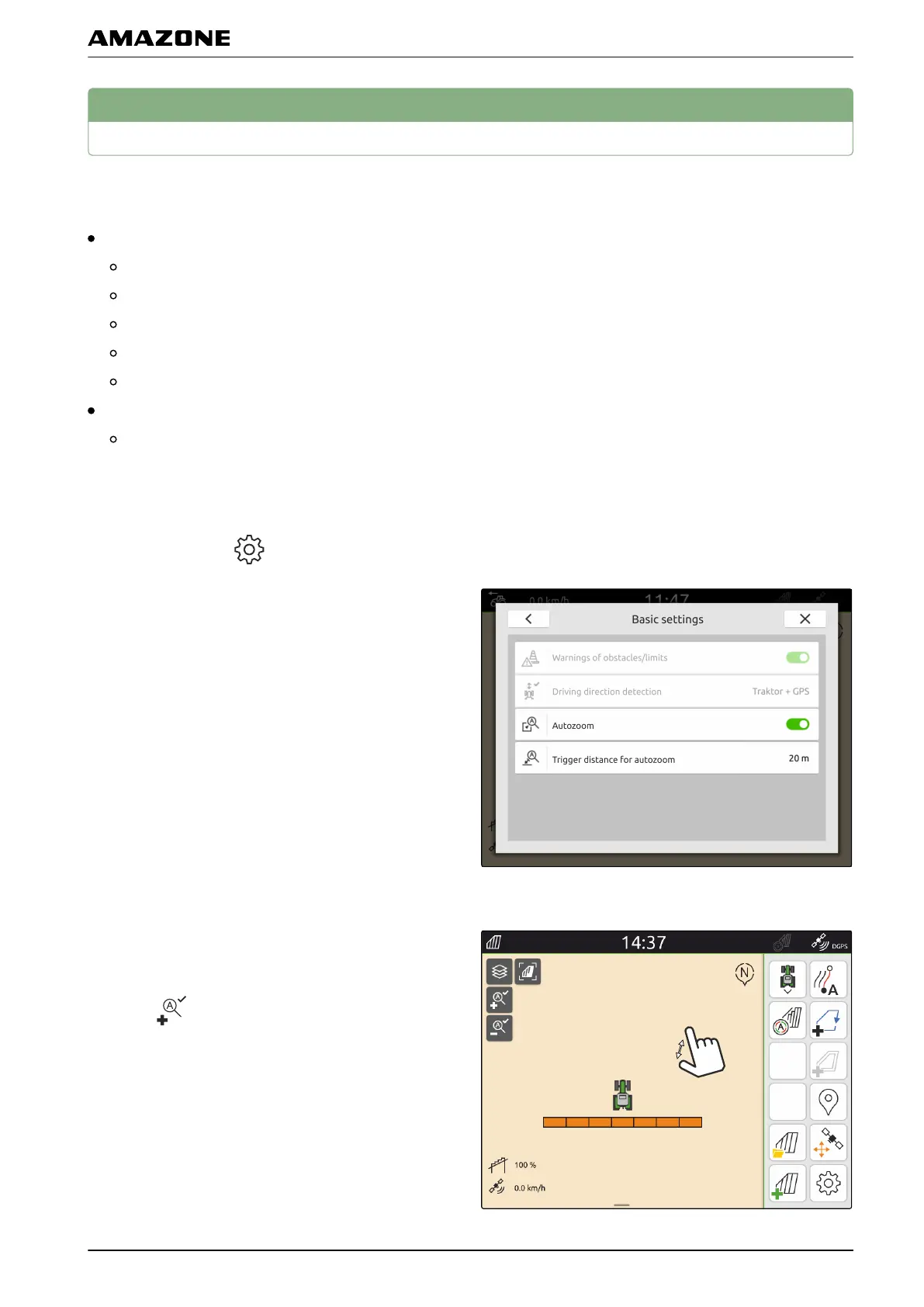
1. In the Work menu > select "Basic settings".
2. Activate "Autozoom"
or
deactivate.
3. When autozoom is activated,
set the distance at which autozoom is triggered
under "Trigger distance for autozoom".
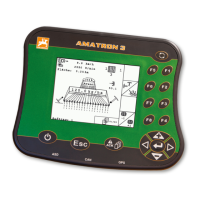
4. Switch to the map view.
5. Enlarge the map with your fingers to the highest
desired zoom level.
6. select .
CMS-T-00000228-C.1
N | Map view configuration | Configuring the automatic zoom
MG6010-EN-GB | G.1 | 13.12.2018
59


 To Next Page