ANSER CODING INC. 15 X1 User Interface
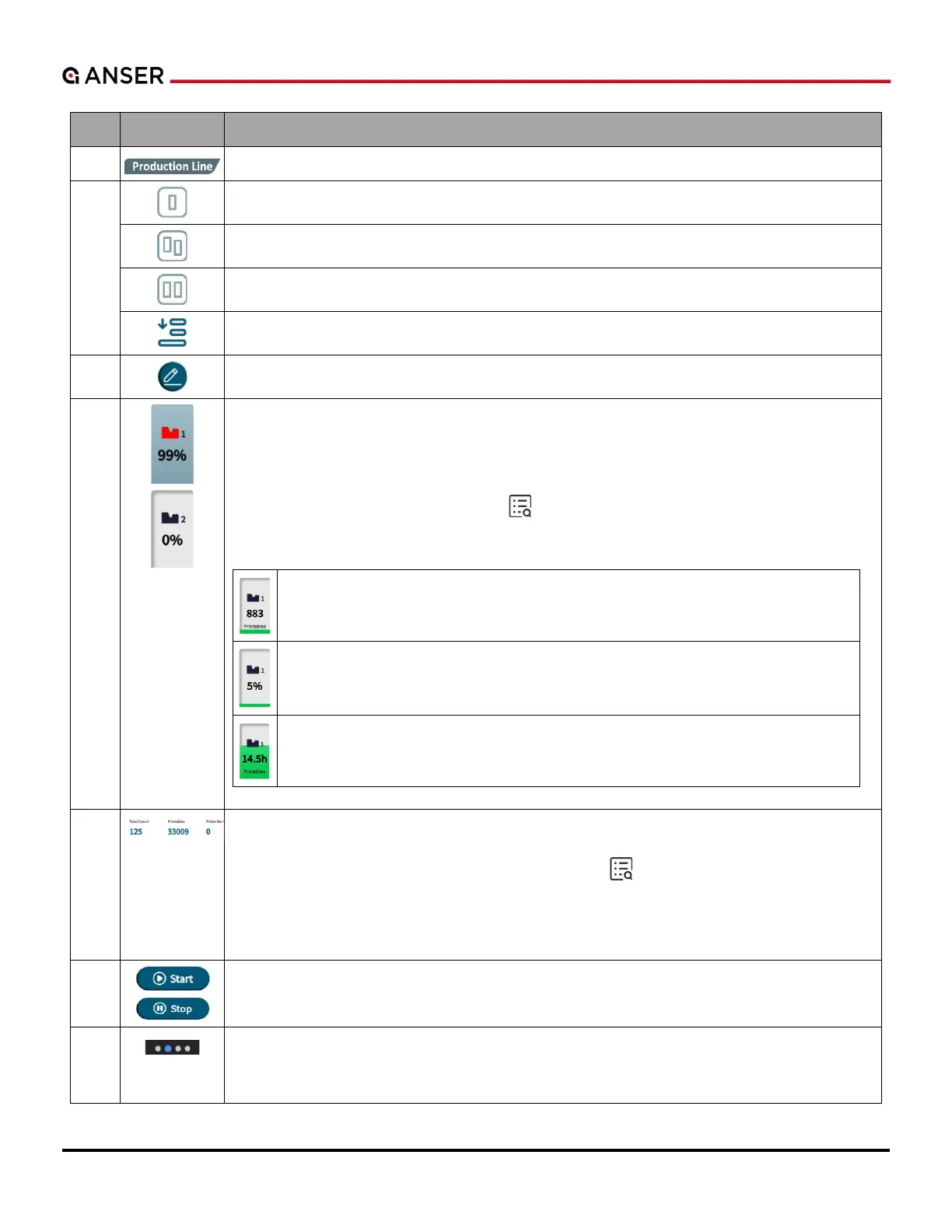
Production Line Settings Button: Press it to access the current production line settings page.
Print Station Single Mode: Press it to access the print station settings page.
Print Station Stitch Mode: Press it to access the print station settings page.
Print Station Parallel Mode: Press it to access the print station settings page.
Quick Edit Button: It allows quick adjustments to parameters while the printer is printing.
Edit Message: Press it to enter X1 Message Editor. Please refer to Figure 1-17 and Table 1-4.
Ink Cartridge Information: It shows information on the cartridge status. If a printhead is
installed or connected, this icon will be colored, otherwise, it is black and white. Press it to
go to Printhead Settings page, where advanced settings can be made: Repeat Print, Pre-
Heating, Pre-Purge, and Cartridge Idle Alert.
Press the Information Display Button
main page: 1. Remaining printable counts, 2. Ink level percentages and 3. Remaining printable
time. If Auto changeover is selected, the above mentioned 3 info will be shown in turn.
Printables: The number shows remaining printable counts.
Percentage: It shows the percentage of remaining ink levels.
Remaining Time: It shows printable time left.
Information Display Area: Display information about printing statistics, performance,
configurations and messages. Statistics includes Count, Total Count, Printables, and Time
be shown in this area. At most 3 parameters can be selected and shown. If users want to
select another parameter when there are already 3 selected, please unselect first.
Also, by pressing this area, more information about production line can be obtained.
Print Start/Stop Button: To start or stop printing. When a cartridge is installed, this icon will
be blue. When no cartridge is installed, the icon will be hidden in gray.
Production Line Page Select: It shows the total number of production line (4) and the current
page users are at (the second page). Press on the dot to go to a particular production line
page.
.



 To Next Page