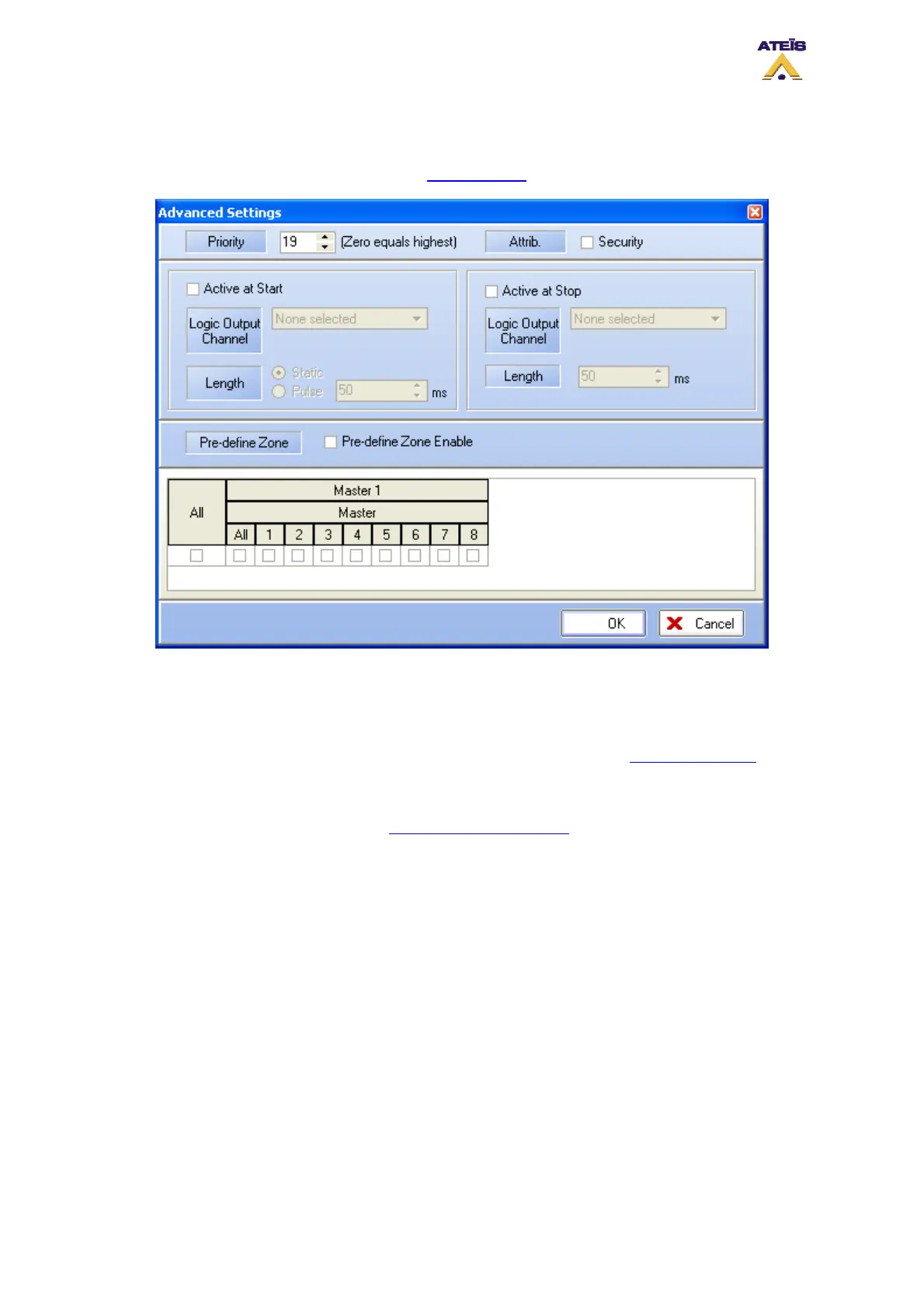
For all those different mode, you will have to set up the music sources setting by clicking the Edit
button for both sources. When clicking on the Edit button for music source 1 or 2, you will enter the
music source Advanced setting, see below. Note: for music used with logic inputs, the music
sources settings have to be made with the Music Events
.
• Priority: here you can adjust the priority of the event. 20 is the lowest, 0 is the highest. Note: be
carful when setting priority for both sources, conflict may appeared if both sources have
the same priority level.
• Attrib: here you can specify if this event is a security one or not. See How to Use Event to learn
more about the security option.
______________________________________
The output relay part is discussed in the How To Use Output Relay
, please read it.
______________________________________
• Pre-define Zone: here you can specify in which zone music will be routed. Note: In Route Key
mode, you don't have to pre-define zones as everything is controlled from the front panel.
However, you can specify zone in Route Key mode but keep in mind that the routing will
only be activated for default music source.
______________________________________
• OK: will accept the current setting and close the window
• Cancel: will annulled the current settings and close the window
8.21.1 From the Front Panel
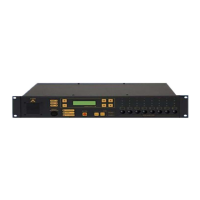
On the front panel (see below), the buttons that are used for managing music sources routing are the
following:
• Route: validates the music source and zone(s) selection
• Select: toggles between Source 1, Source 2 and none
Ateïs International
Ch. du Dévent, 1024 Ecublens, Switzerland.
Phone : +41 21 881 25 10
87


 To Next Page