Working With Phone Hybrids • 144
©2008 Axia Audio — Rev. 3.0
TWOx12 input. Configure the inputs for low-delay
“Livestream” or “Fast” audio mode. Within the Ele-
ment’s Source Profile configuration web page create
a Source profile for this channel number and define it
as a PHONE type.
Using the Analog Node’s Destination Configuration
web page, select the same channel number for each
for each output that you used for the corresponding
input. Select “To source” for the Type. This tells the
node to receive the Mix Minus Backfeed generated
by the Engine for the source of the same channel.
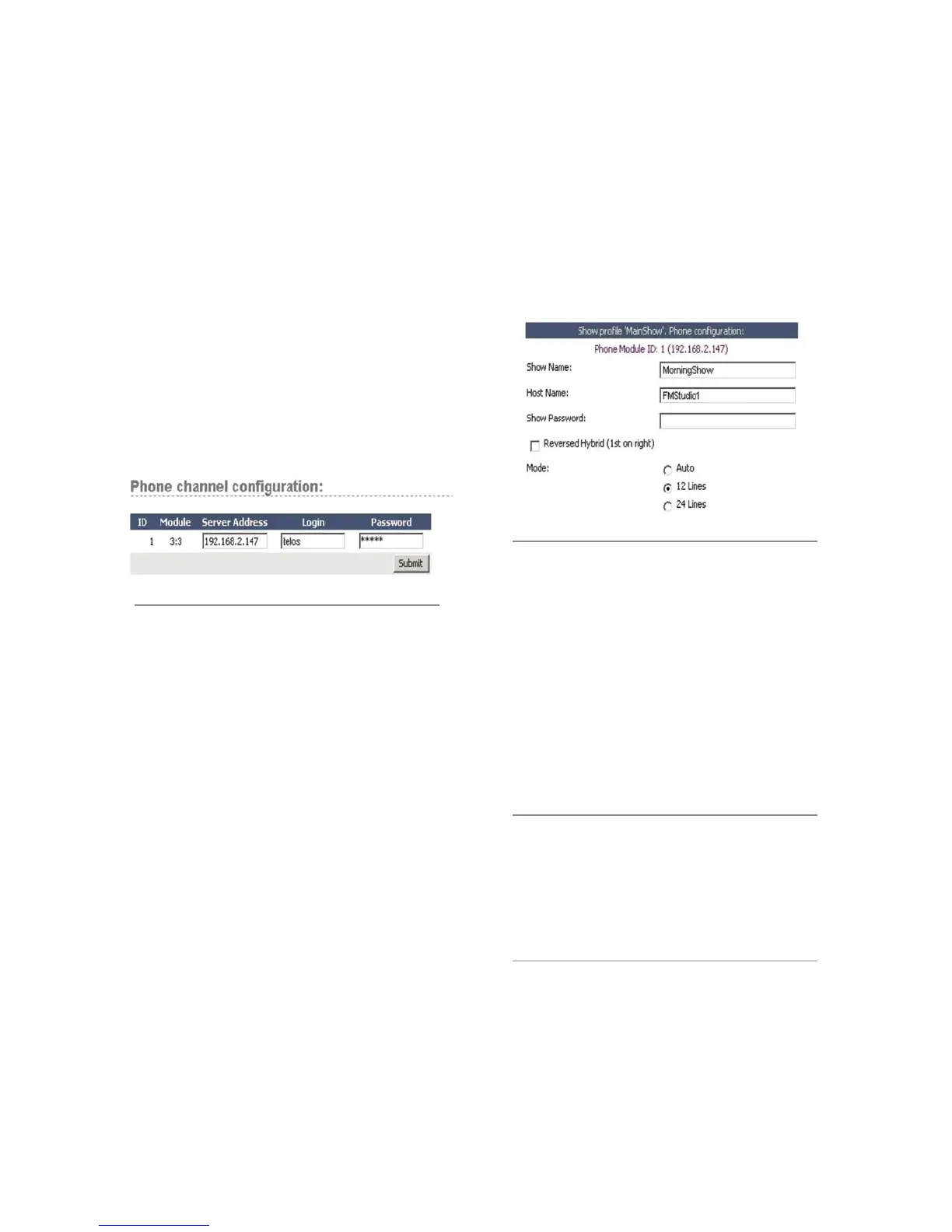
Open the Element’s Module Manager/Phone Chan-
nels web page. If you have the Caller Controller
Module installed, you will see the following at the
top of the screen:
Figure D-1: Phone conguration box
If you don’t see this, or if the ID or Module infor-
mation is incorrect, you will need to “Capture” your
current module configuration. This is normally done
at the factory, but if you have added the phone mod-
ule yourself, you will need to take care of this be-
fore proceeding. To capture, press and hold the Help
key on Element’s Navigation Module for 5 seconds,
until CAPTURE appears in the source name displays.
On the phone module, you will see the assigned ID
number in the upper left line icon position. You can
change this by pushing the adjacent line button. End
Capture Mode by pressing the Enter key on the Nav-
igation Module.
In Figure D-1 above, the “Module” field displays
both the module type and the position. The first digit,
“Type”, will be “3” to identify a Call Controler mod-
ule. The next digit is the module number as set by the
rotary switch on the back of the module.
Enter the IP address you assigned your TWOx12
in the Server Address field, plus your TWOx12’s
Login and the Password. (The default TWOx12
6.
7.
8.
login and password are both “telos” (lower case, no
quotation marks).
Now, we must associate a TWOx12 “show” with an
Element Show Profile. In your Web browser, navi-
gate to Element’s “Source and Profiles/Configura-
tion/Show Profiles” web page. Select the Element
Show Profile you wish to configure, and click on
Phone.
Figure D-2: Conguring a TWOx12 “show”
Enter the TWOx12 Show Name either by typing
it in, or by choosing it from the drop-down list.
For TWOx12, possible default show names are
“Hybrid1&2”, “Hybrid1”, or “Hybrid2”. (The latter
are for split-mode operation where the TWOx12 is
shared between two studios. See the TWOx12 manu-
al for details on setting up this operational mode.)
For TWOx12, the Host Name is always “TWOx12”.
The “Show Password” field is empty by default.
Note: Hybrid 1 is controlled by the left row of
telephone line selection buttons, and Hybrid 2 by
the right row. Normally, Hybrid 1 is the system’s
“main” hybrid, and is tied to the Call Controller’s
“Next” button, which advances through the lines
with each press. If you wish to use Hybrid 2 as
the “main” hybrid and have it controlled by the
“Next” button, click the “Reversed Hybrid” box
as shown in Figure D-2 above.
The TWOx12 has a maximum of 12 lines, so select
either “Auto” or “12 Lines” with the Mode Selection
radio buttons.
Click “Save” and use your Web browser to navigate
back to the “Element Sources & Profiles Configu-
ration/Source Profiles/Create New Source Profile”
9.
10.



 To Next Page