4: Element Operations • 48
©2008 Axia Audio — Rev. 3.0
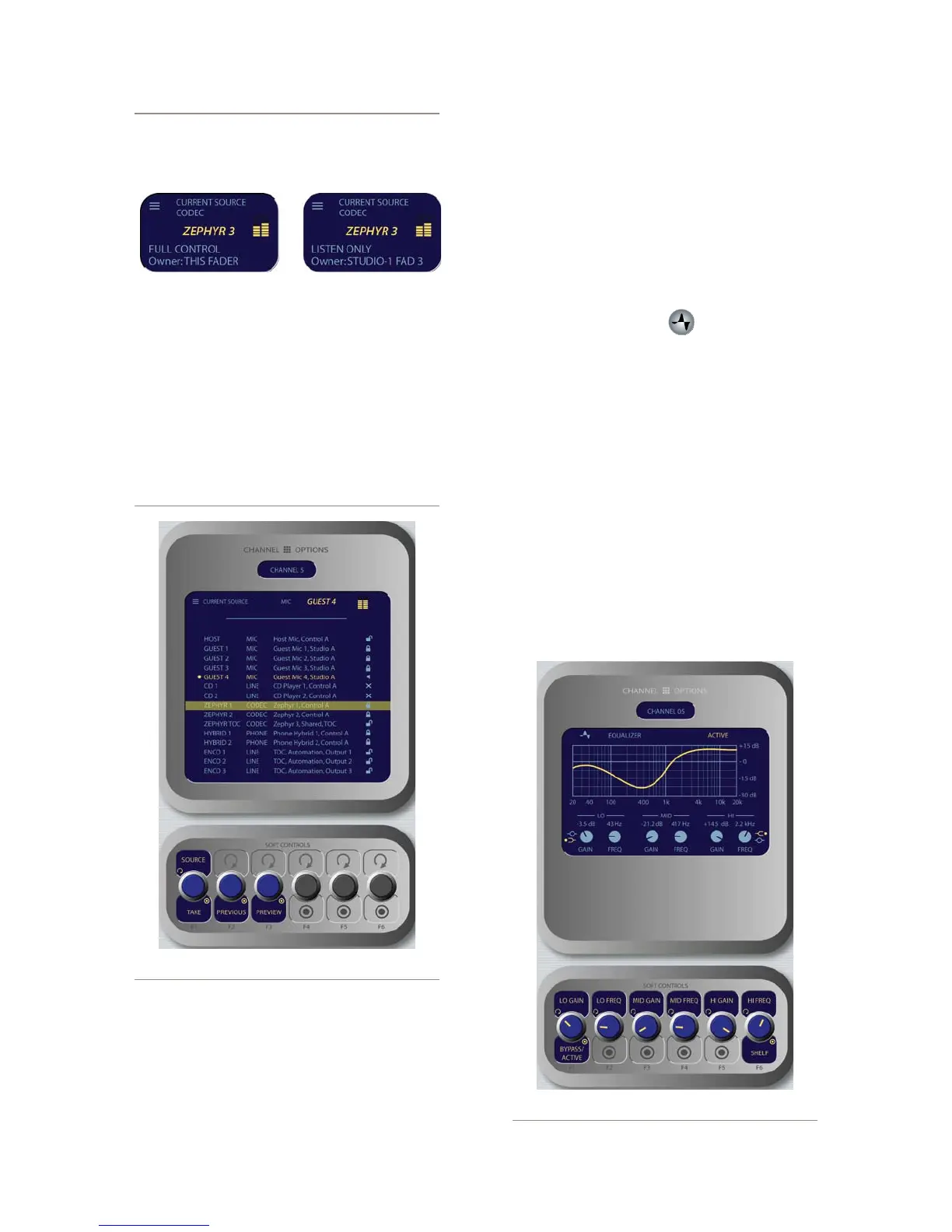
A Note About Source Sharing: Element’s
source sharing protocol keeps sources from
being controlled by more than one console at a
time.
If an operator tries to assign a source that’s
already in use on another console and has a
backfeed or logic control enabled, the ID box in
the Channel Options screen informs him that
he has “Listen Only” rights to the source (as
seen in the righthand box above) - no backfeed
will be sent from his console, and no machine
logic is tied to the fader’s ON/OFF keys.
If the source is not in use anywhere else, the
operator is informed that they have “Full Con-
trol” of the source (as shown in the lefthand
box above), and backfeed and logic operate
normally.
Source/Take
: rotating this SoftKnob scrolls
through the available sources. Push to take.
Previous
: Whenever you “take” a new source,
your last source selection is held in memory.
Should you change your mind about the new
source and wish to return to your previous source
»
»
selection, press the
Previous
knob. the prior
source will be immediately reloaded to the fader.
Preview
allows you to hear the highlighted
source through the Preview speakers without
haveing to “take” it. Press and hold to listen; re-
lease to end the preview.
Pressing
Source
again returns to the Channel
Options screen.
EQ & Dynamics Key
This command
allows three-band parametric equal-
ization to be applied to the selected audio source and,
if it is a mic source, to apply dynamics processing by
Omnia. Pressing the
EQ & Dynamics
key causes the
EQ
screen to appear; pressing it a second time displays the
Dynamics
screen, and pressing a third time exits.
When the
EQ
screen is displayed, a graphical rep-
resentation of the equalization curve is displayed as
the controls are adjusted. The screen also indicates the
amount of cut/boost applied, and the center frequency
of each band.
Lo Gain/Bypass/Active:
Rotating this Soft-
»
»
•
»
Figure 4-8: EQ menu screen.
Figure 4-7: Source menu screen.



 To Next Page