4: Element Operations • 62
©2008 Axia Audio — Rev. 3.0
A Note About Source Sharing: Element’s
source sharing protocol keeps sources from
being controlled by more than one console at a
time.
If an operator tries to assign a source that’s
already in use on another console and has a
backfeed or logic control enabled, the ID box in
the Channel Options screen informs him that
he has “Listen Only” rights to the source (as
seen in the righthand box above) - no backfeed
will be sent from his console, and no machine
logic is tied to the fader’s ON/OFF keys.
If the source is not in use anywhere else, the
operator is informed that they have “Full Con-
trol” of the source (as shown in the lefthand
box above), and backfeed and logic operate
normally.
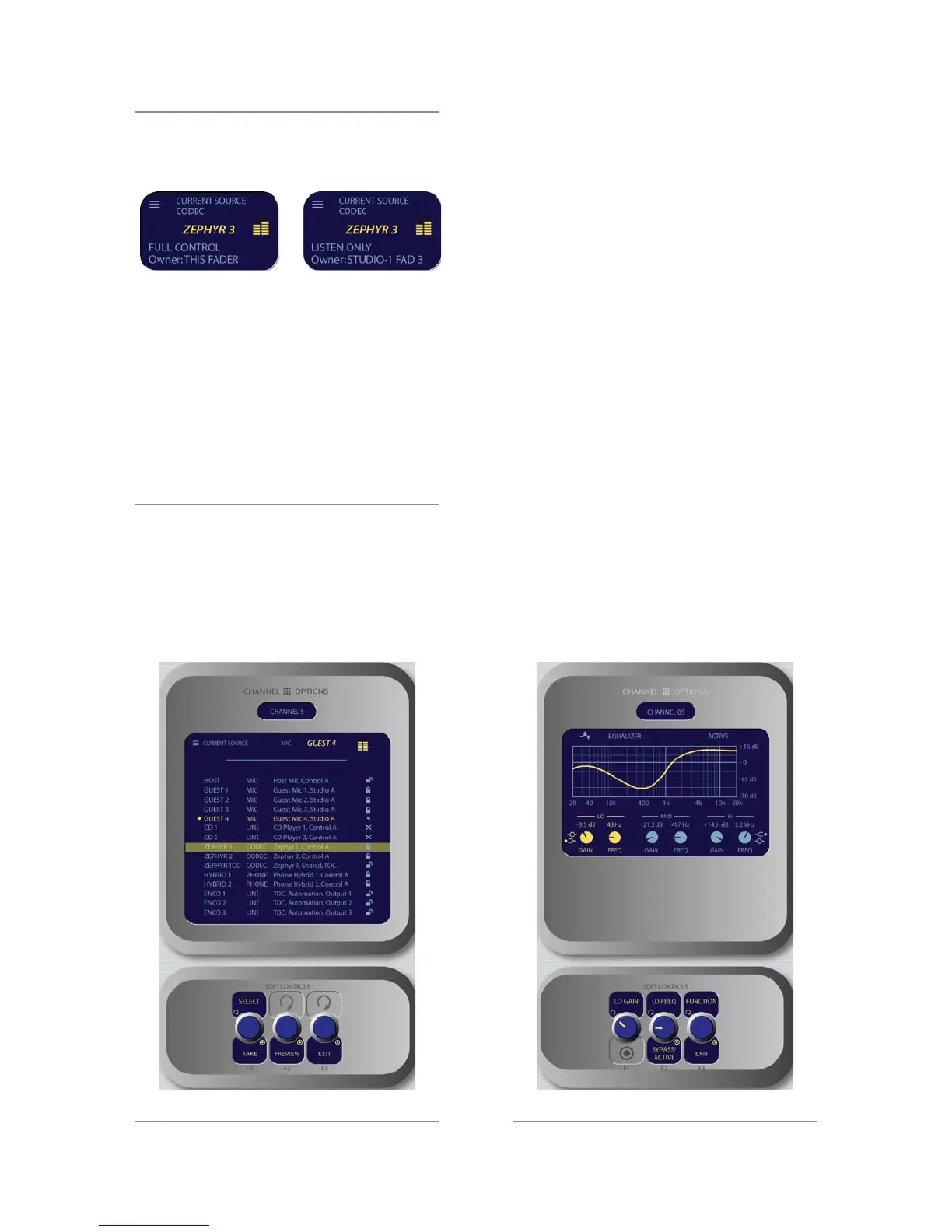
Select/Take
: rotating this SoftKnob scrolls
through the available sources. Push to take.
Preview
allows you to hear the highlighted
source through the Preview speakers without
haveing to “take” it. Press and hold to listen; re-
»
»
lease to end the preview.
Pressing the
Exit
Soft Knob returns you to the
Channel Options screen.
EQ Controls
Press the
Select
SoftKnob when the
EQ Curve
box
is highlighted to adjust three-band parametric equaliza-
tion for the selected audio source. When the
EQ
screen
is displayed, a graphical representation of the equaliza-
tion curve is displayed as the controls are adjusted. The
screen also indicates the amount of cut/boost applied,
and the center frequency of each band.
Rotate the
Function/Exit
SoftKnob to highlight
the
Lo, Mid
or
Hi
band knobs shown onscreen.
Notice that the left and center SoftKnob labels
change to display
Lo Gain/Lo Freq, Mid Gain/
Mid Freq
and
Hi Gain/Hi Freq
as you rotate the
Function
knob.
The leftmost SoftKnob is the
Gain
control; rotate
to adjust the amount of
gain or cut applied to the
selected band.
Note that when you adjust Lo Gain, the Shelf/
Peak indicator next to the onscreen control
»
•
»
»
*
Figure 4-22: Source menu screen. Figure 4-23: EQ menu screen.



 To Next Page