4: Element Operations • 63
©2008 Axia Audio — Rev. 3.0
automatically shifts to Peak mode when boost
is applied, and shifts to Shelf mode when cut
is applied.
Note that when you select the Hi band, the la-
bel below the Gain control displays Hi Peak
or Hi Shelf, depending on which mode has
been selected. Push the knob to toggle be-
tween the two modes.
The center SoftKnob is the Freq control and
adjusts the center frequency of the selected EQ
band.
In Lo Freq mode, rotating the knob adjusts
the center frequency of the low EQ band (25
- 400 Hz).
In Mid Freq mode, rotating the knob adjusts
the center frequency of the midrange EQ
band (100 Hz - 1 kHz).
In Hi Gain mode, the knob adjusts the boost/
cut of the high frequency band.
Pressing the center SoftKnob toggles EQ be-
tween Active and Bypass.
Pressing the Function/Exit SoftKnob
returns
you to the Channel Options screen.
Note: High, Mid and Low band adjustments
provide up to 25 dB of cut and 15 dB of boost.
Element EQ features SmartQ™ automatic band-
width system that varies the Q of the selected
parametric band to provide the most pleasing
EQ effect. For details on SmartQ, please refer
to Page 44 of this manual.
Dynamics Controls
Dynamics controls are available if the selected
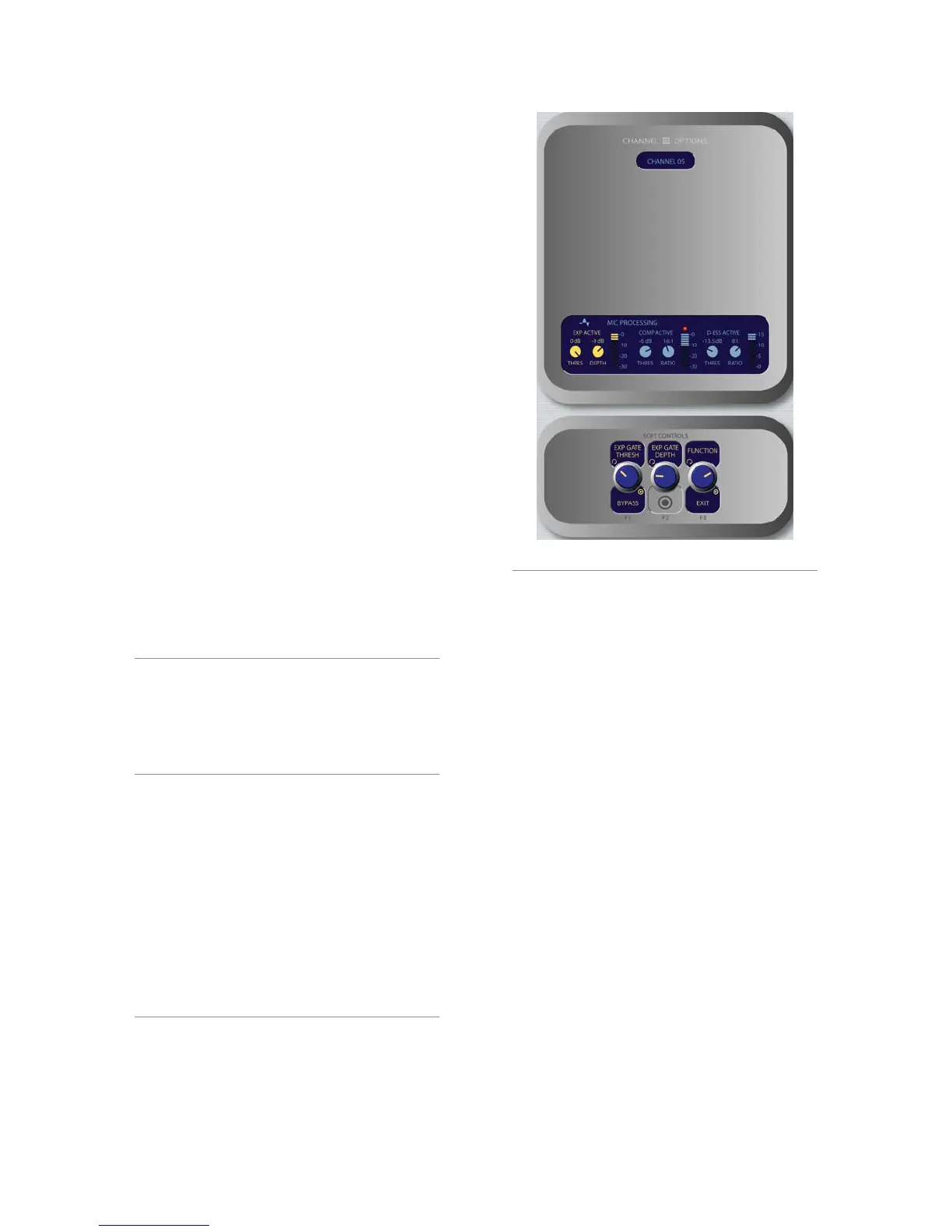
source is a Mic, Codec or Phone input. Pressing the Se-
lect SoftKnob when the Dynamics box is highlighted
allows you to adjust Gating, Compression and De-es-
sing for a microphone channel. Normally, these values
are part of a pre-set Show Profile; however, on-the-fly
control is provided for talent to make adjustments when
needed.
What is this stuff? Radio engineers don’t need
a lesson in dynamics processing, but for the ben-
et of any jocks reading this, here’s a quick ex-
planation of what these controls can do.
A Gate is a dynamics device whose function
*
»
*
*
*
»
•
is to remove unwanted audio material below a
certain threshold. A gain circuit is employed to
raise or lower the volume of the audio signal;
when the signal falls below a certain set thresh-
old, the audio level drops down to a predeter-
mined level. The reason they are called gates
is because when they “close” it sounds as if
the audio has suddenly stopped, or has been
“gated.” You might use this on a mic channel to
eliminate background noise during times when
you’re not speaking.
Threshold settings determine at what level the
processor will begin working. For example, on
a compressor, when signal level exceeds the
threshold setting, it will be compressed; below
the threshold the signal will remain uncom-
pressed. On a gate, threshold determines the
minimum input level required to cause the gate
to open up and pass signal; when input level
drops below the threshold, the gate will be closed
preventing signal from passing. Carefully setting
the threshold allows you to very specically con-
trol when processing is being applied to a signal.
Compression controls the dynamic range of an
audio signal. It generally reduces the volume of
very loud audio, helping to keep from “blowing
out” the mic channel with too much volume. It
can be used to make your mic channel sound
“fatter,” evening out the highs and lows of your
vocal pattern. It can also increase the overall
perceived fullness of your voice. Too much com-
pression, however, can make your voice sound
hard and “squashed.” Use it sparingly!
Figure 4-24: Dynamics menu screen.



 To Next Page