Bluetooth & WLAN Combo Module (Windows 7) D - 61
Windows 7
Windows 7
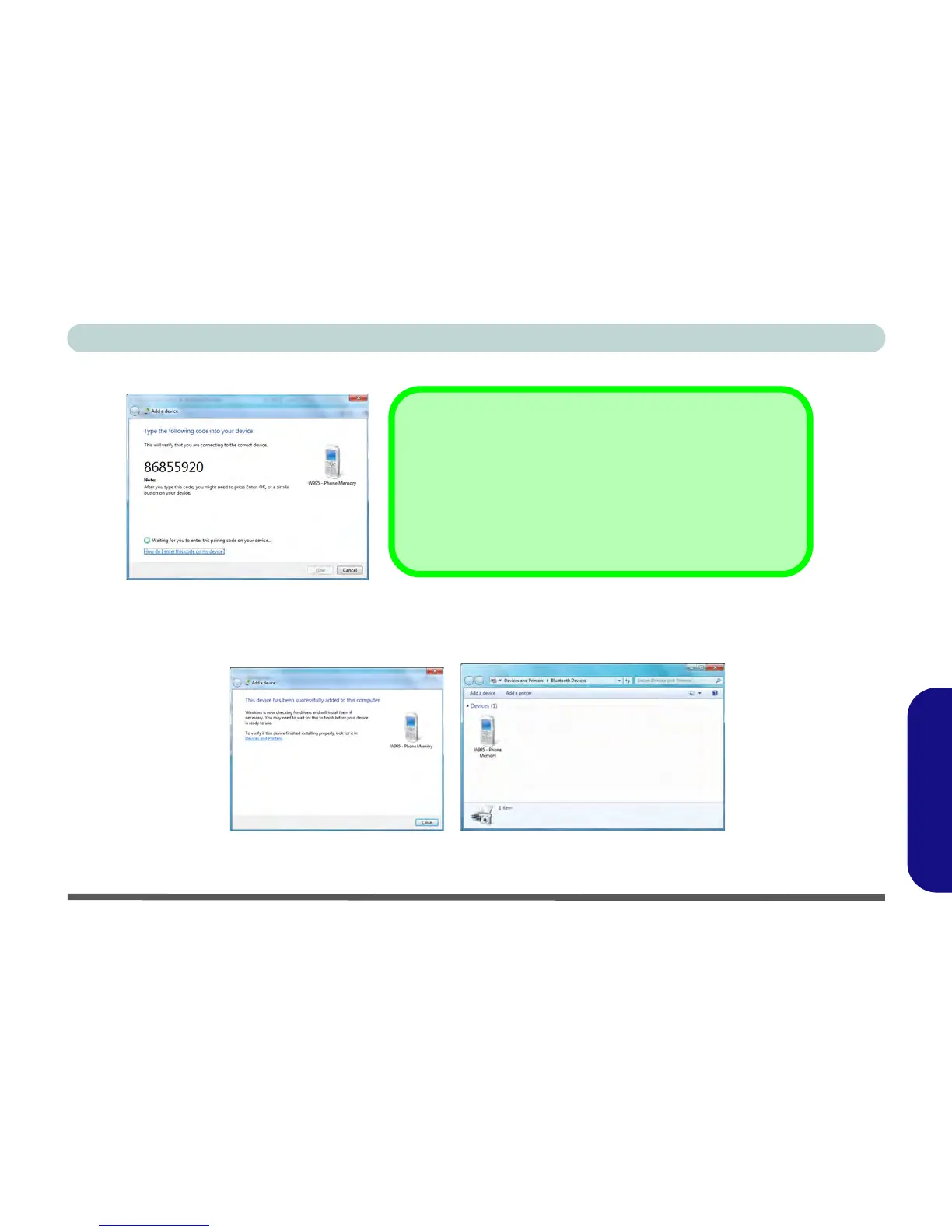
4. Enter the code into your Bluetooth enabled device and follow any on-screen instructions to complete the pairing.
Figure D - 35 - Pairing Code Example
5. Windows will check to see if any drivers are required to complete the pairing.
6. Follow any on-screen instructions on the computer if device drivers are required to be installed.
7. Click/tap Close.
Figure D - 36 - Pairing Complete & Bluetooth Device Enabled
Pairing Codes
The example outlined here shows a connection to a mobile de-
vice. Other devices e.g. computers, may have a slightly different
connection procedure, and may require you to confirm a pairing
code is correct on both devices. Follow the on-screen instruc-
tions to complete the pairing.



 To Next Page