Windows 8 Start Screen & Desktop 1 - 25
Quick Start Guide
1
Apps & Tiles
The Windows 8 Start screen will contain a number of apps, and many more will be installed as you add more
applications etc. Not all of these apps can fit on one screen so you will often need use the slider at the bottom of
the screen in order to view all the necessary Apps.
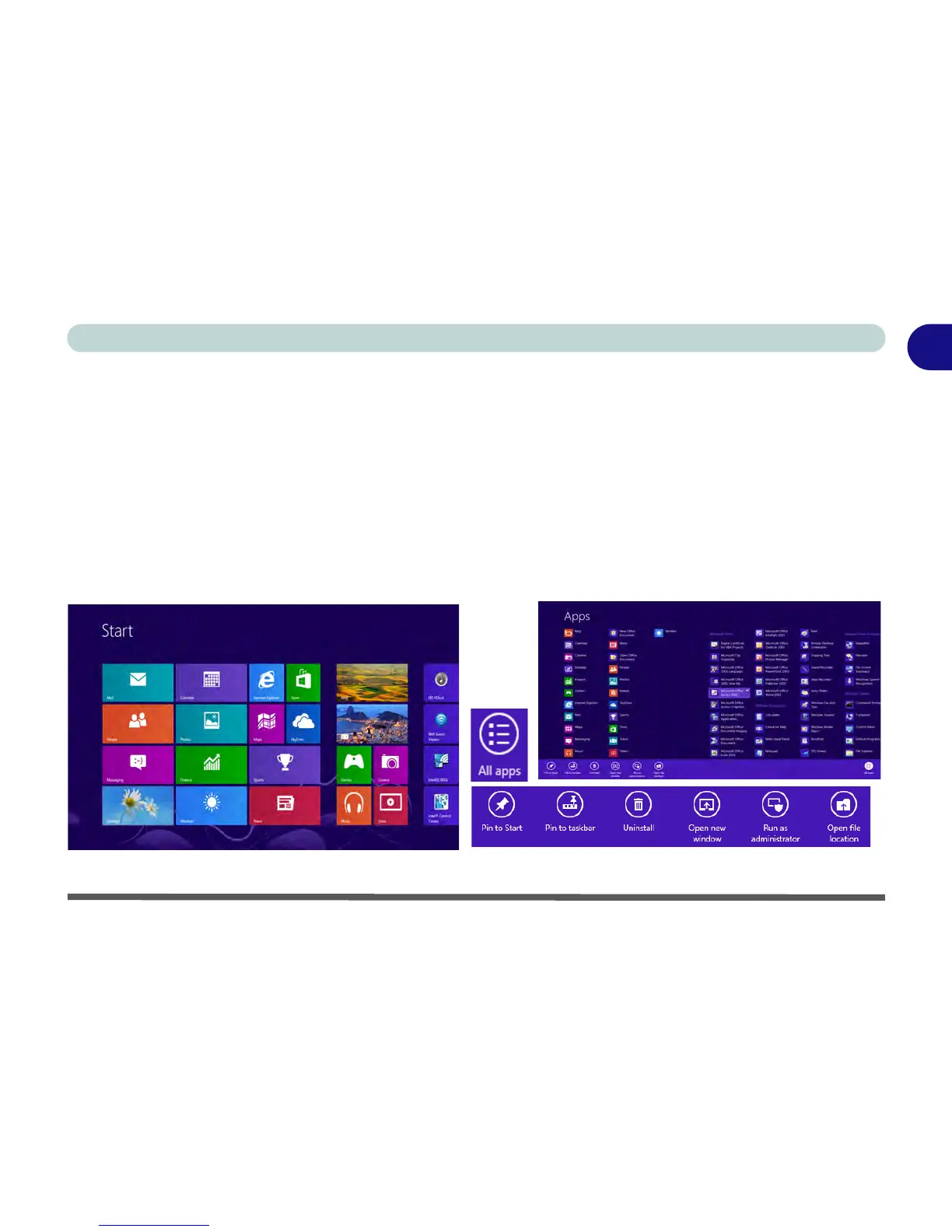
Accessing Pining/Unpinning All Apps
You can add and remove the tiles for apps and control panels in the Start screen. Right-click on a blank area
of the Metro UI Start screen, or swipe a finger from the top or bottom of the touch screen, and you will see
the All Apps icon. Click/tap the All Apps icon to display all the installed applications etc. Right-click any icon,
or swipe down on it, to bring up the menu at the bottom of the screen. You can then click/tap the appropriate
icon to pin the App to (or unpin from) the Start screen, or to the taskbar in the Desktop application.
Figure 1 - 18 - All Apps
Right-click (or swipe down on) an icon
to display the menu
Start Screen and click All Apps (or swipe
Right-click on a blank area of the
a finger up or down on to the screen)



 To Next Page