1 - 26 Windows 8 Start Screen & Desktop
Quick Start Guide
1
Desktop Application
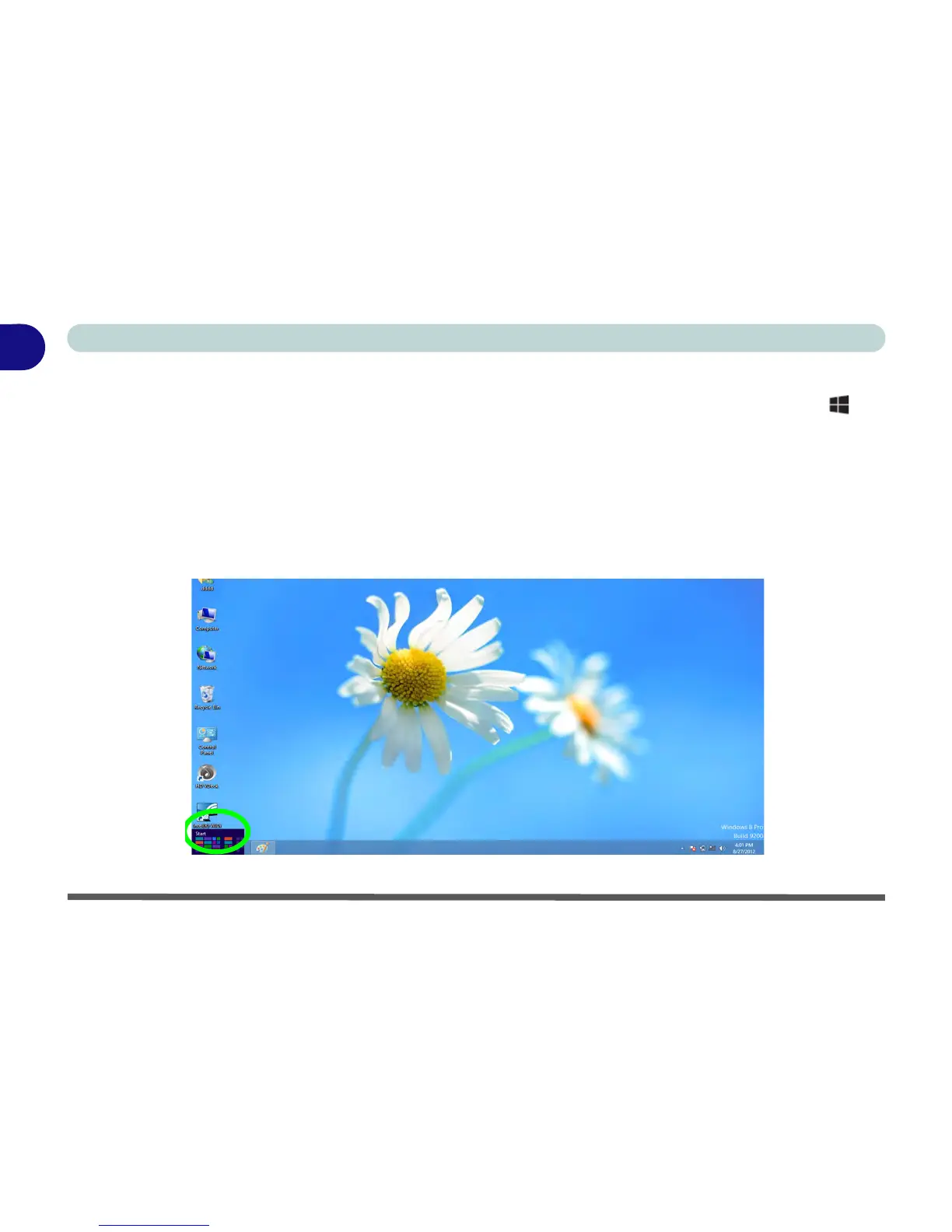
When the Desktop app is running (click/tap the app in the Start screen or use the Windows Logo Key + D
key combination), and you are using a keyboard, you can use lower left hot corner to switch between the Start
screen and the Windows Desktop. To do so move your mouse to hover over the bottom left corner of the screen
and click/tap the pop-up.
To switch between the Desktop app and Start screen using the touch screen, use the Charms Bar (swipe a
finger from the right and tap Start) to access the Start screen, and tap the Desktop app to switch back.
When you move to the lower left hot corner in the Start screen itself it will take you back to your most recently
used app.
Figure 1 - 19 - Desktop



 To Next Page