7-4 BBP™31 Sign & Label Printer
User Guide
Import Fonts
Import Fonts
Use this procedure to add your own fonts for use in labels created on the printer.
Only True-Type fonts can be imported.
To import a font:
1. Copy the fonts you want to import into the root directory of the USB flash drive
you will be using.
2. Connect the USB flash drive to any available USB port on the printer.
Note: The system will only support one USB flash drive at a time.
3. Select Menu .
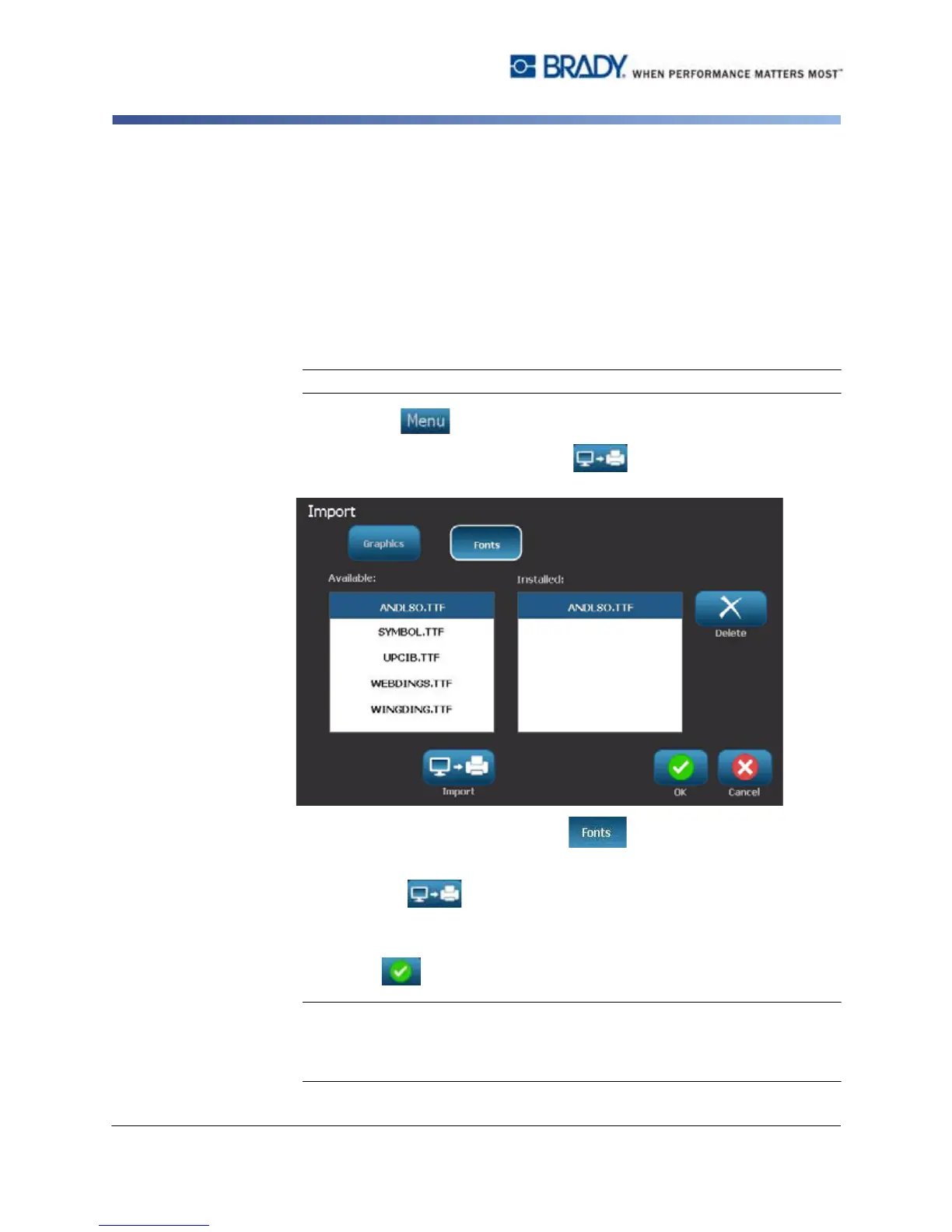
4. In the menu options list, select Import . The Import dialog box
displays.
5. In the Import dialog box, select Fonts .
6. In the Available list, select the font you want to import.
7. Select Import . The font will be imported and the name will display in
the Installed list.
8. Repeat Step 5 until all of your fonts have been selected.
9. Select OK .
Note: If there is not enough space available to store the imported font(s), you
will have to clear some space on the system before you can import any new
fonts. You can clear space by deleting saved files. There is approximately
56MB of storage space available.



 To Next Page