4-22 BBP™31 Sign & Label Printer
User Guide
Working with Barcodes
Changing Barcode Options
Human-Readable Text Options
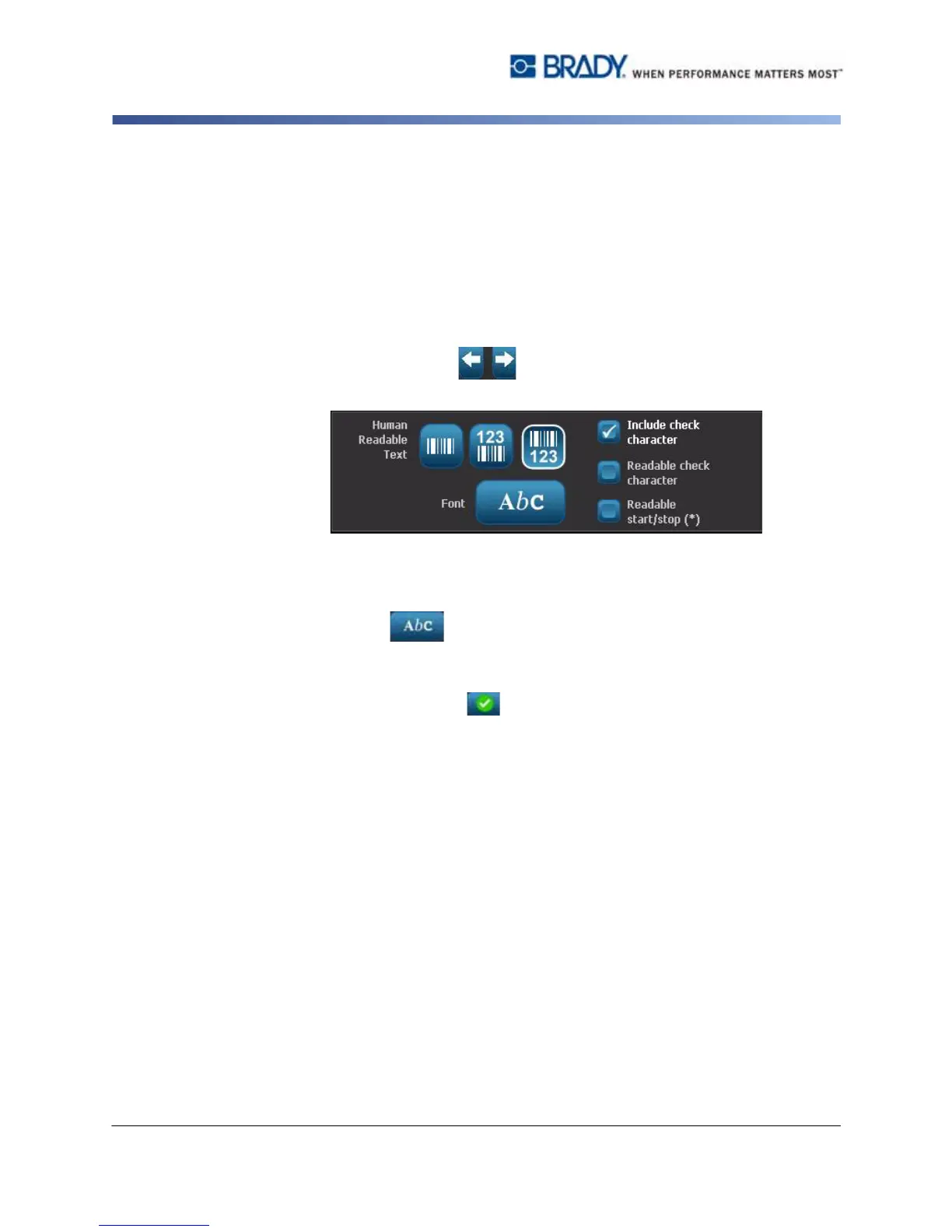
Barcode text options let you choose whether to show any human-readable text on
your barcode and where it should be positioned (above or below the barcode).
You can also decide whether you want the text to include a check character or a
start/stop character.
To add human-readable text:
1. In the Editor, select a barcode object.
2. Select More Options and go to the Human Readable Text control
panel.
3. Choose the Human-Readable Text option you want: none, above barcode or
below barcode.
4. To choose a font and/or size for your human-readable text,
select Font .
5. In the Font dialog box, choose a font, size and/or style for the human-readable
text that will be included on your barcode.
6. When done, select OK . The barcode reflects the changes.
7. Select the check character options you want for your barcode. The changes
are immediately reflected in the Editor.



 To Next Page