BBP™31 Sign & Label Printer
User Guide
4-5
Adding Objects
Barcode Objects
Barcode Objects
To add a barcode object:
1. Use one of the following methods to add a barcode object:
• Touch anywhere in the
Editor
.
- or -
• If you are already in a label, select
Add Object
,
2. In the Add Object panel, select Barcode .
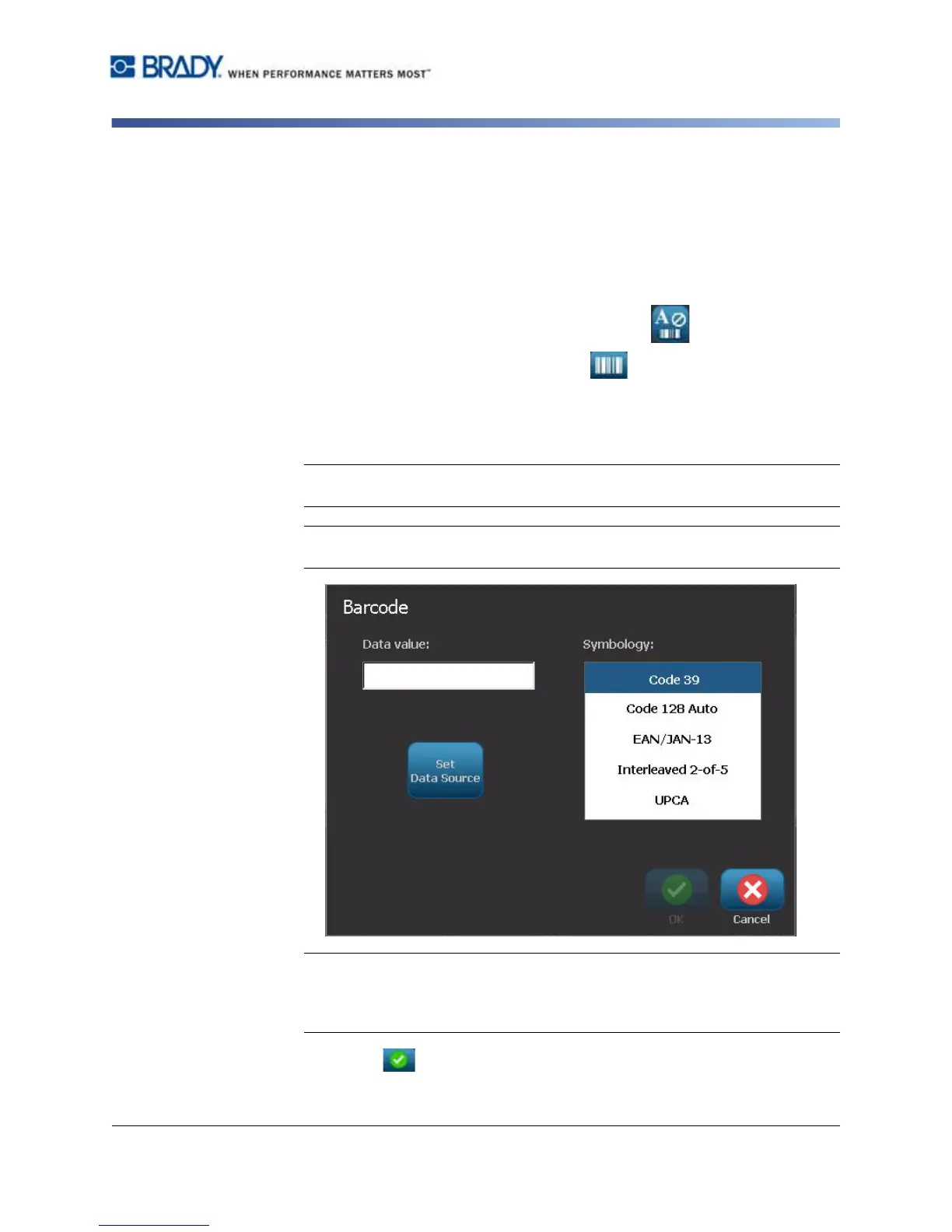
3. In the Barcode Content dialog box:
a. Select a barcode Symbology.
b. Type a Data Value.
Note: You can set a different symbology as the default by using System Setup
(see “Set Barcode Defaults” on page 2-18).
Note: To set a different data source, see “Converting Text or Barcode to
Variable Data” on page 4-31.
Note: If a typed character is invalid for the active symbology, a message will
display indicating that you have entered an incorrect character. Options for
entering barcode data and selecting symbology will remain displayed until valid
characters are entered or you cancel the operation.
4. Select OK .



 To Next Page