BBP™31 Sign & Label Printer
User Guide
5-3
Printing Labels
Printing Labels without Serialized Objects
Printing Labels
As you print your labels, keep the following in mind:
• During printing, the print status is displayed and the Editor is unavailable.
When printing is complete, you are returned to the Editor.
• The printer cuts between labels or at the end of the job, according to the
selected cut settings.
• If there is no media or ribbon installed, printing does not start and you will be
prompted to install media or ribbon.
• If you open the ribbon cover during the print operation, printing stops and a
message displays prompting you to close the cover. The print job is canceled.
To print the label(s), you must restart the print job.
Printing Labels without Serialized Objects
Use this procedure to print your label. If your label contains a serial object, see
“Printing Labels with Serialized Objects” on page 5-4.
To print labels without serialized objects:
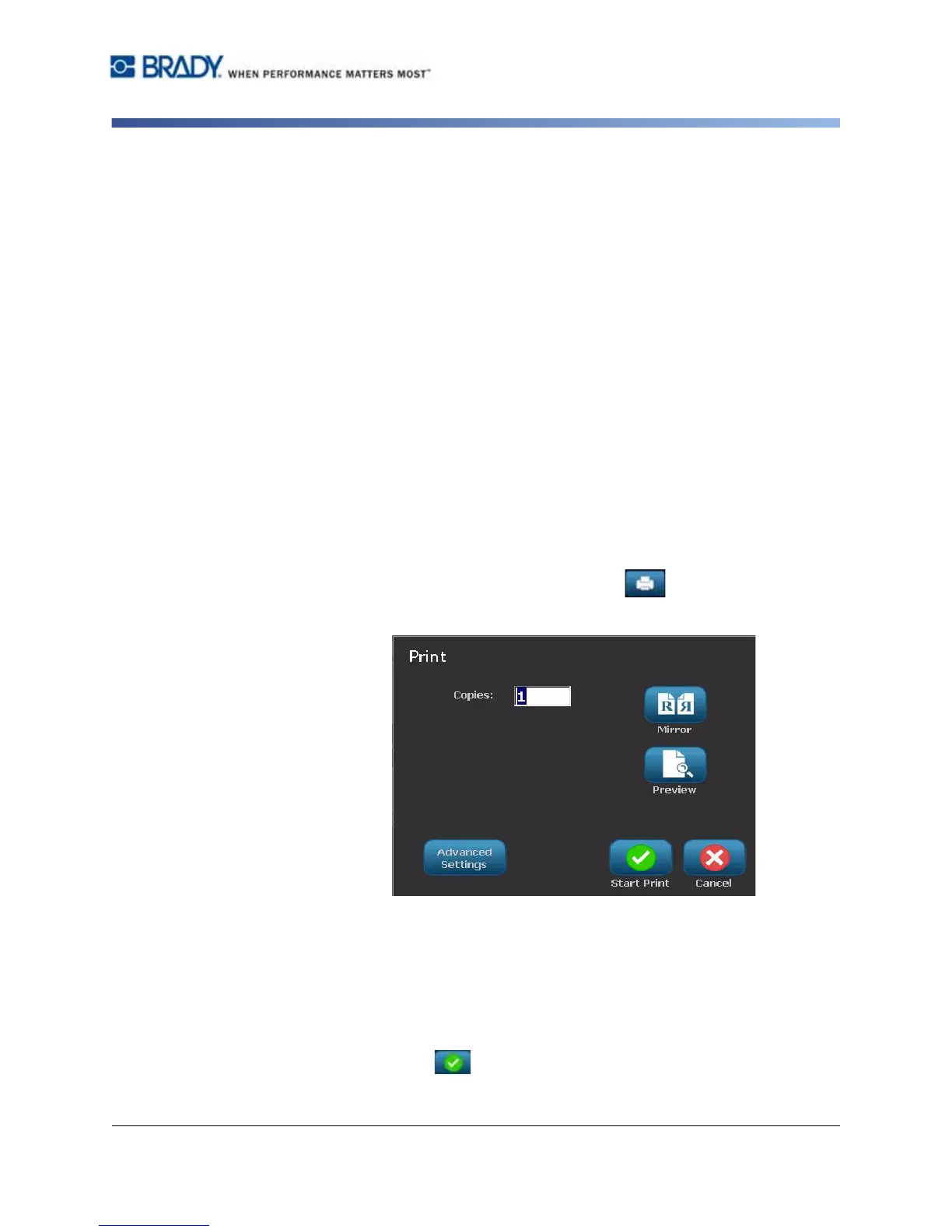
1. With a defined label in the Editor, select Print . The Print dialog box
displays with default copies set to 1.
2. From the Print dialog box, select the print options:
•
Copies
•
Mirror
• Preview
•
Print energy
(accessed from the
Advanced Settings
button)
•
Adjust Offset
(accessed from the
Advanced Settings
button)
3. Select Start Print to start printing the label.



 To Next Page