BBP™31 Sign & Label Printer
User Guide
4-25
Handling Objects
Aligning Objects
Aligning Objects
To align objects on label:
1. In the Editor, select the object you want to align.
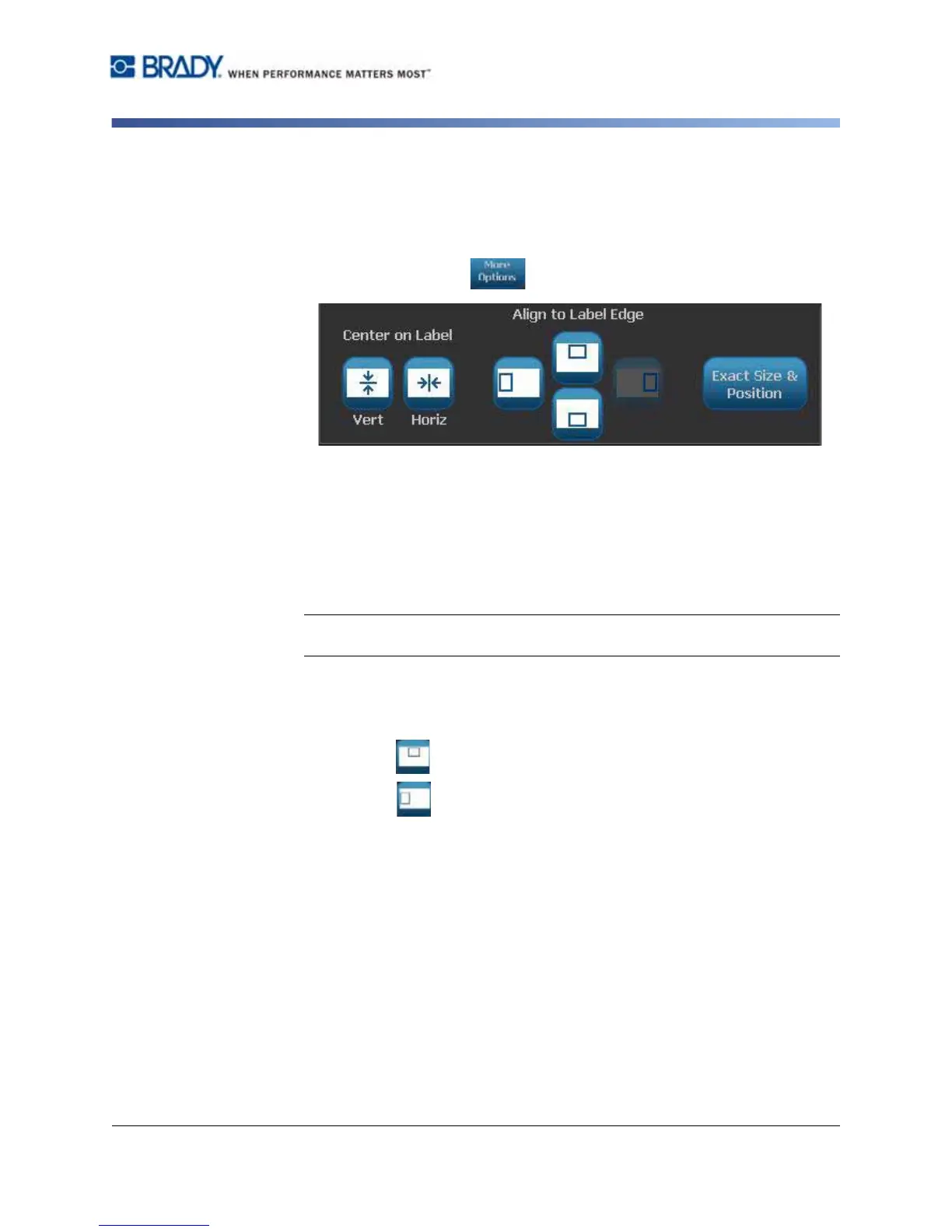
2. Choose More Options and go to the alignment Control Panel:
3. Choose the alignment option(s) you want (changes are immediately reflected
in the Editor):
•
Center on Label
: Positions the object in the
vertical
or
horizontal
center of
the label.
•
Align to Label Edge
: Align object to
top
,
bottom
,
left
or
right
of label edge.
If the object already reflects an option, or if the option cannot be used for this
object, the button is greyed out.
Note: If an option is unavailable, or if the object already reflects the change,
the option button(s) are greyed out.
Example:
To move an object to the upper left corner:
a. Touch (top).
b. Touch (left).



 To Next Page