2-14 BBP™31 Sign & Label Printer
User Guide
Setting up the System Defaults
Creating and Printing Labels from a PC
Set Clock
To set date, time and sleep mode:
Note: With power removed (i.e., printer disconnected from power source), the
system clock retains its settings for about 30 days.
1. Select Menu .
2. In the menu list, select Setup .
3. In the Setup menu, select Clock Settings .
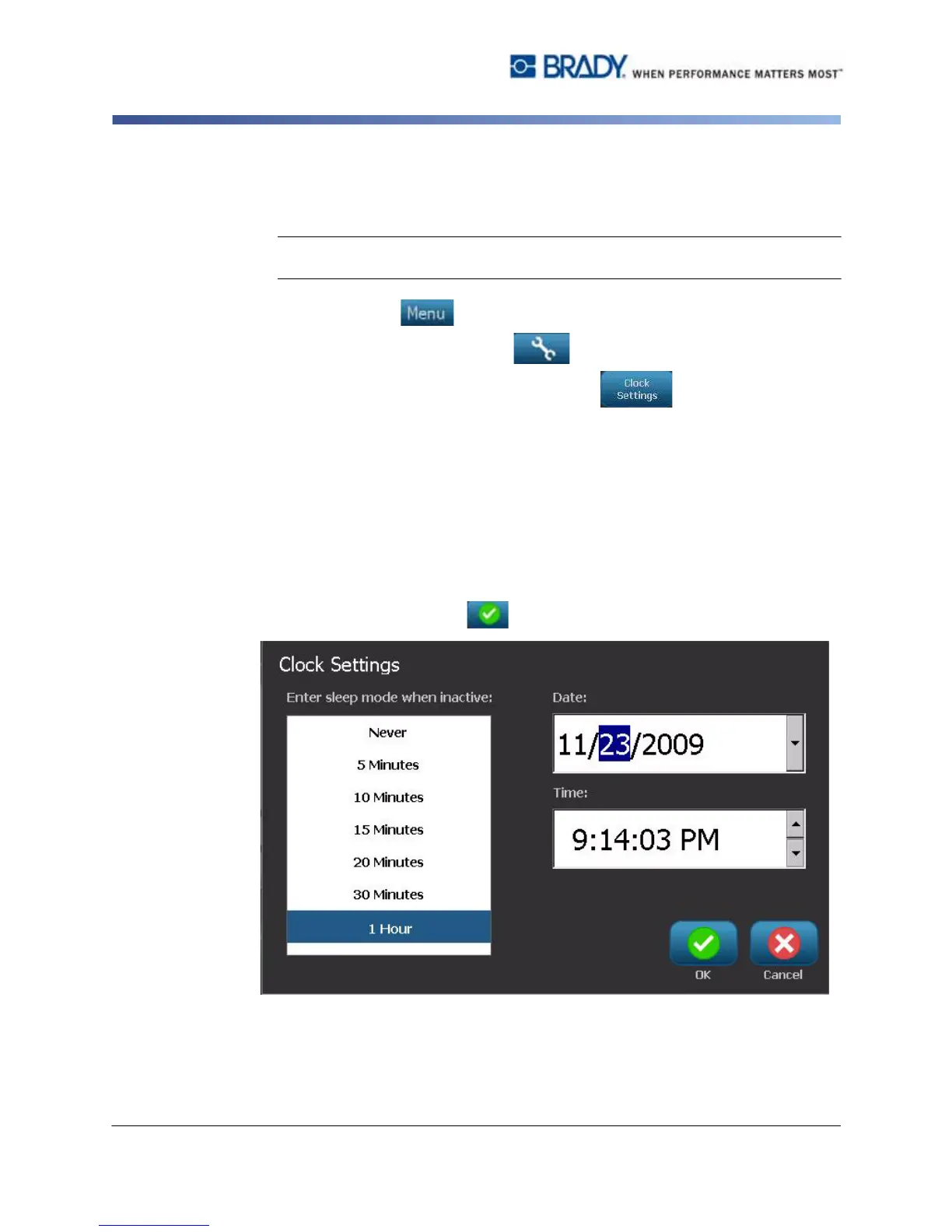
4. In the Clock Settings popup, change any of the following options (this also
sets the system clock, which is needed if you want a time stamp on your
label):
•
Sleep mode timeout
: Choose the amount of time you want the system to wait
before entering sleep mode.
•
Date
: Touch to highlight the
Month
,
Day
or
Year
, then touch the
T
arrow to
choose from the calendar display.
•
Time
: Touch to highlight the
Hour
,
Minute
or
Second
, then touch the
S
or
T
arrows to change the time. Touch
AM/PM
to toggle between AM and PM.
5. When done, select OK .



 To Next Page