BBP™31 Sign & Label Printer
User Guide
6-1
6 Working with Label Files
Save a Label File
Use this procedure to save a label file.
1. With a label created in the Editor, select Menu .
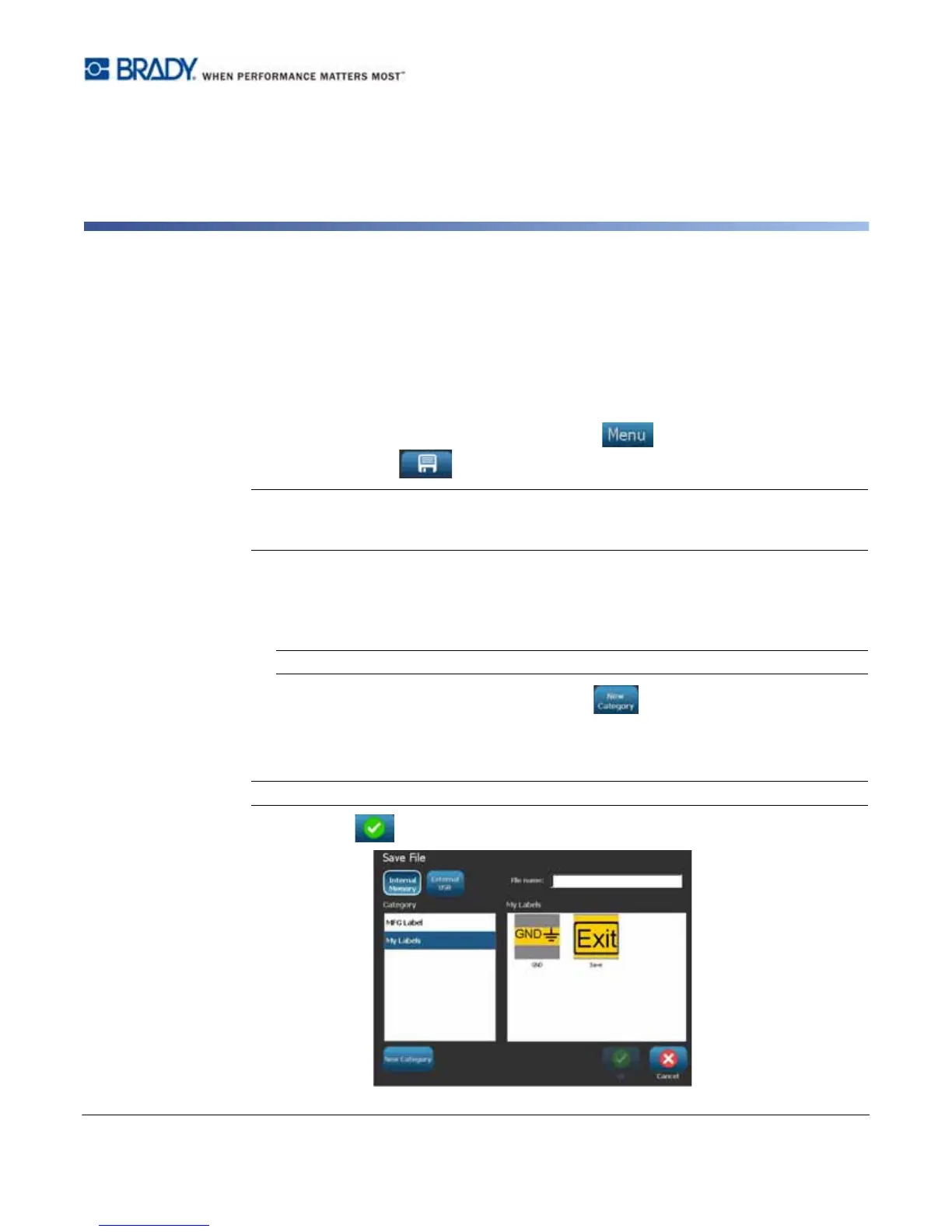
2. Select Save File . The Save File dialog box displays.
Note: If the label was previously saved, the system defaults to that location and file name.
If the storage location is no longer available (e.g., the external storage location has been
removed), the system defaults to the internal memory location.
3. Choose a Label Location:
•
Internal Memory
(file is saved on the printer).
•
External USB (file is saved on a US
B flash drive). If the location is full, no files can
be saved until one or more files in that location are deleted.
Note: The system will support only one USB flash drive at a time.
4. Choose a Category or select New Category and type a category name.
5. Choose a Filename: Type a name for the label file, or confirm the existing label file
name, if the file has been previously saved in this location. The system will not let you
type illegal characters.
Note: If filename already exists, the system will ask if you want to replace the existing file.
6. Select OK to save the label file. The label remains displayed in the Editor.



 To Next Page