BBP™31 Sign & Label Printer
User Guide
5-7
Printing Labels
Adjusting Print Energy
Adjusting Print Energy
If your printing is spotty, you may want to increase the print energy to make sure
more of the ribbon ink transfers to the label. However, if your ribbon is sticking or
tearing during printing, the heat energy may be too high and should be reduced.
Constantly printing at high energy levels may cause printer jams or other printing
errors and may reduce the overall life of your printhead.
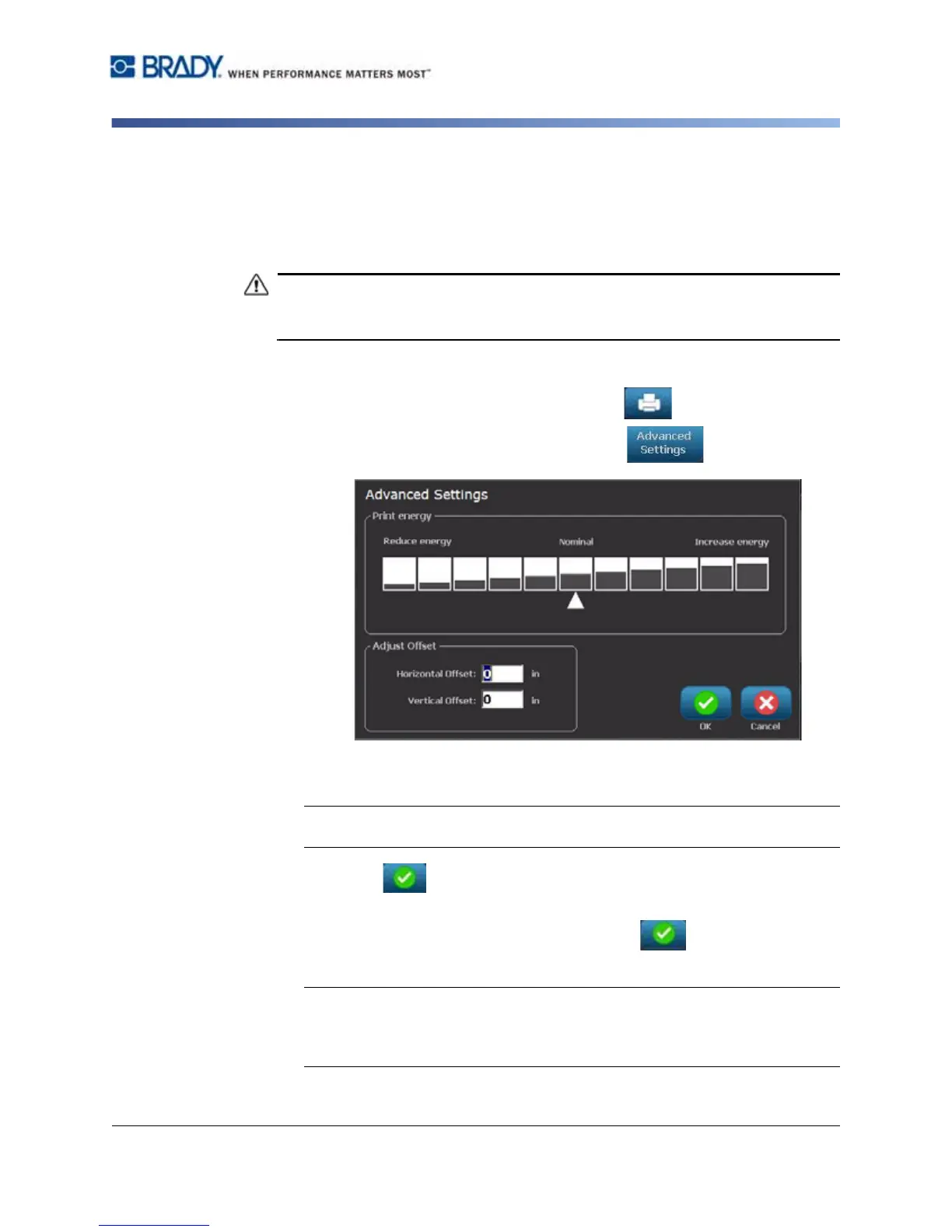
To adjust the print energy:
1. With a defined label in the Editor, select Print .
2. In the Print dialog, select Advanced Settings .
3. In the Print Energy area, select the appropriate box to increase or decrease
the print energy level.
Note: By default, the print energy is at the nominal setting for the best overall
performance.
4. Select OK . The print energy level is changed and the Print dialog box
is displayed.
5. Choose your print options and select Start Print . The system uses the
new setting for printing the label(s) in this print job.
Note: The selected print energy setting will stay in effect for all subsequent
print jobs with the currently installed media. When new media is installed, the
print energy level is reset to the default setting. The print energy level is also
reset by rebooting the system.



 To Next Page