C-28 BBP™31 Sign & Label Printer
User Guide
Right to Know (RTK)
Setting RTK Preferences
Set Label Defaults
Format
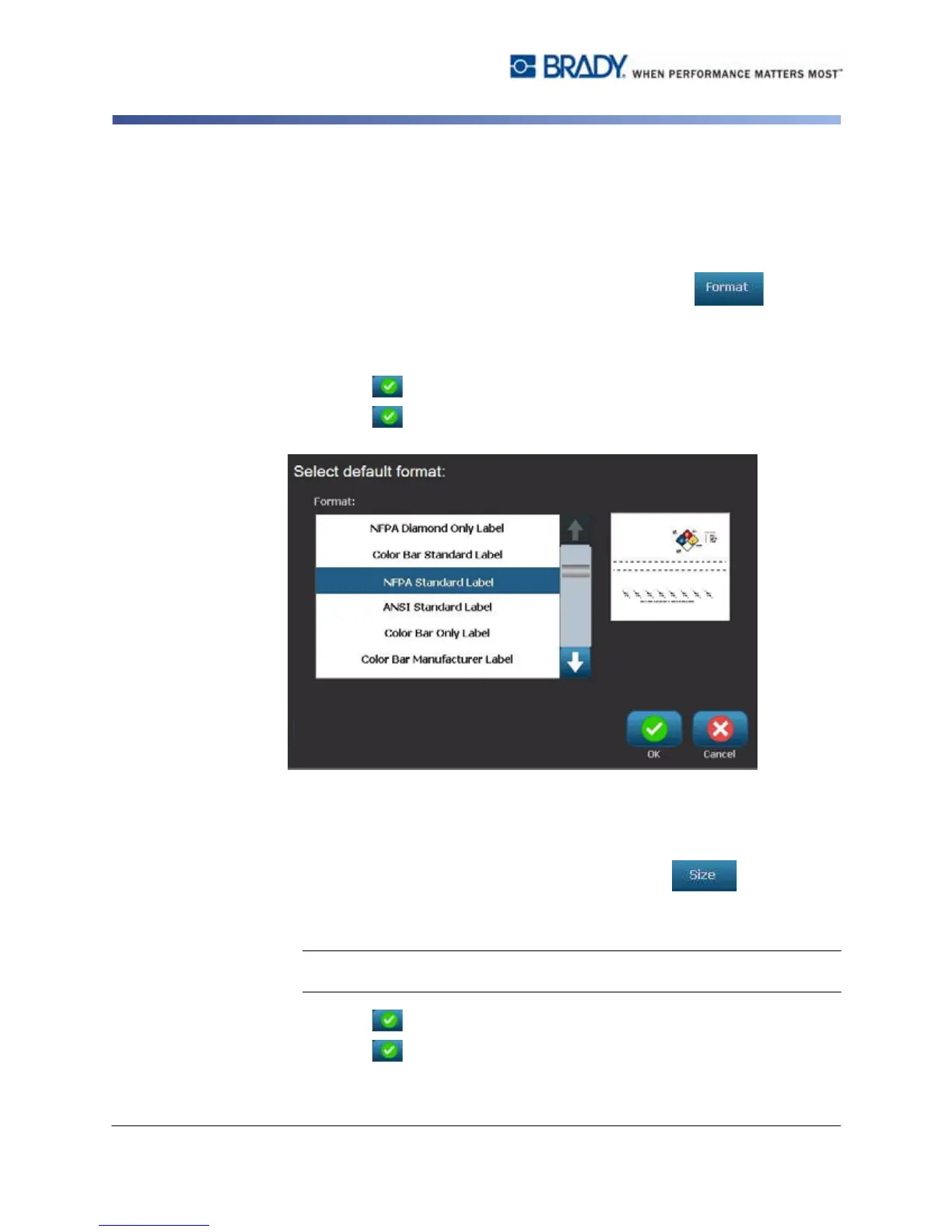
To setup a default label format:
1. In the Right-to-Know Preferences dialog, select Format .
2. In the Right-to-Know Format dialog, choose a format type from the list. An
example of the highlighted format type will display on the right side of the
screen.
3. Click OK .
4. Click OK again to close the dialog and return to the main page.
Size
To choose a default label size:
1. In the Right-to-Know Preferences dialog, select Size .
2. From the Standard Label options for the selected format type, choose the
label size you want.
Note: The available label sizes are determined by the format type you have
selected.
3. Click OK .
4. Click OK again to close the dialog and return to the main page.



 To Next Page