EasyManua.ls Logo

Canon EOS 600D - Correcting the Images Dark Corners

Canon EOS 600D
328 pages
Print Icon
To Next Page IconTo Next Page
To Previous Page IconTo Previous Page
Loading...
110
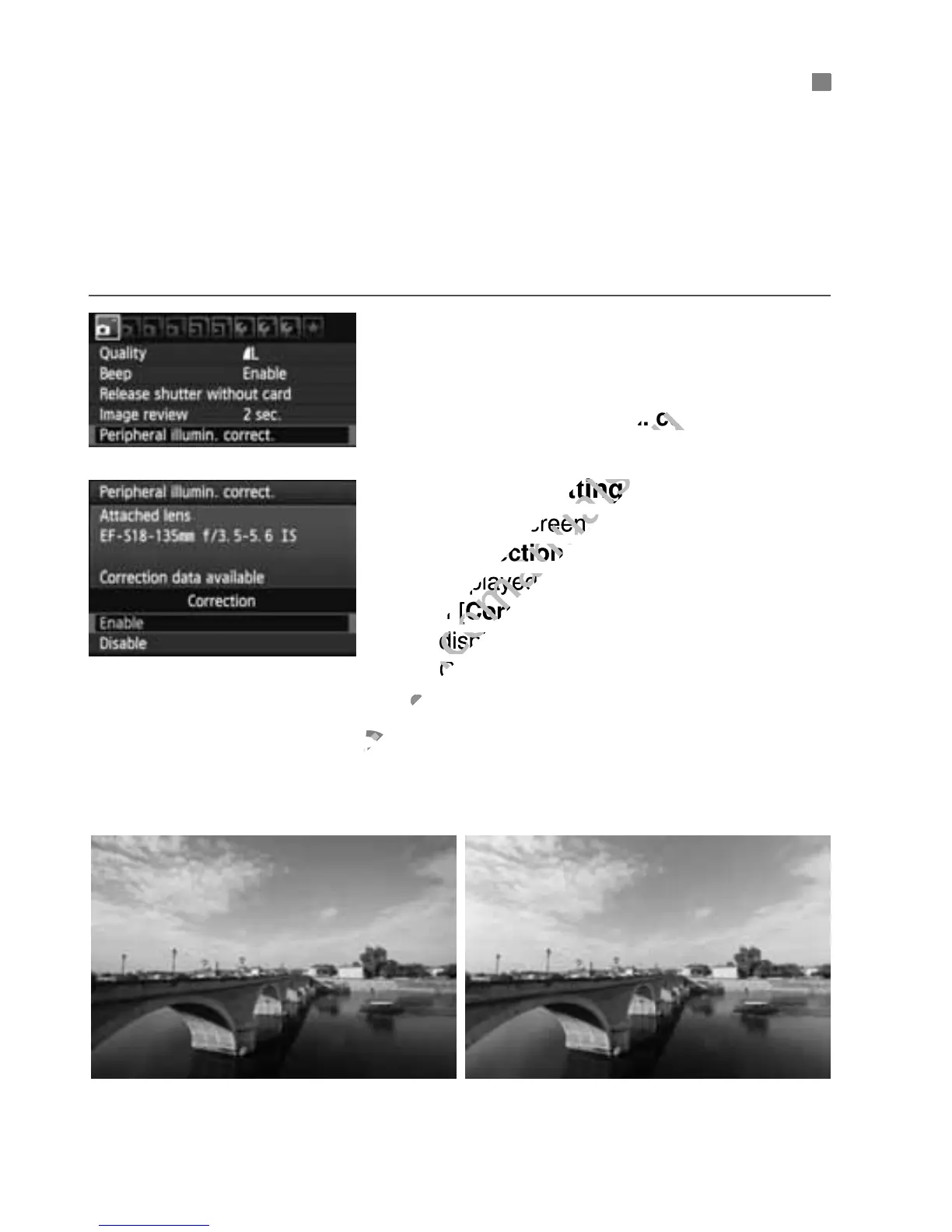
Due to the lens characteristics, the four corners of the picture might look
darker. This phenomenon is called lens light fall-off or drop in peripheral
illumination and can be corrected automatically. The default setting is
[Enable]. With JPEG images, the correction is done when the image is
captured. For RAW images, it can be corrected with Digital Photo
Professional (provided software, p.302).
1
Select [Peripheral illumin.
correct.].
Under the [1] tab, select
[Peripheral illumin. correct.], then
press <0>.
2
Select the setting.
On the screen, check that
[Correction data available] is
displayed for the attached lens.
If [Correction data not available] is
displayed, see “About the Lens
Correction Data” on the next page.
Select [Enable], then press <0>.
3
Take the picture.
The image will be recorded with the
corrected peripheral illumination.
3 Correcting the Image’s Dark Corners
Correction enabledCorrection disabled

www.devicemanuals.eu
Peripheral illumin. correct.
www.devicemanuals.eu
Peripheral illumin. correct.
Select the setting.
www.devicemanuals.eu
Select the setting.
On the screen, check that
www.devicemanuals.eu
On the screen, check that
Correction data available
www.devicemanuals.eu
Correction data available
displayed for the attached lens.
www.devicemanuals.eu
displayed for the attached lens.
If [
www.devicemanuals.eu
If [
Correction data not available
www.devicemanuals.eu
Correction data not available
displayed, see About the Lens
www.devicemanuals.eu
displayed, see About the Lens
Correction Data” on the next page.
www.devicemanuals.eu
Correction Data” on the next page.
www.devicemanuals.eu
3
www.devicemanuals.eu
3

Table of Contents

Other manuals for Canon EOS 600D

Related product manuals