81
By selecting a Picture Style, you can obtain image characteristics
matching your photographic expression or the subject.
In Basic Zone modes, you cannot select the Picture Style.
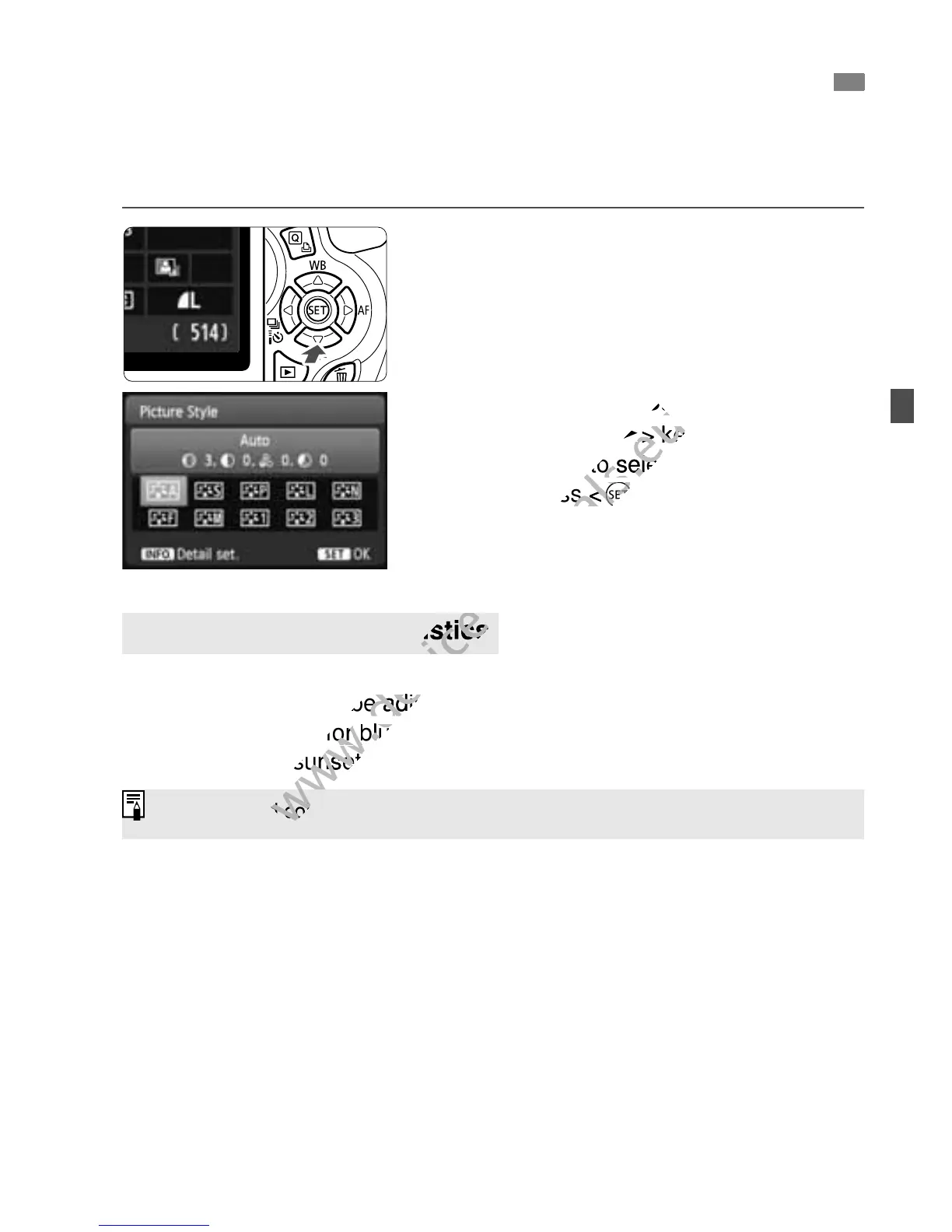
1
Press the <XA> button.
X [Picture Style] will appear.
2
Select a Picture Style.
Press the <U> key or turn the
<6> dial to select a Picture Style,
then press <0>.
D Auto
The color tone will be adjusted to suit the scene. The colors will look
vivid, especially for blue skies, greenery, and sunsets in nature,
outdoor, and sunset scenes.
P Standard
The image looks vivid, sharp, and crisp. This is a general-purpose
Picture Style suitable for most scenes.
Q Portrait
For nice skin tones. The image looks softer. Good for close-up
portraits.
By changing the [Color tone] (p.113), you can adjust the skin tone.
A
Selecting the Subject’s Optimal Image Characteristics
N
Picture Style Characteristics
If the desired color tone is not obtained, use another Picture Style.
> dial to select a Picture Style,
www.devicemanuals.eu
> dial to select a Picture Style,
blue skies, greenery, and sunsets in nature,
www.devicemanuals.eu
blue skies, greenery, and sunsets in nature,
outdoor, and sunset scenes.
www.devicemanuals.eu
outdoor, and sunset scenes.
If the desired color tone is not obtained, use another Picture Style.
www.devicemanuals.eu
If the desired color tone is not obtained, use another Picture Style.



 To Next Page