214
You can edit out the first and last scenes of a movie in 1-sec. increments.
1
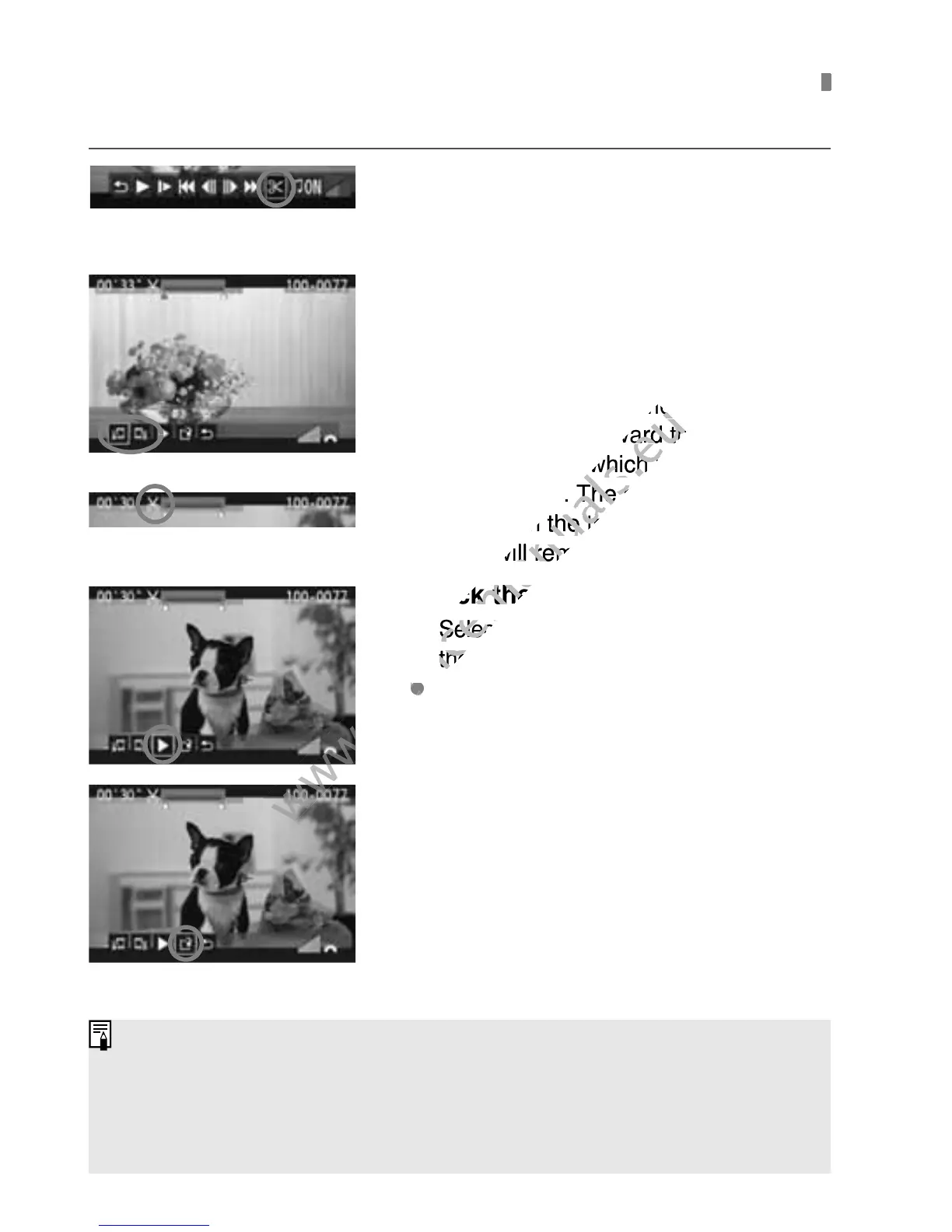
On the movie playback screen,
select [X].
X The editing screen will be displayed.
2
Specify the part to be edited out.
Select either [U] (Cut beginning) or
[V] (Cut end), then press <0>.
Press the <U> key to see the
previous or next frames. Holding it
down will fast forward the frames.
After deciding which part to edit out,
press <0>. The portion highlighted
in blue on the top of the screen is
what will remain.
3
Check the edited movie.
Select [
7
] and press <
0
> to playback
the portion highlighted in blue.
To change the editing, go back to step 2.
To cancel the editing, select [2] and
press <0>.
4
Save the movie.
Select [W], then press <0>.
X The save screen will appear.
To save it as a new movie, select
[New file]. To save it and overwrite
the original movie file, select
[Overwrite]. Then press <0>.
X Editing a Movie’s First and Last Scenes
Since the editing is done in 1-sec. increments (position indicated by [
X
]), the exact
position where the movie is edited may differ slightly from the position you specified.
If the card does not have enough room, [New file] will not be selectable.
More movie editing functions are available with ZoomBrowser EX/
ImageBrowser (provided software, p.302).



 To Next Page