34
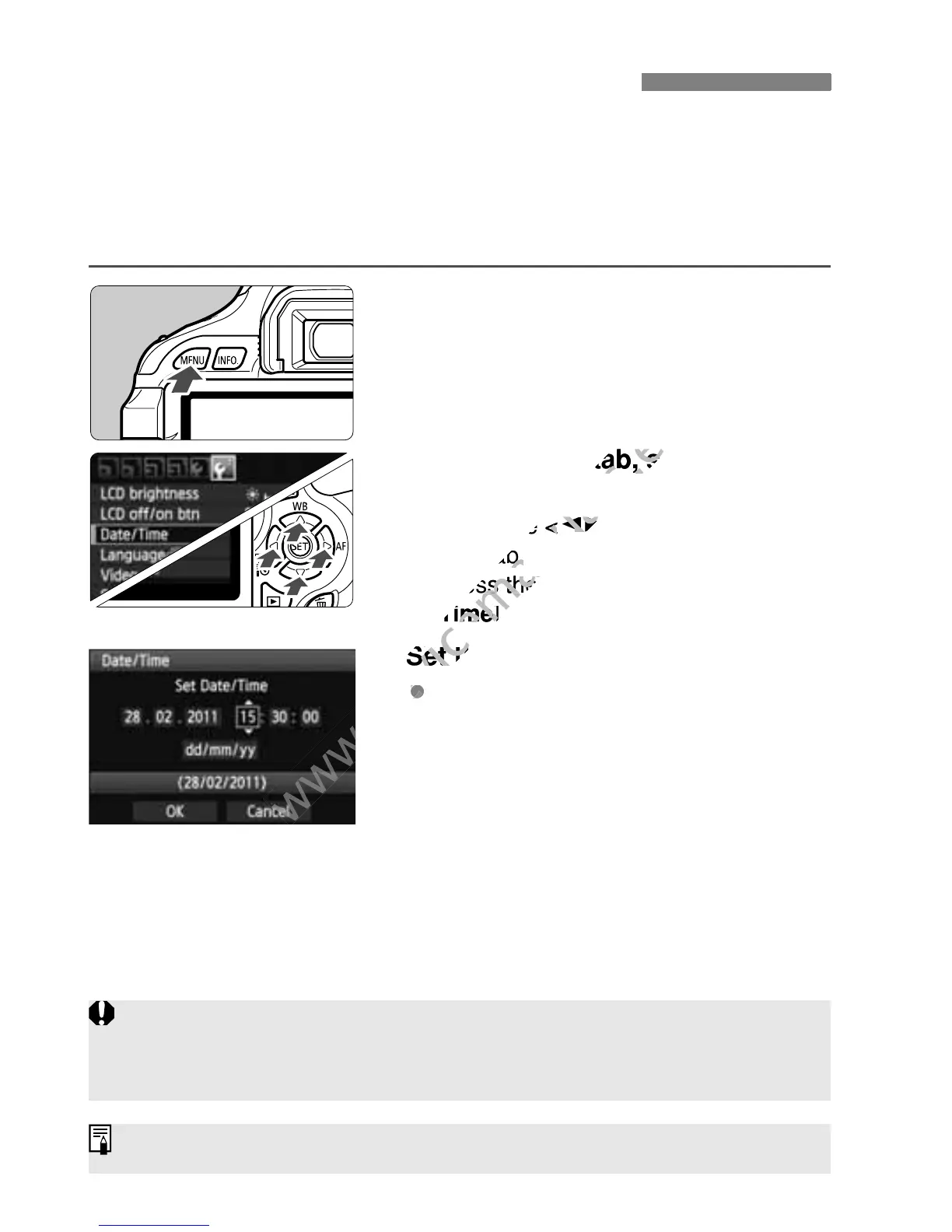
When you turn on the power for the first time or if the date/time has
been reset, the Date/Time setting screen will appear. Follow steps 3
and 4 to set the date/time. Note that the date/time appended to
recorded images will be based on this date/time setting. Be sure to
set the correct date/time.
1
Display the menu screen.
Press the <M> button to display
the menu screen.
2
Under the [6] tab, select [Date/
Time].
Press the <U> key to select the
[6] tab.
Press the <V> key to select [Date/
Time], then press <0>.
3
Set the date and time.
Press the <U> key to select the
date or time number.
Press <0> so <a> is displayed.
Press the <V> key to set the
number, then press <0>. (Returns
to b.)
4
Exit the setting.
Press the <U> key to select [OK],
then press <0>.
X The date/time will be set.
3 Setting the Date and Time
If you store the camera without the battery or if the camera’s battery
becomes exhausted, the date/time might be reset. If this happens, set the
date/time again.
The date/time set will start from when you press <0> in step 4.



 To Next Page