225
L Erasing Images
2
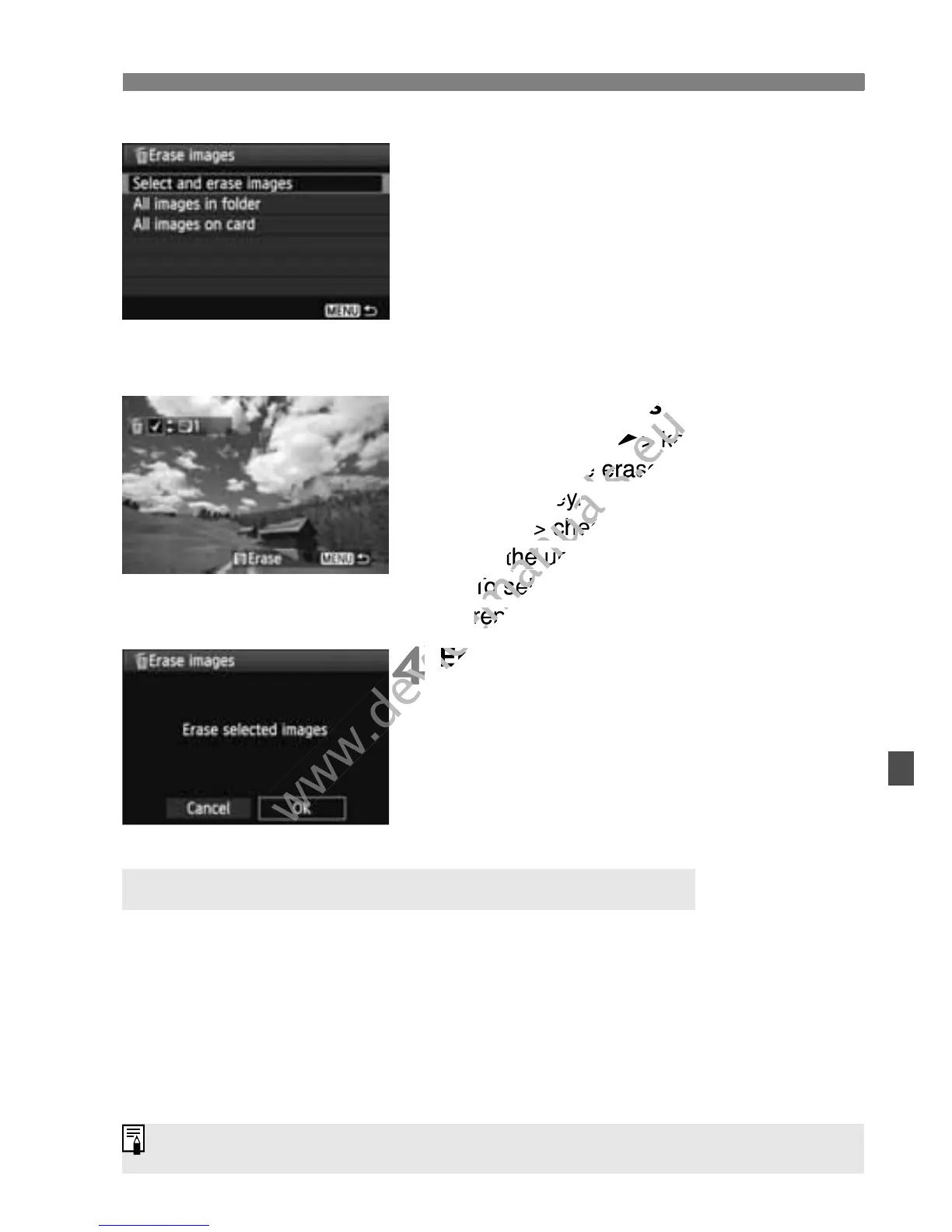
Select [Select and erase images].
Select [Select and erase images],
then press <0>.
X The images will be displayed.
To display the three-image display,
press the <I> button. To return to
the single-image display, press the
<u> button.
3
Select the images to be erased.
Press the <U> key to select the
image to be erased, then press the
<V> key.
X A <X> checkmark will be displayed
on the upper left.
To select other images to be erased,
repeat step 3.
4
Erase the images.
Press the <L> button.
Select [OK], then press <0>.
X The selected images will be erased.
You can erase all the images in a folder or card at one time. When [3
Erase images] is set to [All images in folder] or [All images on card],
all the images in the folder or card will be erased.
3 Erasing All Images in a Folder or Card
To also erase protected images, format the card (p.45).
image to be erased, then press the
www.devicemanuals.eu
image to be erased, then press the
To select other images to be erased,
www.devicemanuals.eu
To select other images to be erased,



 To Next Page